Appearance
Report
How to Use the Report Feature
The Report feature is designed to help users conveniently and quickly view campaign data to achieve optimal optimization results. It supports essential functions such as data exporting, report sharing, and adding custom bookmarks as needed.
Default Reports
Campaign Daily/Hourly Report
(Note: The displayed name may vary across different accounts )
- Click on the Report tab.
- Select “Campaign Daily/Hourly Report”.
- Add Filters or Measures as needed.
- Click “Search” after adding or deleting filters/measures to load the complete report.
Exporting and Sharing Reports:
- To export a report: Your data can be exported in either .csv or .xlsx formats.
- To share a report: Reports can be easily shared via a URL.
- Relative Time URL: The link smartly adjusts the date range based on when the recipient opens it. For example, a “Yesterday” link shows data for the day before it is clicked, and a “3 days ago” link shows data from three days prior to the access date.
- Fixed Time URL: The link will strictly display data for the specific time period that was selected before the link was generated.
Customized Reports
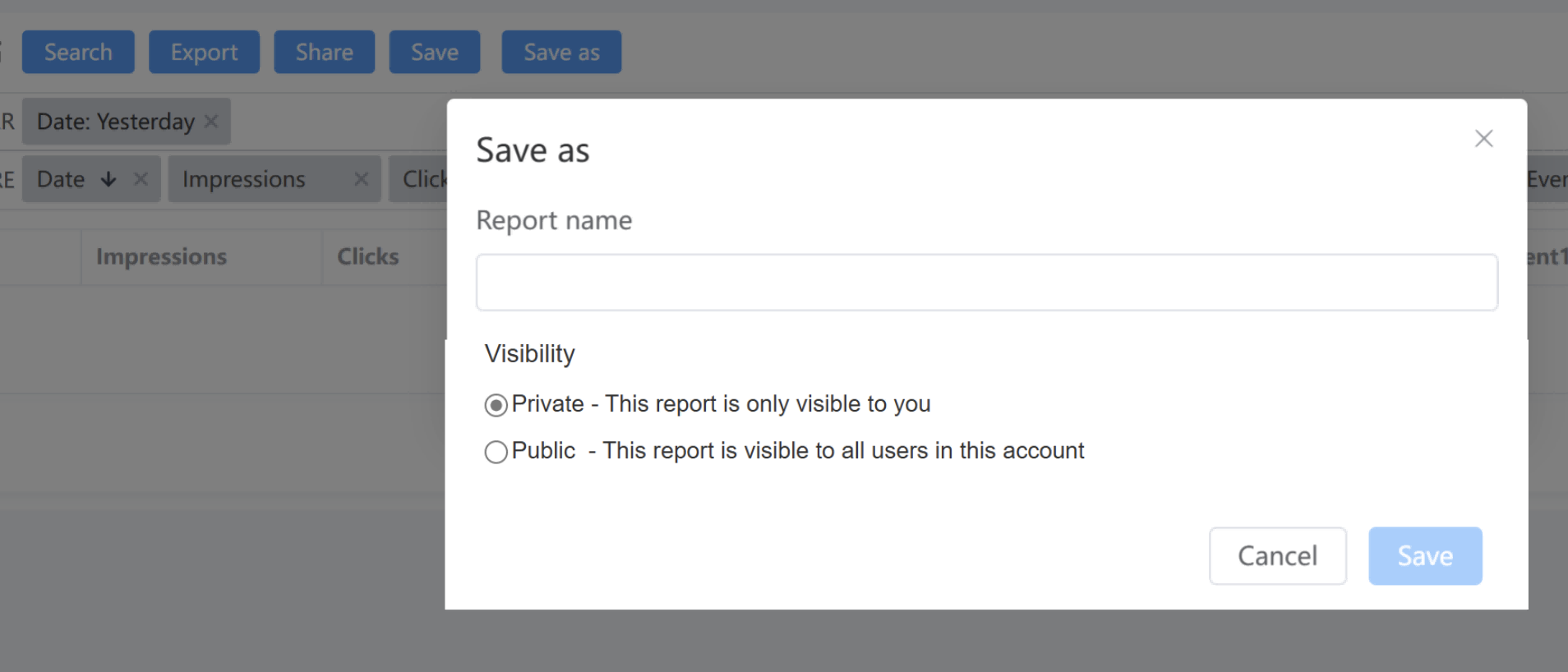
- Click “Save As” to bookmark a report that you have customized by adding or deleting specific filters and measures.
- You can assign a custom name to your new report/bookmark to easily distinguish it from the default reports.
- Additionally, you can configure the visibility settings for your customized reports and bookmarks.