Appearance
Conversion Management Feature
How to Use the Conversion Management Feature
How to Set Up Conversion Management
The Conversion Management feature simplifies the process of managing conversions and integrating your Pixel. It helps prevent errors, such as incorrect input of click URLs or tracking links.
To start, click "Create Conversion". You will then choose one of the following methods:
App Events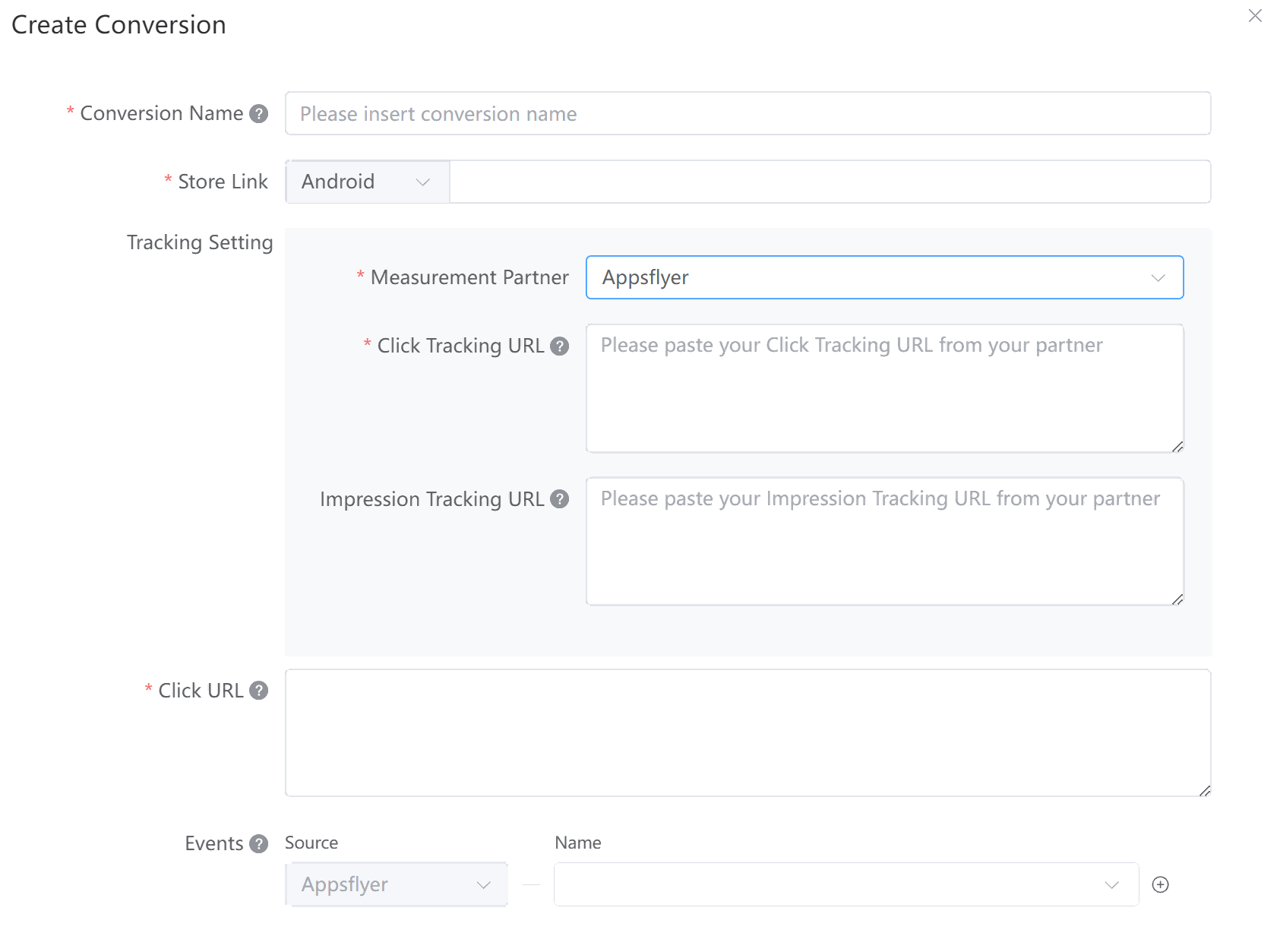
- Choose “App Events”.
- Name your conversion: Set a name according to your requirements, as it can vary for different line items and countries.
- Insert the GP/App Store link: This link will automatically populate when adding line items.
- Add MMP and Click/Impression Tracking URLs: Insert the MMP (Mobile Measurement Partner) and the Click/Impression Tracking URL. The tracking URL will automatically populate when adding creatives.
- Insert the Click URL: The Click URL will automatically be shown when adding creatives.
- Define Funnel Events: After setting the MMP, add and name the Funnel Events (e.g., install, app_open, register). These events mark significant milestones in the user's journey.
SO Pixel+Marketing API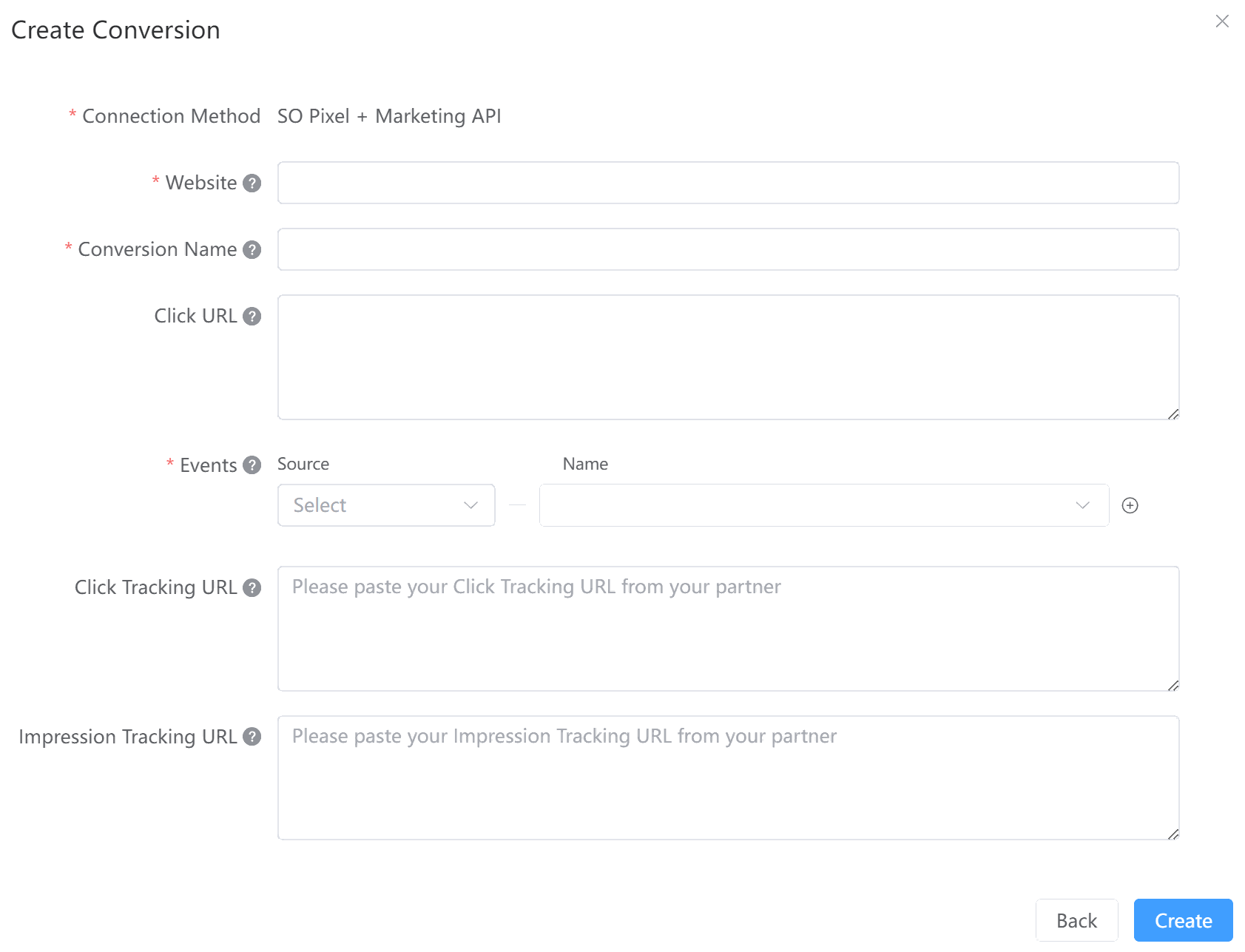
- Choose “SO Pixel+Marketing API”.
- Add website.
- Name your conversion: Set a name according to your requirements, as it can vary for different line items and countries.
- Paste the Click URL: This URL will automatically populate when adding creatives.
- Add Events: Add a source and name the events as needed (e.g., pageview, registration, deposit).
- Paste the click/imp tracking URL (if needed).
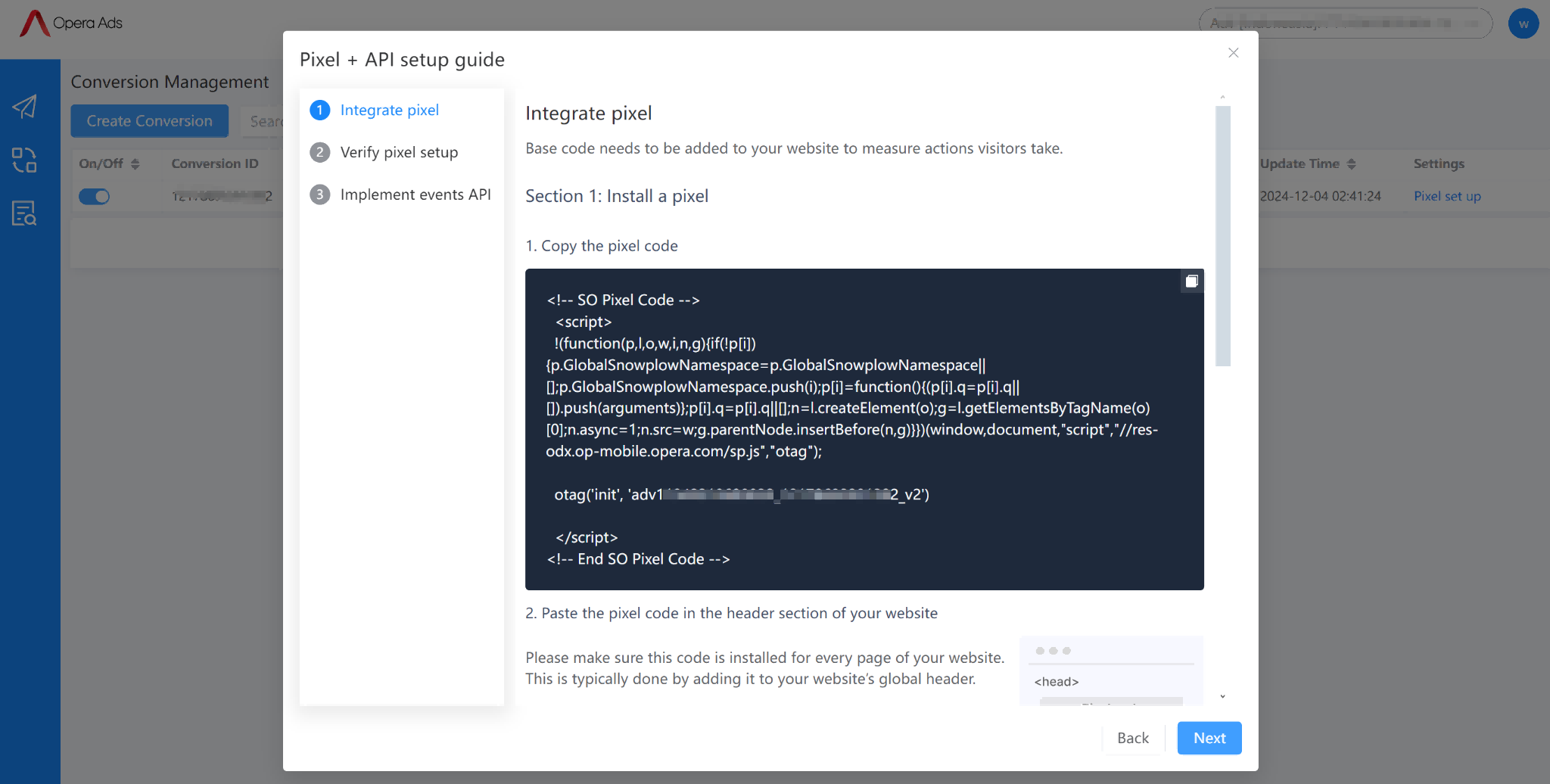
- Pixel Setup: If the data source is "SO Pixel," click "Pixel setup" to integrate the Pixel according to the suggested steps.