
Appearance
Delivery
The Opera Ads Self platform is structured into 8 main features: Delivery, Conversion Management, Creative Library, AI Creative Craft, Reports, Inventory, Wallet, and Account Users.
How to Use the Delivery Feature
The Delivery feature organizes your advertising campaigns into three main hierarchical components: Orders, Line Items, and Creatives. Understanding this structure is essential for effectively setting up target audiences, allocating budgets, and designing your ad content to maximize reach and performance.
About Trend
This section displays daily and hourly performance data at the Advertiser, Order, and Line Item levels for easy monitoring.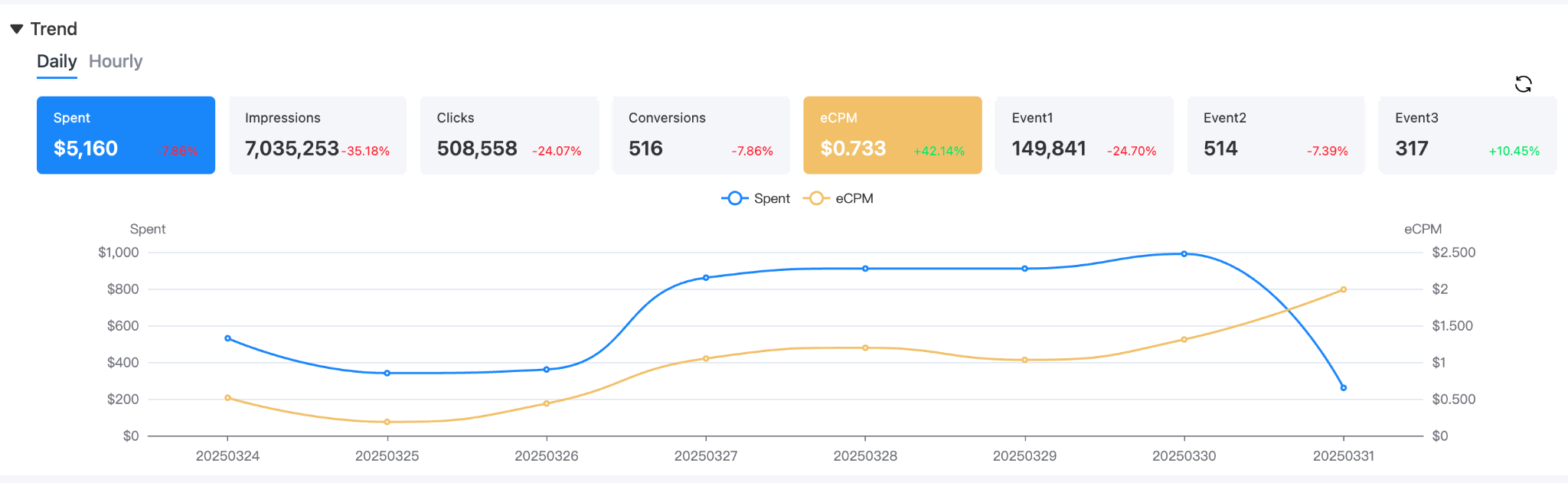
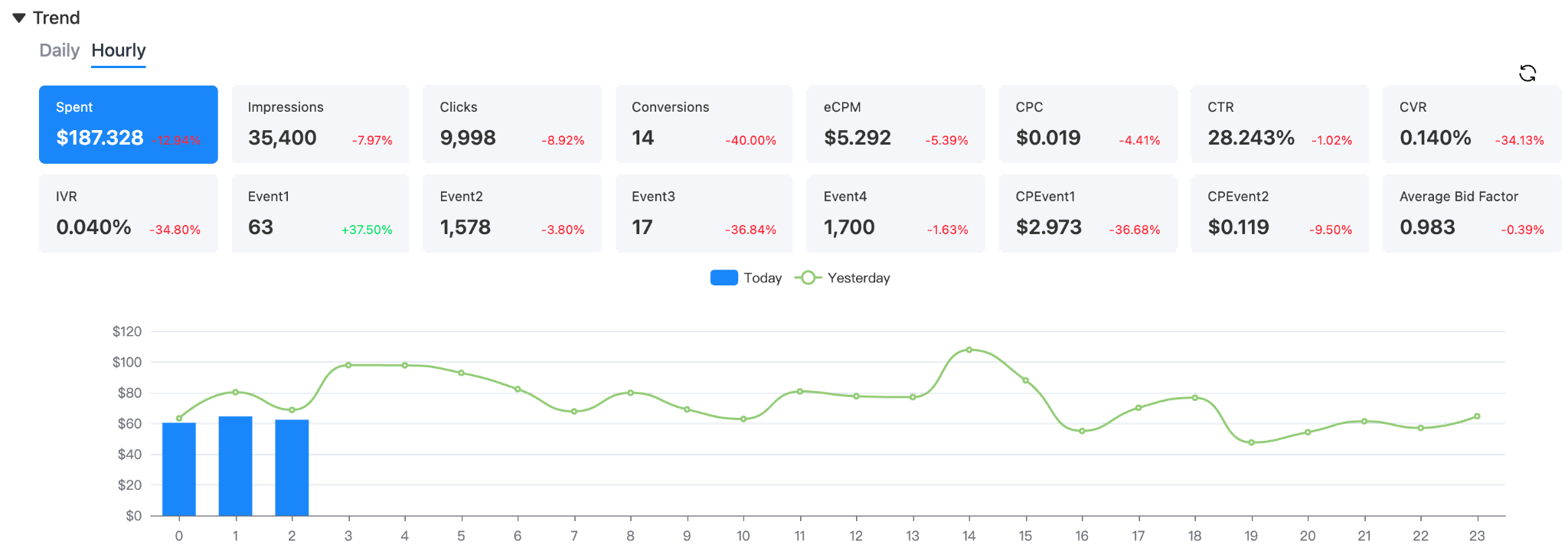
Note: In the Hourly Report, the bar chart shows today's data, and the line chart displays yesterday's data, allowing for a clear hourly comparison between the two days.
About the Order level
This is the first step in running your ads. An Order acts as a container for multiple Line Items.
For more details, refer to How to create an order in Opera Ads.

About the Line item level
This is where you define your ad objectives, optimization goals, budget, schedule, and targeting settings. Each Line Item can contain one or more Creatives.
For more details, refer to How to create a line item in Opera Ads.
About the Creative level
This is the actual content (ad copy and visuals) presented to your target audience.
For more details, refer to How to create a creative in Opera Ads.
How to Create an Order
- Navigate to the Delivery tab and select Orders.
- Click “Create Order”.
- Set the Order Name, Daily Budget, and Total Budget.
- Note: You can edit the name and budgets at any time after creation.
- Proceed to create a Line Item.
How to Create a Line Item
- Click the order you just created.
- Click “Create Line Item”.
- Set Basic Information:
- Set the Line Item Name. (This name appears in reports and notifications.)
- Set IAB Category and Partner CID (for RTA client campaign mapping).
- Set Advertising Objective:
- Traffic: For impressions or clicks to your website/app.
- App Install: To drive more app installs.
- Conversion: To drive valuable actions on your website.
- Conversion & Bidding Optimization:
- Conversion Name/Event: Choose the conversion set up in "Conversion Management" (required for App Install and Conversion objectives).
- Optimization Goal: Set the goal (e.g., Install/Click/In-app Event for App Installs; Click/Conversion for Conversion).
- Charge Mode (Only three are supported):
- CPM: Cost per thousand impressions.
- CPC: Cost per click.
- oCPM: Cost per thousand impressions, optimized by conversion goal.
Note: Relationship between Advertising Objective, Conversion Name, Optimization Goal, Conversion Event, and Charge Mode: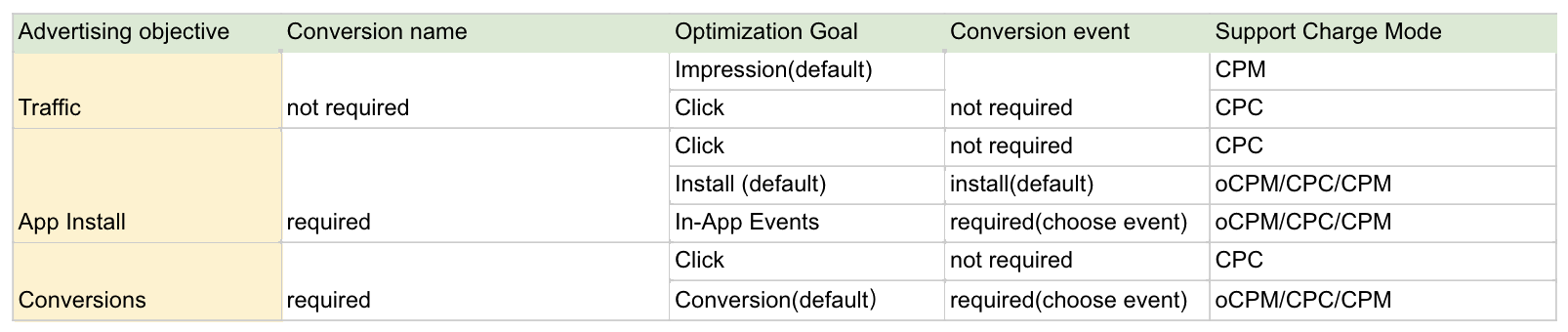
- Bid Price:
- Traffic: Set the bid price as needed.
- App Install or Conversion: Set Base CPM Price (algorithm reference price) and Target CPA Price (average desired cost per conversion).
- Delivery Type:
- Standard: Evenly distributes the daily budget.
- Accelerated: Spends the budget as quickly as possible.
- Budget & Schedule: Your line item budget is the daily or total amount you want to spend on this line item. A daily budget is the average you'll spend every day. A total budget is the maximum you'll spend during the lifetime of your line item. Setting these is a good way to control the risk and loss.
- Daily Budget: This option allows you to manage your spending by setting a maximum amount to be spent per day, preventing overspending. The option to select "no limit" is also available.
- Total Budget: If you choose a total budget, the system will never spend more than that amount in the whole delivery. You can also set it as “no limit”.
- Daily & Total Impression: This is another way to control the pacing of your campaign. If you set a daily/ total impression cap, the campaign will never run out of impressions you set. You can also set it as “no limit”.
- Schedule: Set the delivery time for your campaign. You can select “Run Continuously”, then your ads will run without interruption after the scheduled start.
- User Cap Information
- User Daily/Total Impression: This cap is used for every user. Set how many times one user’s going to watch the ads in one day/during the whole delivery period.
- User Daily/Total Click: Same as the user impression cap. Set how many times one user’s going to click the ads in one day/during the whole delivery period.
- Targeting
Mandatory: Include Locations (select countries and cities).
Note: Location targeting is not available everywhere.
Optional:
- Exclude Locations: Requires at least one included region; excluded regions take priority where conflicts exist.
- Environment: App/Web/No Limit.
- OS Type: Android, iOS, etc.
- Device Type: Phone, Tablet, Desktop, etc.
- Device Network: Wi-Fi, 2g, 3g, etc.
- Language
- Age
- Device Brand: LG, Sony, TCL, etc.
- Device Price
- Mobile Operators
- IFA/IDFA: Only accept traffic with device IDs
- Customized: Targeting can also be customized. If you need to add any other dimensions, please contact the ADX team
- Proceed to create a Creative.
How to Create a Creative
To create a creative right away:
- Click “Create Creative”.

- Name your creative and set the Creative Language.
Note: Select “English” if there is no linguistic content. - Creative Setup
- Schedule: No Limit (default) or set a specific Start Time and End Time.
- Creative Format: Choose Banner, Native, or Video.
- Supported Size & Needed Information:
- Banner: 160x600, 250x250, 250x300, 300x50, 300x100, 300x250, 300x600, 320x50, 320x480, 360x800, 380x100, 480x320, 600x300, 700x280, 720x1280, 728x90, 728x280, 970x250, 1200x280, 1280x720; 5.00 MB at most.
- Native:
1280x720, 720x1280, 627x627, 1200x627; 5.00 MB at most.
Title: within 60 characters
Description: within 90 characters
CTA Button Text: within 20 characters
Sponsored Text: within 40 characters
Icon: 160x160
- Video:
1280 x 720, 720 x 1280, 1080 x 1080; 30.00 MB at most.
Title: within 60 characters
Companion Ads: single image/GIF; size: same as the video
Note: The creative will be automatically matched to the appropriate size by the system based on its proportions while uploading.
- Destination:
- Click URL: Paste the Click URL here to redirect the ad.
- Deep Link URL: The system prioritizes this. It falls back to the Click URL if the deep link fails.
- Tracking:
- Paste the Impression & Click Tracking link here to track the campaign data.
Note: Click URL, impression tracking link, and click tracking link are automatically populated if previously added in Conversion Management.
- Paste the Impression & Click Tracking link here to track the campaign data.
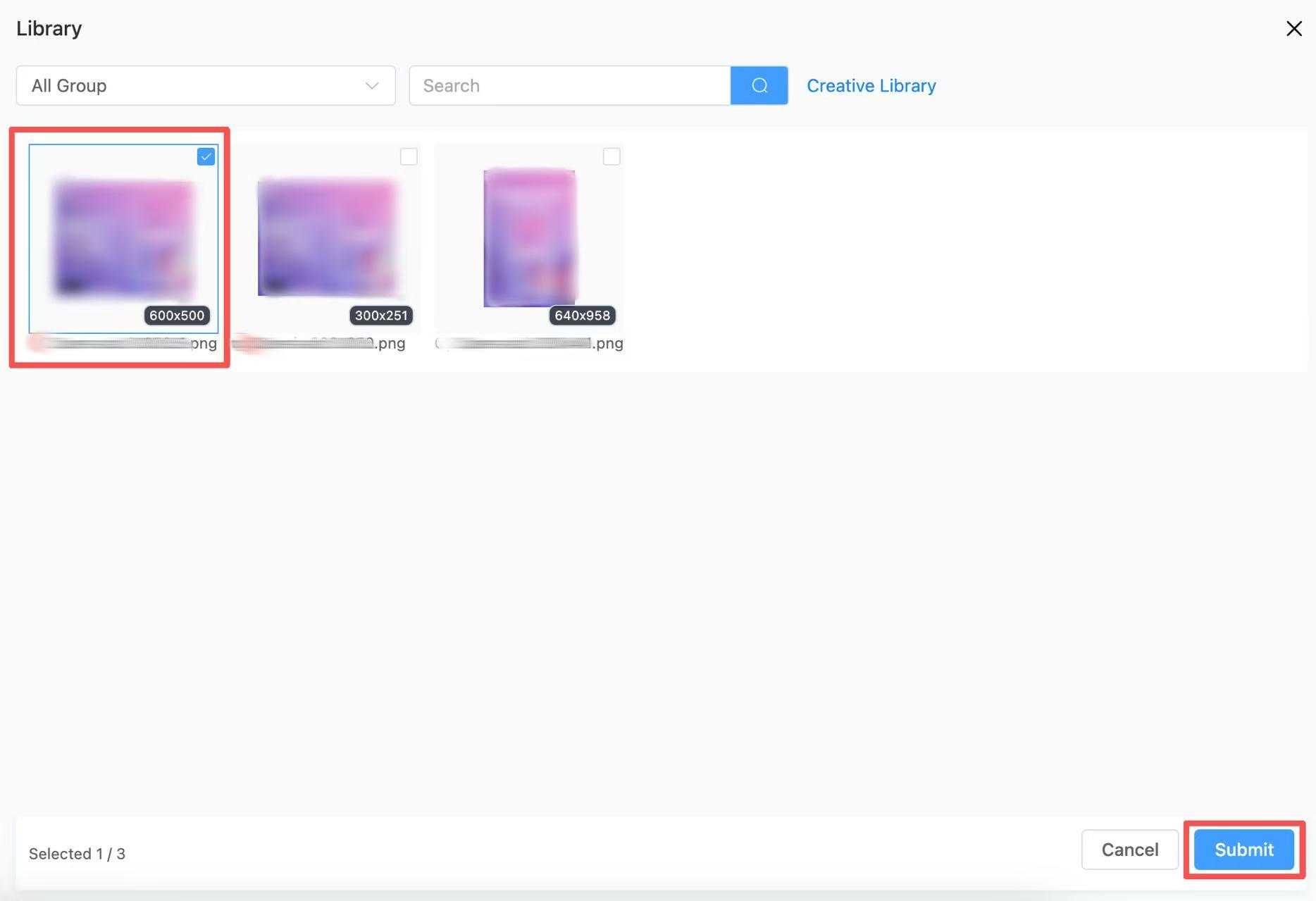
To choose a creative from the Creative Library:
- Click “Create Creative”.
- Set the name and language.
- Choose the creative format (Banner/Native/Video).
- Click “Choose From Library”.
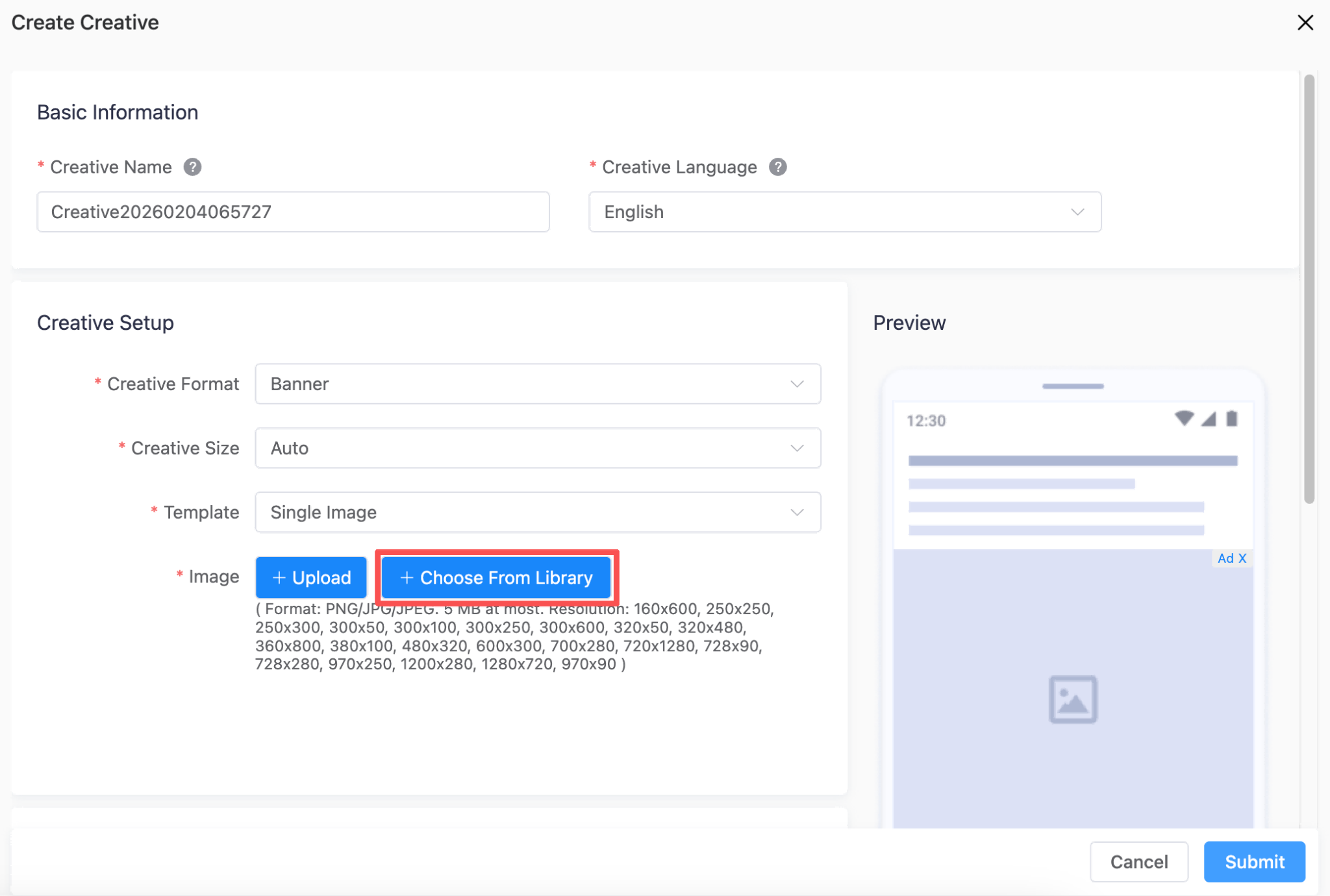
- Select the creative from the group you created, and then click Submit.
How to Edit
You can modify the name and budget for Orders, Line Items, and Creatives after they are created and while running.
Warning: Changing critical settings (like conversion event, bid price, charge mode, or targeting) can impact campaign performance. It is strongly recommended to avoid changing these. Changing certain settings will also trigger a new creative review, but ad delivery will not be affected.
To edit ad settings:
- Locate your order/line item/creative in Opera Ads Self.
- Click “Edit”.
- Modify settings as needed.
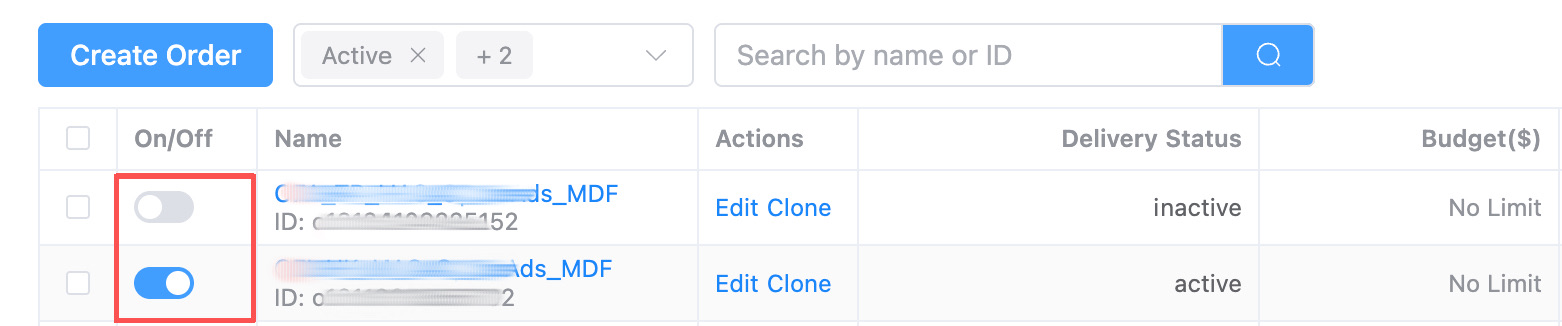
To turn ads on or off:
- Locate your order/line item/creative in Opera Ads Self.
- Click the On/Off button next to the order/line item/creative.
To delete ads:
- Go to the order/line item/creative page.
- Select the item and click the “Delete” button on the top bar.
To check the ad performance of deactivated orders, line items, or creatives:
- Go to the Orders, Line Items, or Creatives page.
- Use the filter beside the “Create” button.
- Select “Inactive” or “Deleted” from the drop-down menu.
To edit several line items or creatives at once: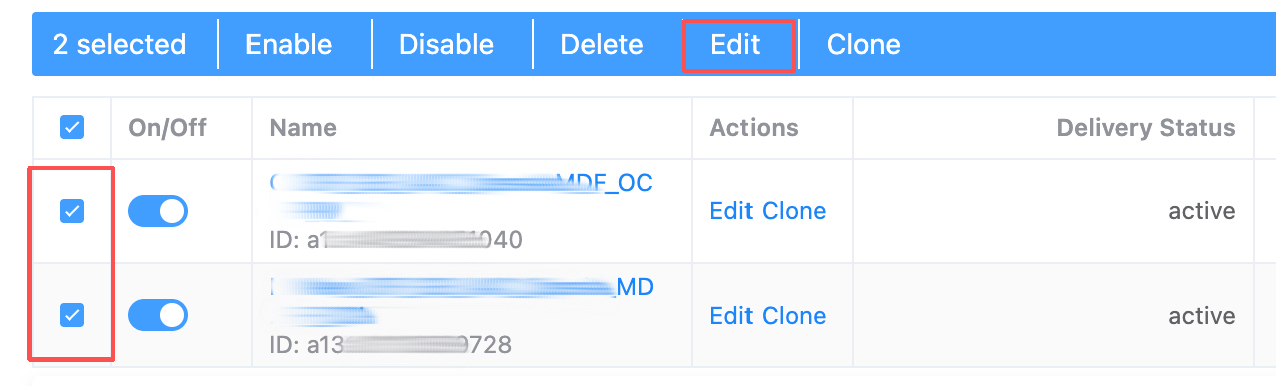
- Tick the line items/creatives you want to edit on the left side.
- Click “Edit” on the top bar.
- Make all necessary changes and click “Submit”.
How to Clone
The cloning feature for Orders, Line Items, and Creatives enables convenient A/B testing and setting up similar ads with different settings.
Recommendation: Set a different name for the cloned item to distinguish it from the original.
To clone orders/line items/creatives:
- Locate your order/line item/creative in Opera Ads Self.
- Click “Clone”.
- Orders: Can be cloned right away.
- Line items:
- Choose the destination Order.
- Select whether to “clone the creatives” (and whether to include inactivated creatives).
- Decide how many copies to clone.
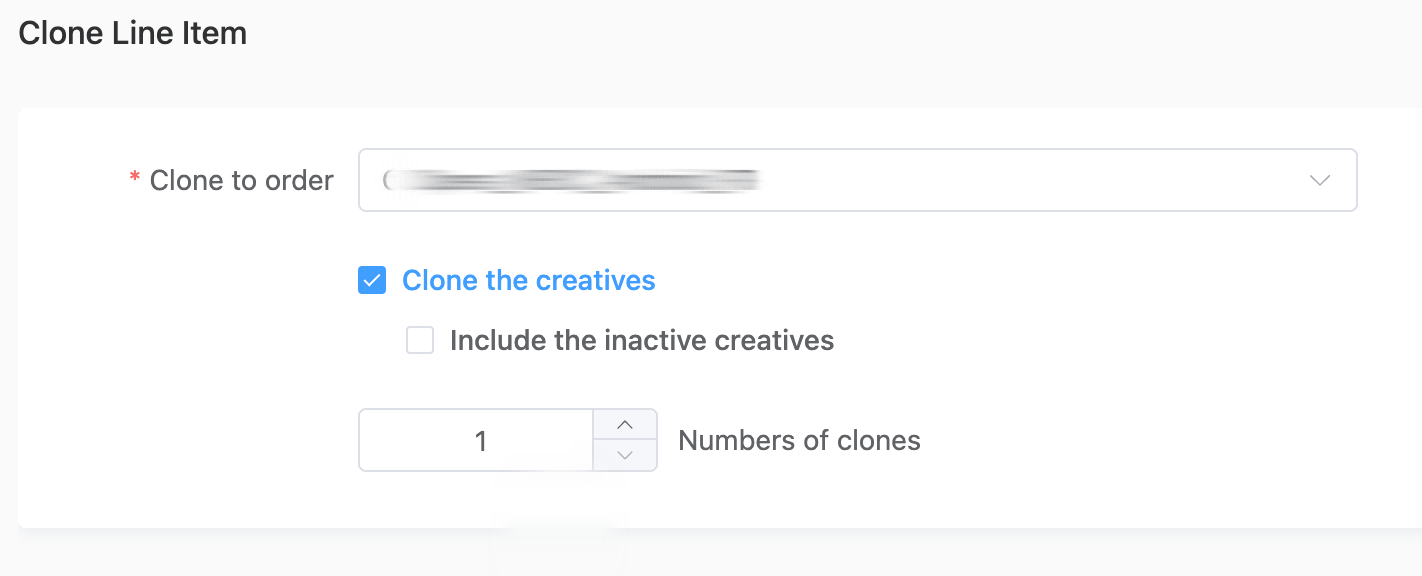
You can also clone multiple line items at the same time. Choose the line items you want to clone, and then click the “clone” button on the top bar.
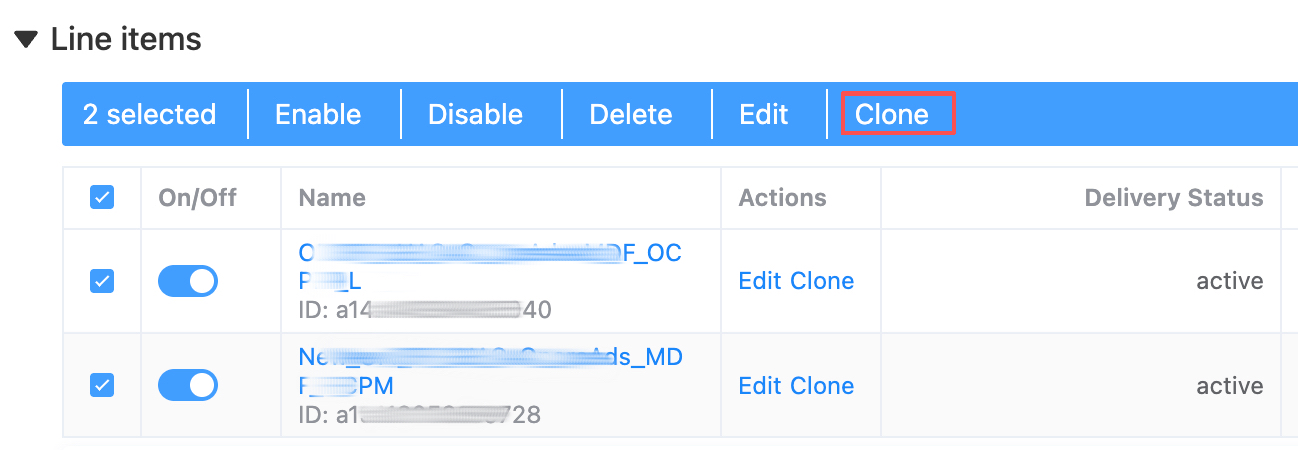
Choose the order you want to clone to. You may select multiple orders here.
- Creatives:
- Can be cloned right away under the same Line Item.
- You can also clone multiple creatives at the same time. Choose the creatives you want to clone, and then click the “clone” button on the top bar.
- Choose the line item you want to clone to. You may select multiple line items here.