
Appearance
Creative Agent
How to Use the Creative Agent Feature
The Creative Agent feature allows you to quickly upload multiple creatives at once—including banner, native, and video formats—greatly improving the efficiency of your creative uploads.

Step-by-Step Instructions:
- Click the “Creative Agent” button.
- Choose your creative language.
- Upload your Ad Assets. (Optional: You can also upload assets directly from the Creative Library). Ensure you meet the requirements for your desired formats:
Banner: image
Native: image, title, description, CTA button text, sponsored text
Video: video, title
Notes: You may upload up to two titles and descriptions.
Not all assets need to be uploaded. You can upload the corresponding assets according to the format requirements. After preview, the system will automatically generate the corresponding format materials.
- Insert your click URL, deep link, and tracking link as needed. Please note that if these are required, you will not be able to submit the creatives successfully without them.
- After uploading your assets, click the "Preview" button. The system will automatically generate corresponding format materials and diverse creatives for your use.
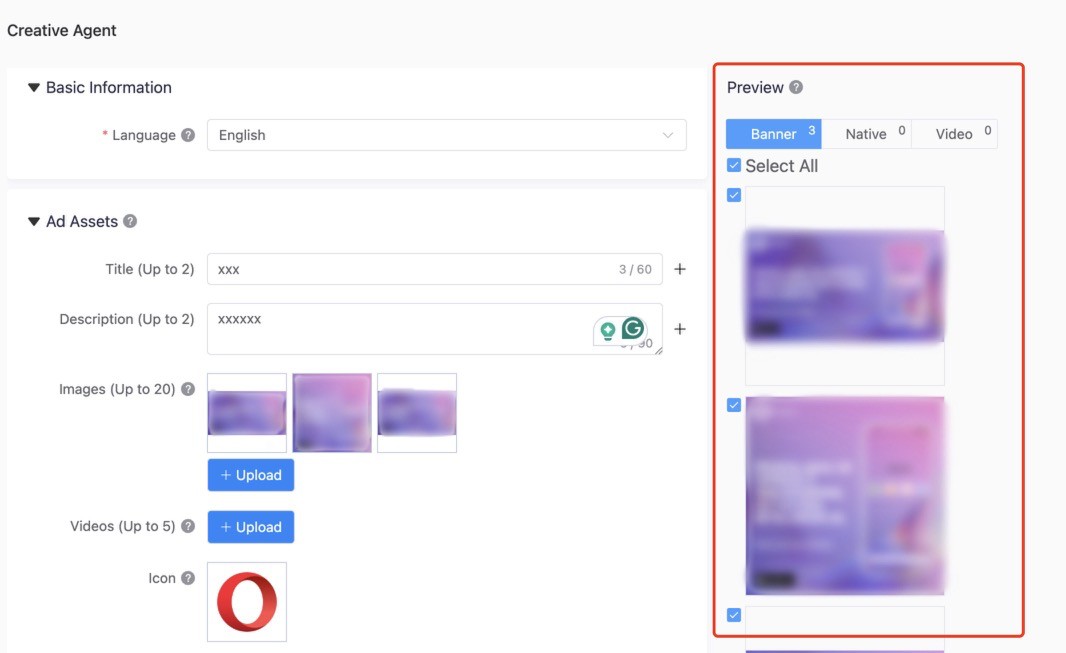
- Review the "Preview" panel. All available creatives are listed here and are selected for delivery by default.
- You can manually select or deselect creatives based on your specific campaign needs.
- The numbers in the top-right corner of the banner, native, and video tabs indicate the total quantity of selected creatives.
Click “Submit”. All the creatives you selected from the preview panel will then be generated and shown at the creative level.
Notes:
* You may upload up to two titles and descriptions.
* The total number of native and video ads generated is determined by how many titles, descriptions, and images/videos you upload.
* You do not need to upload all asset types; simply upload the assets that correspond to your specific format requirements.
* If you want to add more creatives after clicking “Preview” but before you submit, you must click “Preview” again so the new creatives update and appear in the preview panel.