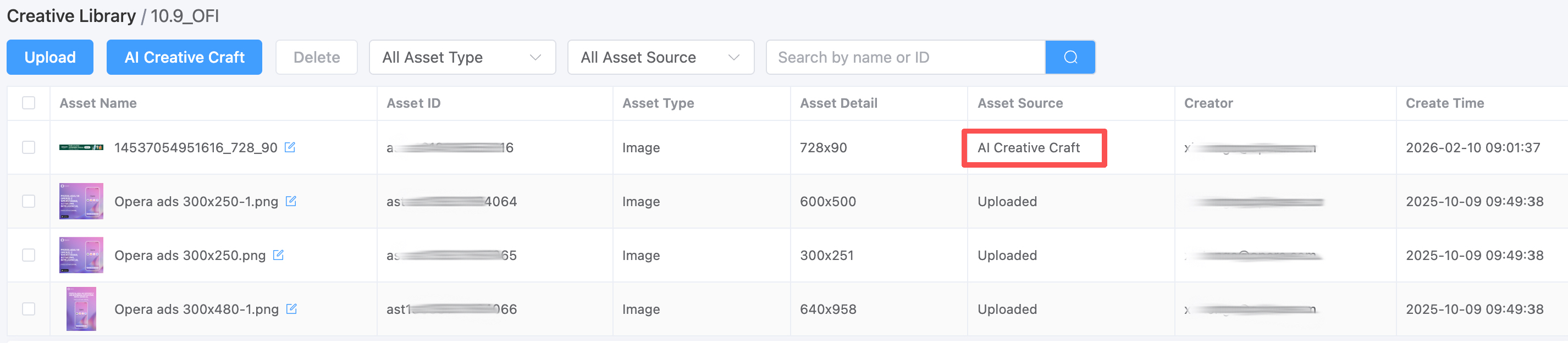
Appearance
AI Creative Craft
How to Use the AI Creative Craft
AI Creative Craft is a powerful feature designed to streamline the process of creating and enhancing your ad creatives with precision and efficiency. It enables you to seamlessly adjust image dimensions, optimize file sizes, and compress video files.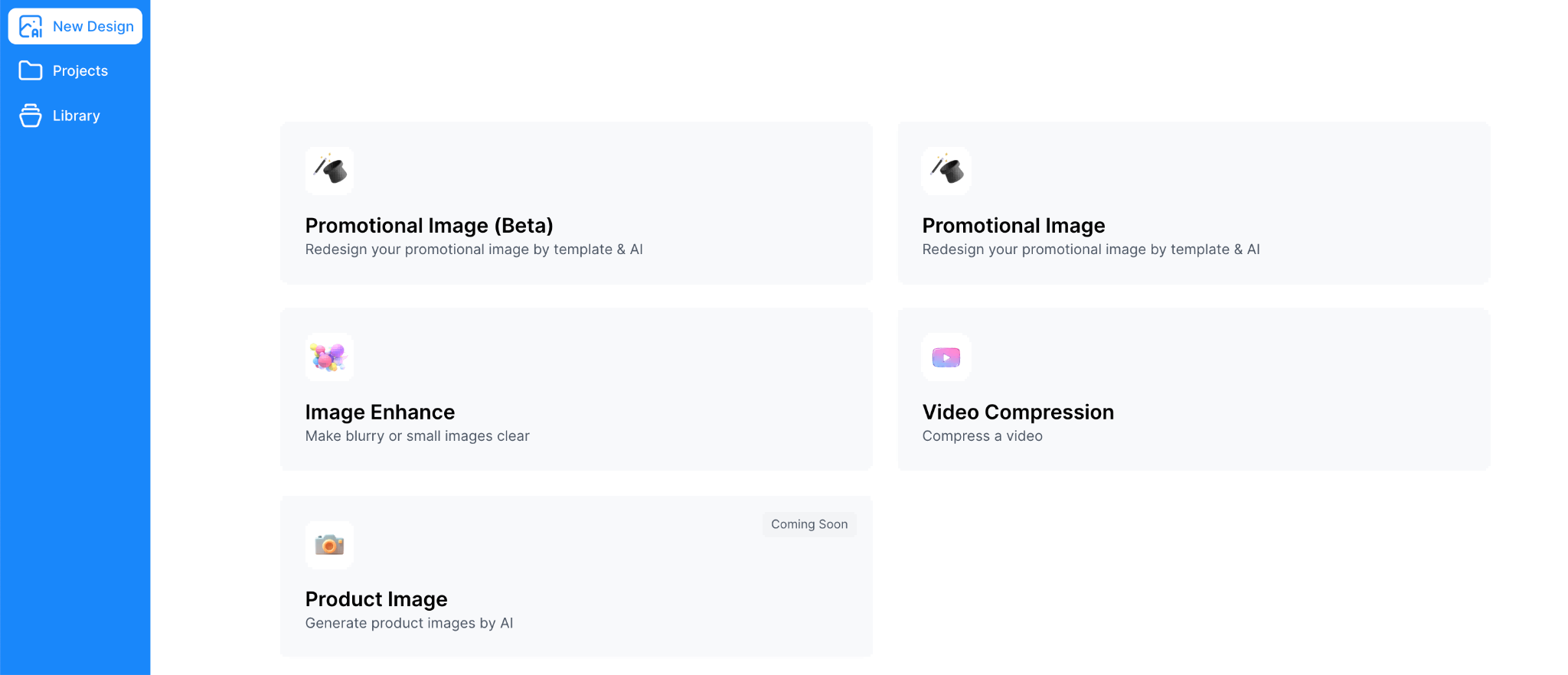
What Can AI Creative Craft Do?
Create Promotional Image
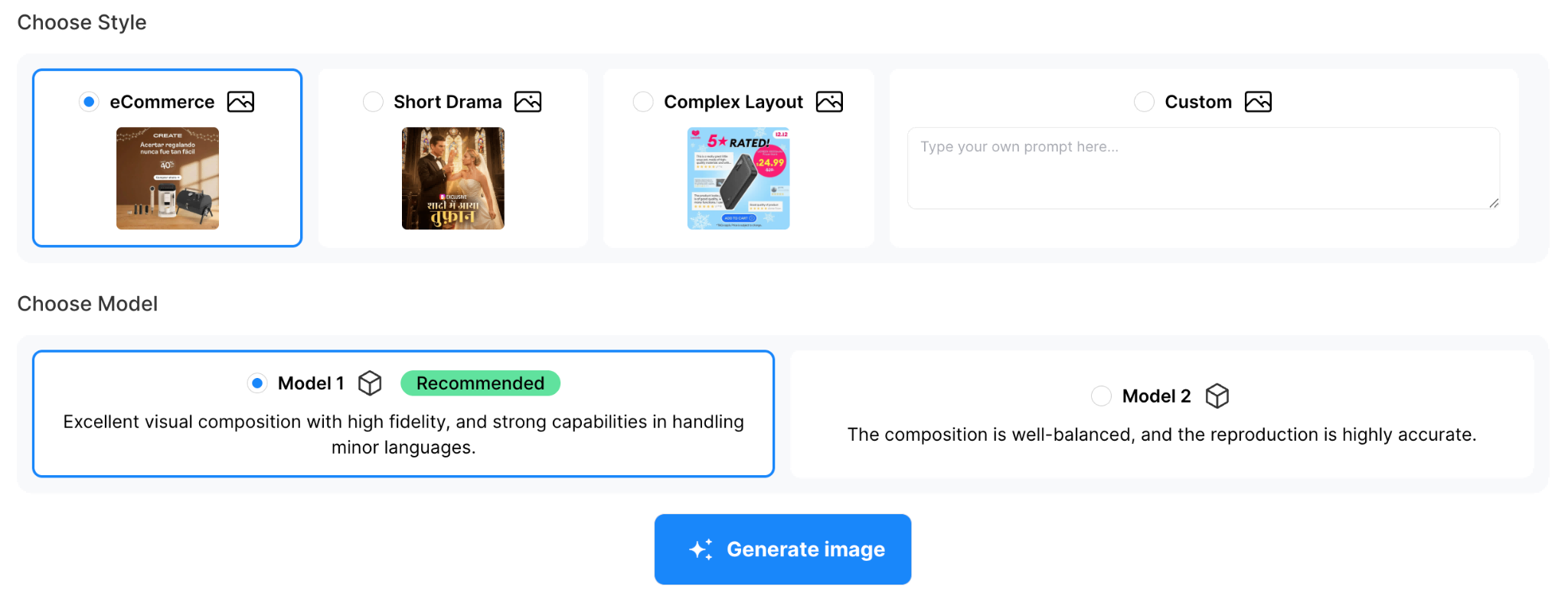
You may choose different styles for your promotional image. We now support eCommerce, Short Drama, and Complex Layout. You can also customize your own style based on your needs.
There are two different AI models for you to use, each with powerful capabilities, enabling you to select the one that best suits your requirements.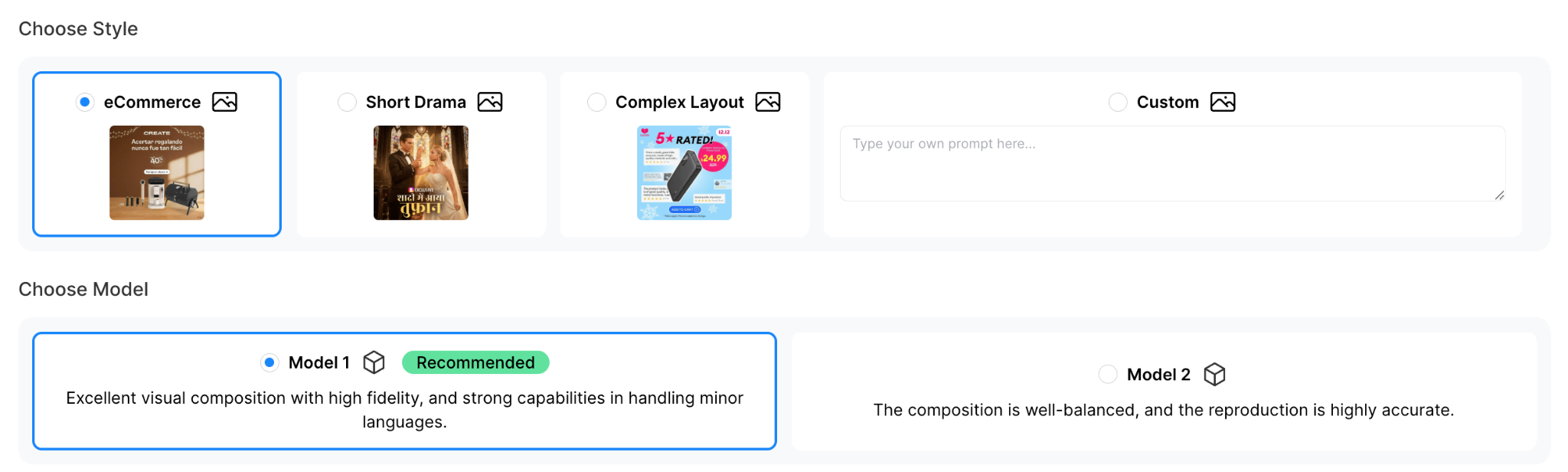
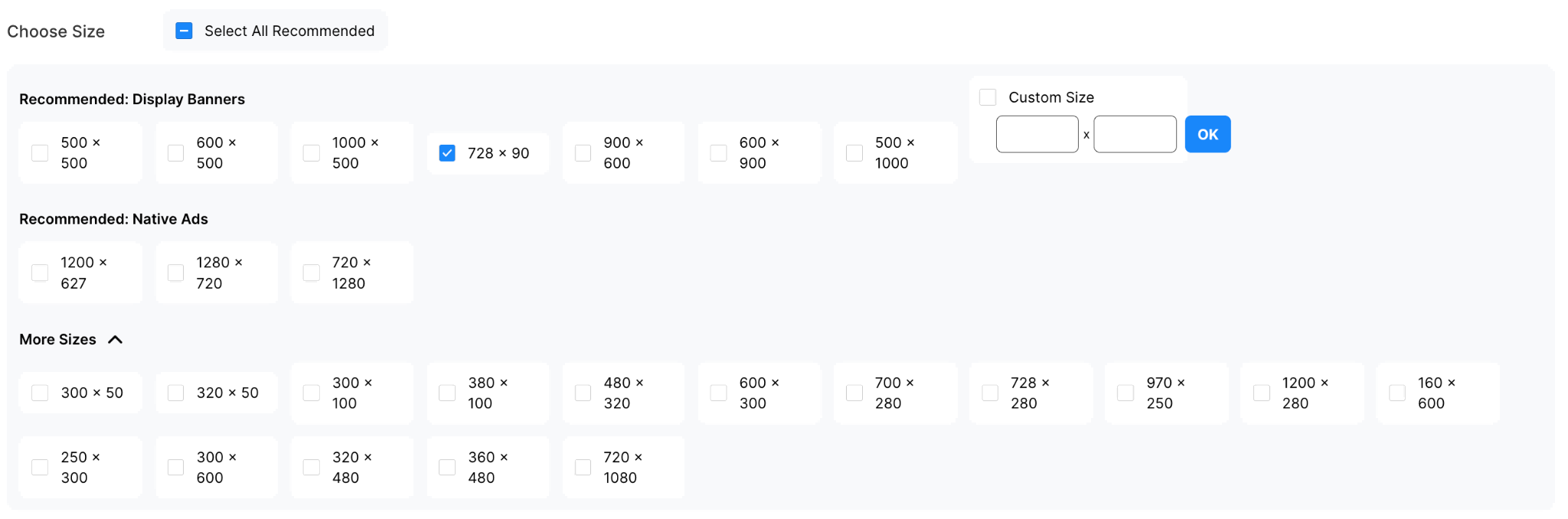
This feature supports generating various standard Banner and Native ad sizes, as well as allowing for customized dimensions.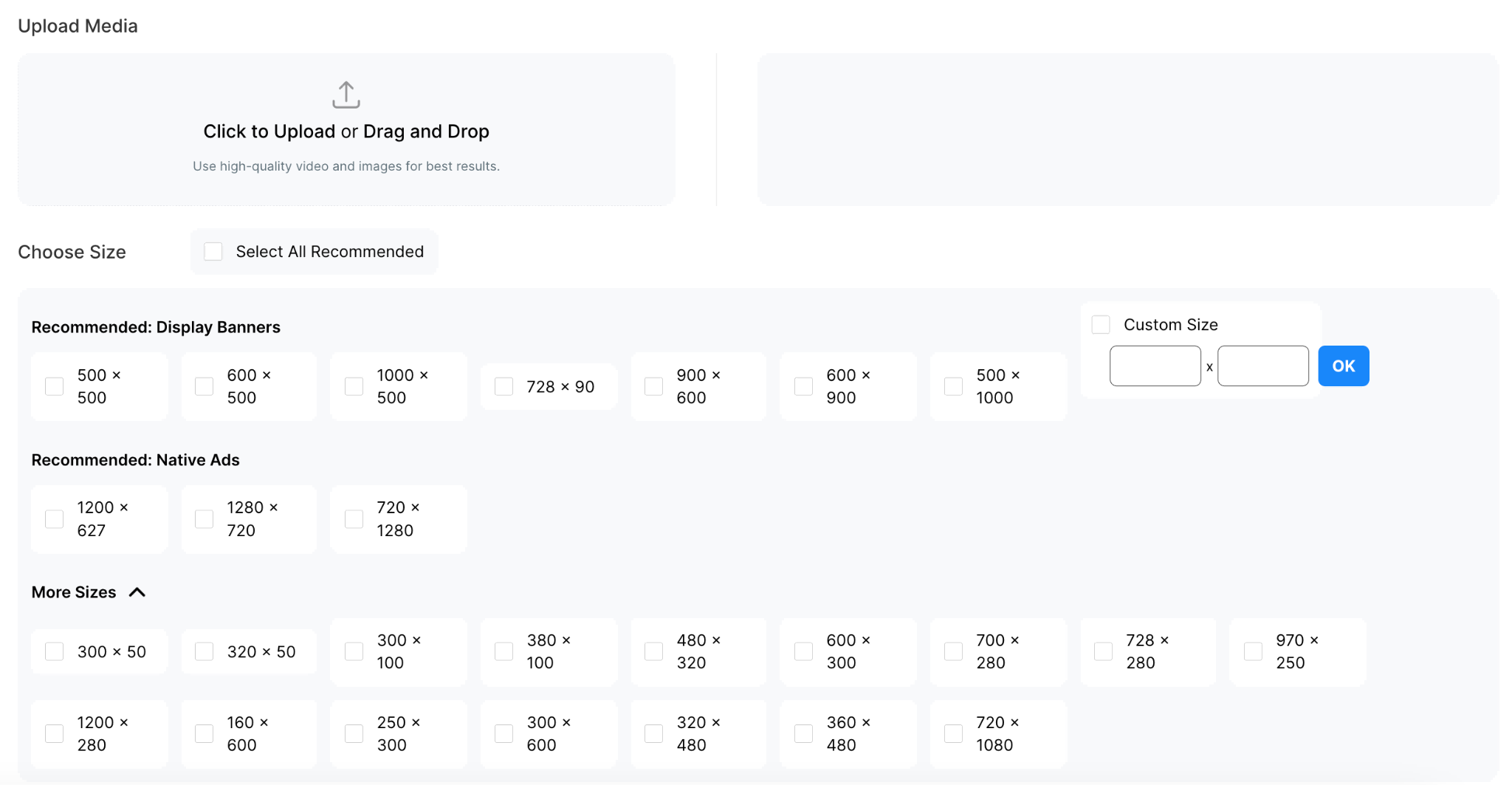
Image Enhance
This feature helps enhance the clarity of blurry assets, thereby improving campaign performance.
Video Compression
Our compression tool allows you to reduce the size of video files that exceed the system's limit. We recommend using the Smart Compression feature, which automatically compresses your video to 10MB or less. Alternatively, you can choose manual compression, giving you full control to customize the bitrate and resolution.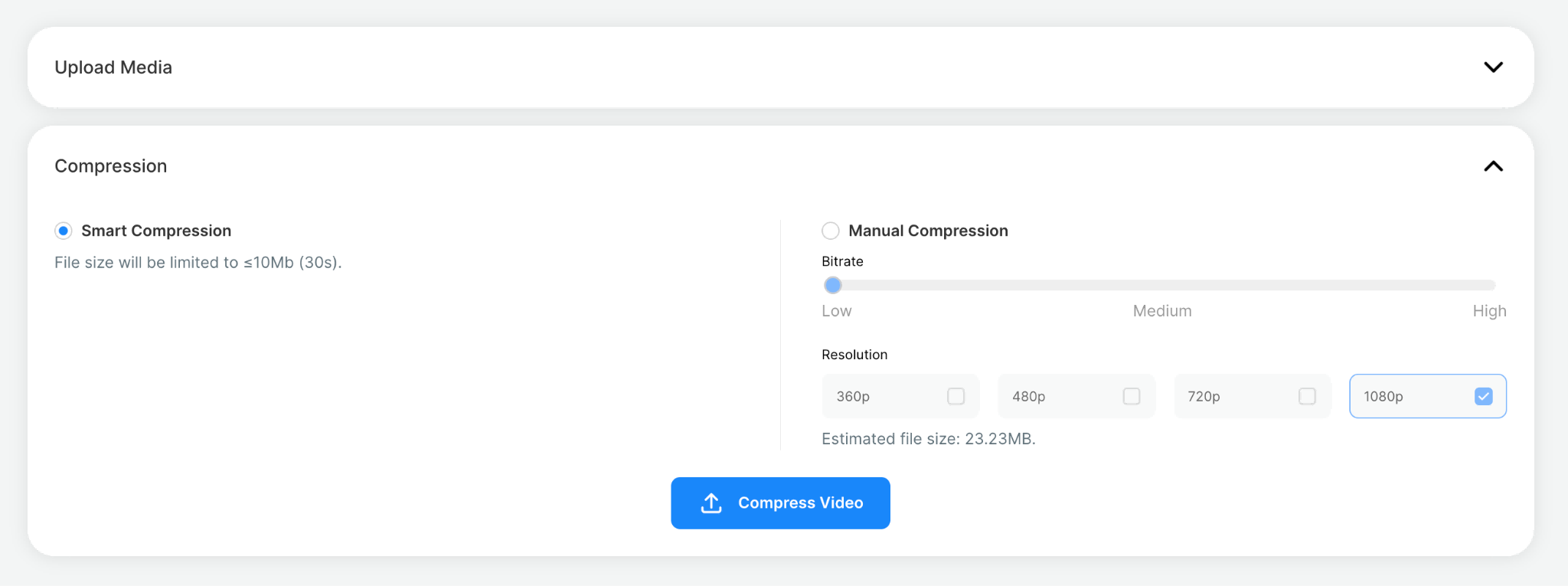
Product Image
This feature is coming soon.
How to Use the AI Creative Craft
There are two ways to access the AI Creative Craft interface:
- Through the Creative Library
- Through the sidebar
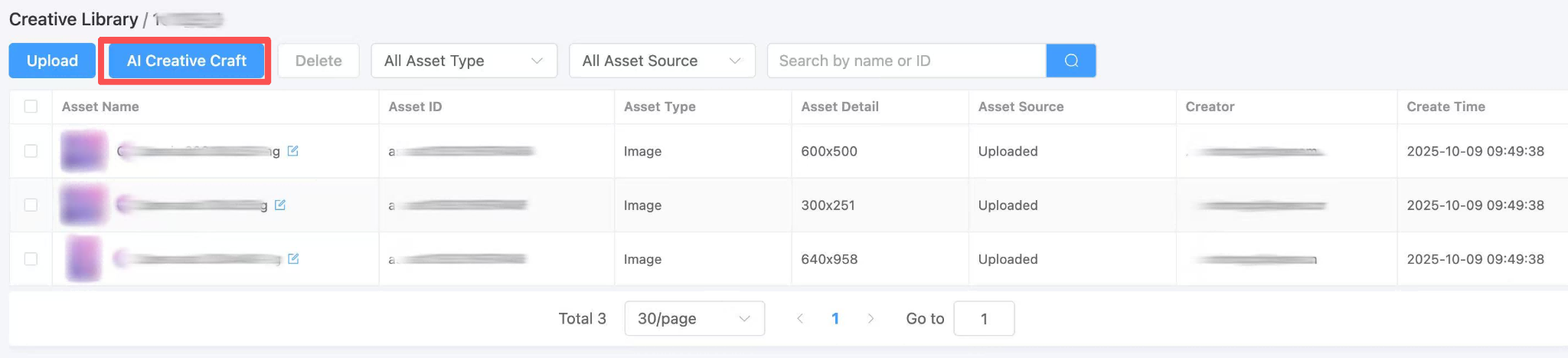
Accessing via the Creative Library:
- Click on a Group you have already created.
- Click the “AI Creative Craft” option to be directed to the interface.
- Generate the creatives you need with different features.
Example workflow: Generating a Promotional Image
Upload your original image.
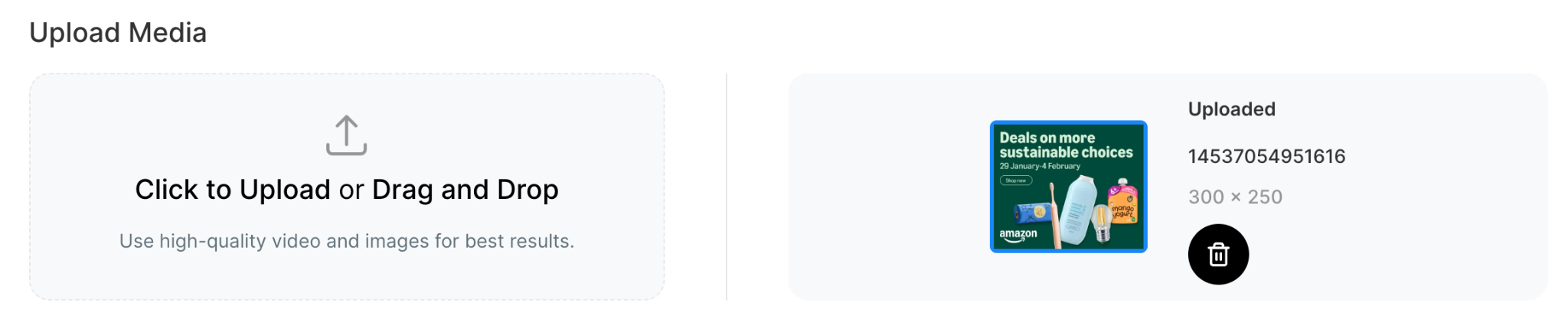
Choose a recommended size or customize the dimensions to fit your needs.
Select your preferred Style and Model. Note: You can customize the Style by typing your own prompt.
Click “Generate image”.
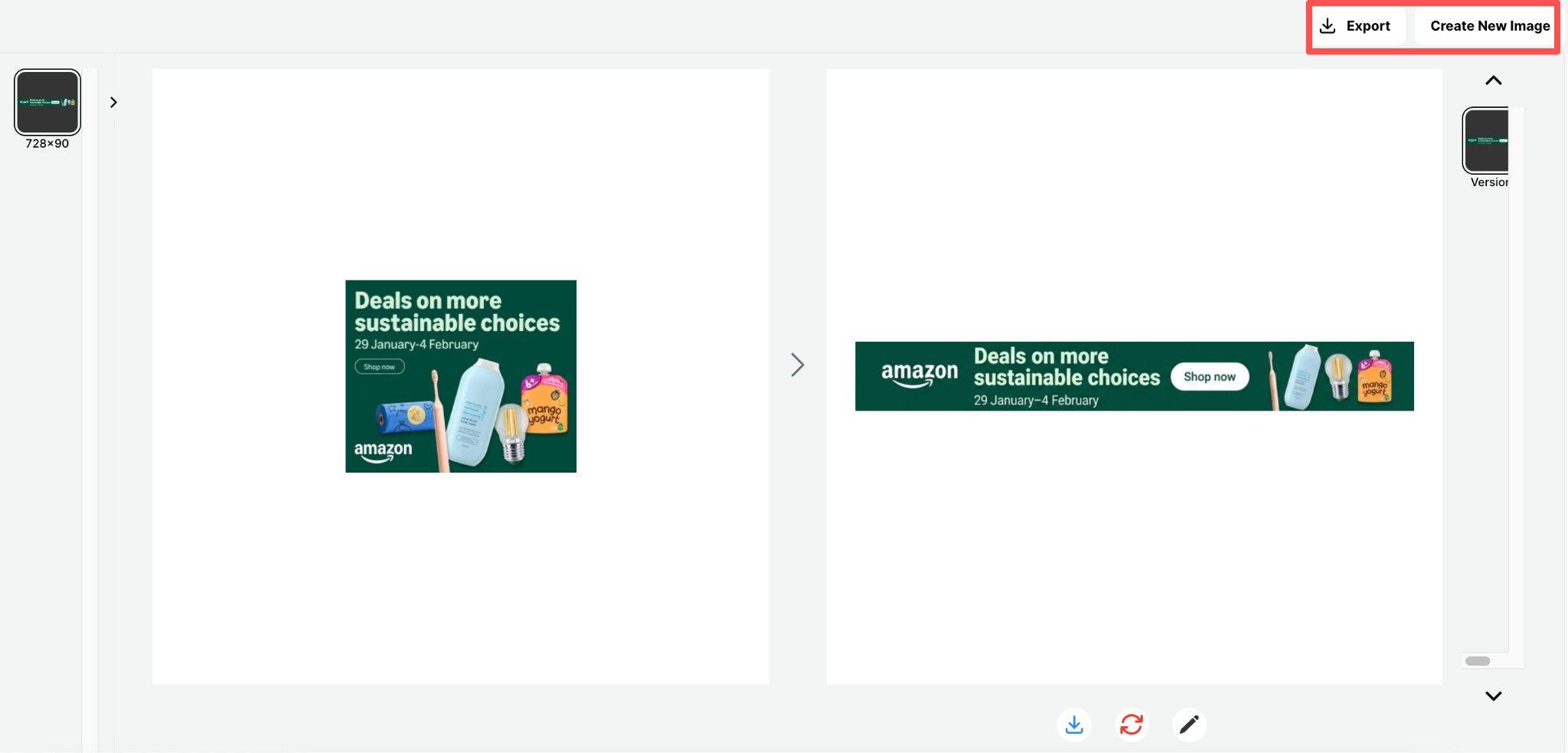
Once the new image is generated and requires no further adjustments, click “Export” in the top right corner. You can choose to save the image directly to your created Group or download it to your computer.
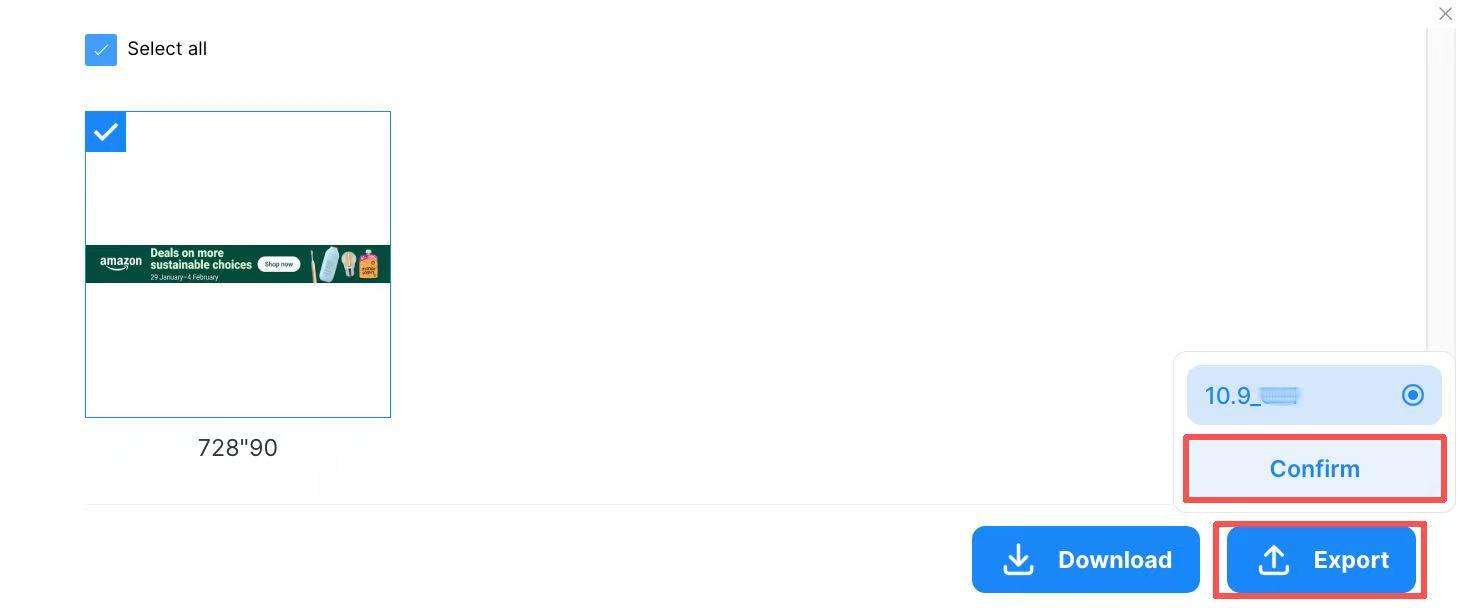
Reload the Creative Library page to see your newly created image appear in the table, where it is available for further editing.