
Appearance
Creative Library
How to Use the Creative Library
Enhance the efficiency of your campaigns with Creative Library. This powerful feature enables seamless management of advertising assets within the Opera Ads Self platform, while our proprietary AI-driven image editing tools provide advanced optimization for your creatives.

How to Create a Group
- Click “Create Group”.
- Name the group of creatives as needed. The Group Name will be displayed when you select creatives.
- Click Submit.
How to Upload Creatives to the Library
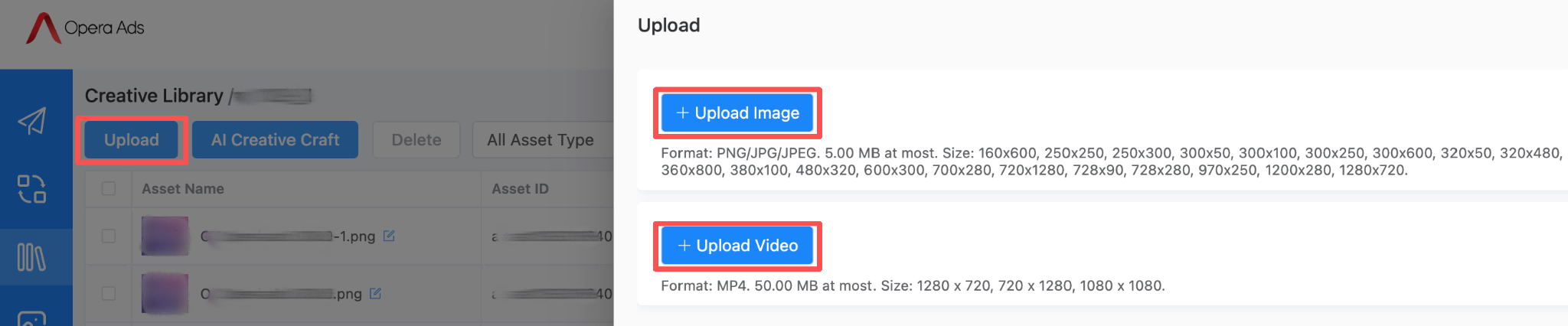
- Click “Upload” to upload images or videos from your computer, adhering to the given formats and sizes. You may upload several files at the same time. The file name is limited to 128 characters. Then click Submit.
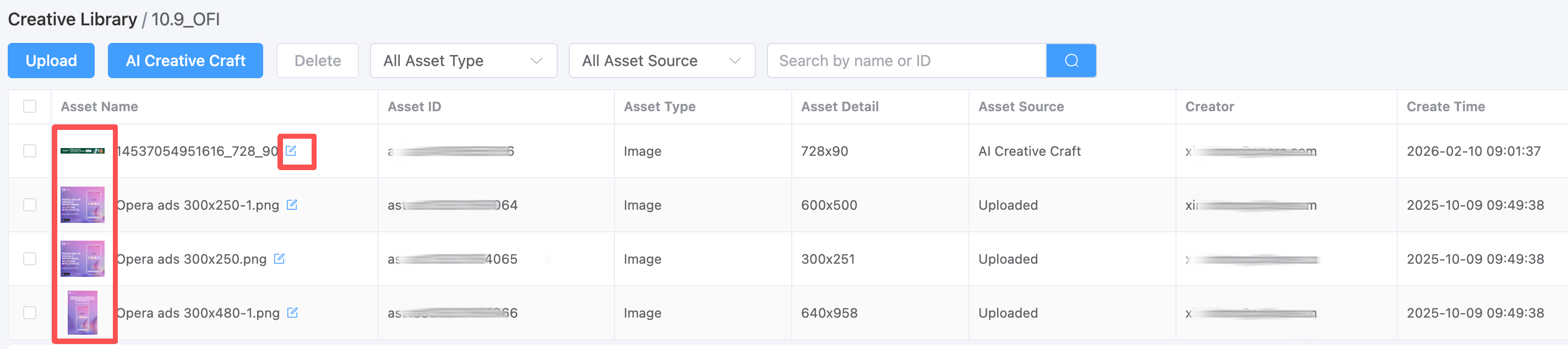
- After uploading, click the image to preview.
- Click the icon to edit the creative name if needed.
You can now access and use these uploaded creatives from the Creative Library.
How to Upload Creatives from the Creative Library
When creating creatives, you can easily select the materials you need directly from the Creative Library. The pre-organized Groups make it simple to quickly find the content you're looking for. This feature works for both individual asset creation and batch uploads (using the Creative Agent feature). For more details, please refer to How to Create a Creative and How to Use the Creative Agent Feature.