
Appearance
Opera Ads SDK Publisher Portal User Guide
This guide provides a comprehensive overview of the Opera Ads SDK Publisher Portal, assisting developers and publishers in managing their applications, configuring ad units, and tracking performance.
Getting Started
Portal Access
To access the portal, navigate to the provided URL(https://ofp.adx.opera.com/login) and log in with your developer credentials.
Login Page Screenshot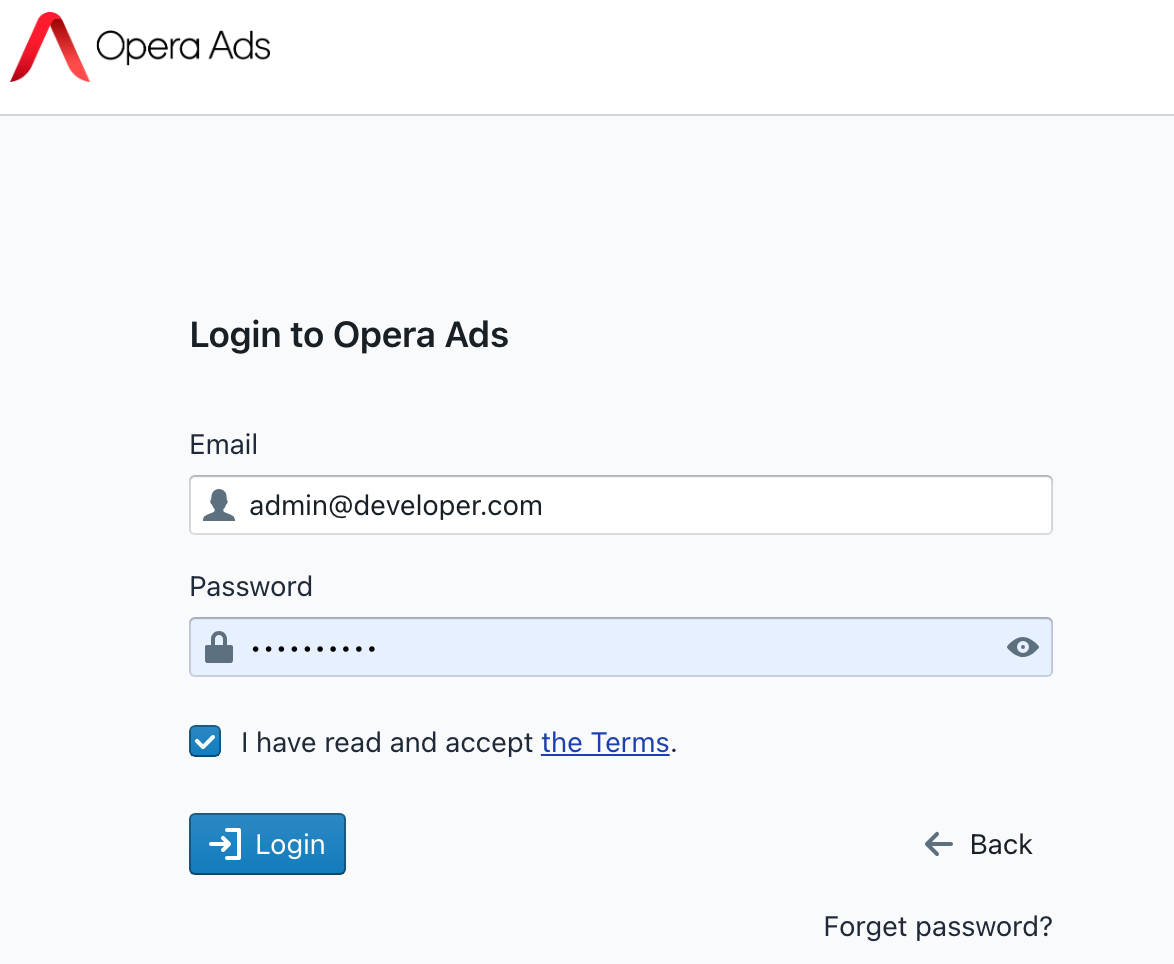
Dashboard Overview
The Dashboard is the first page you see after logging in. It provides a quick summary of your account's performance and key metrics.
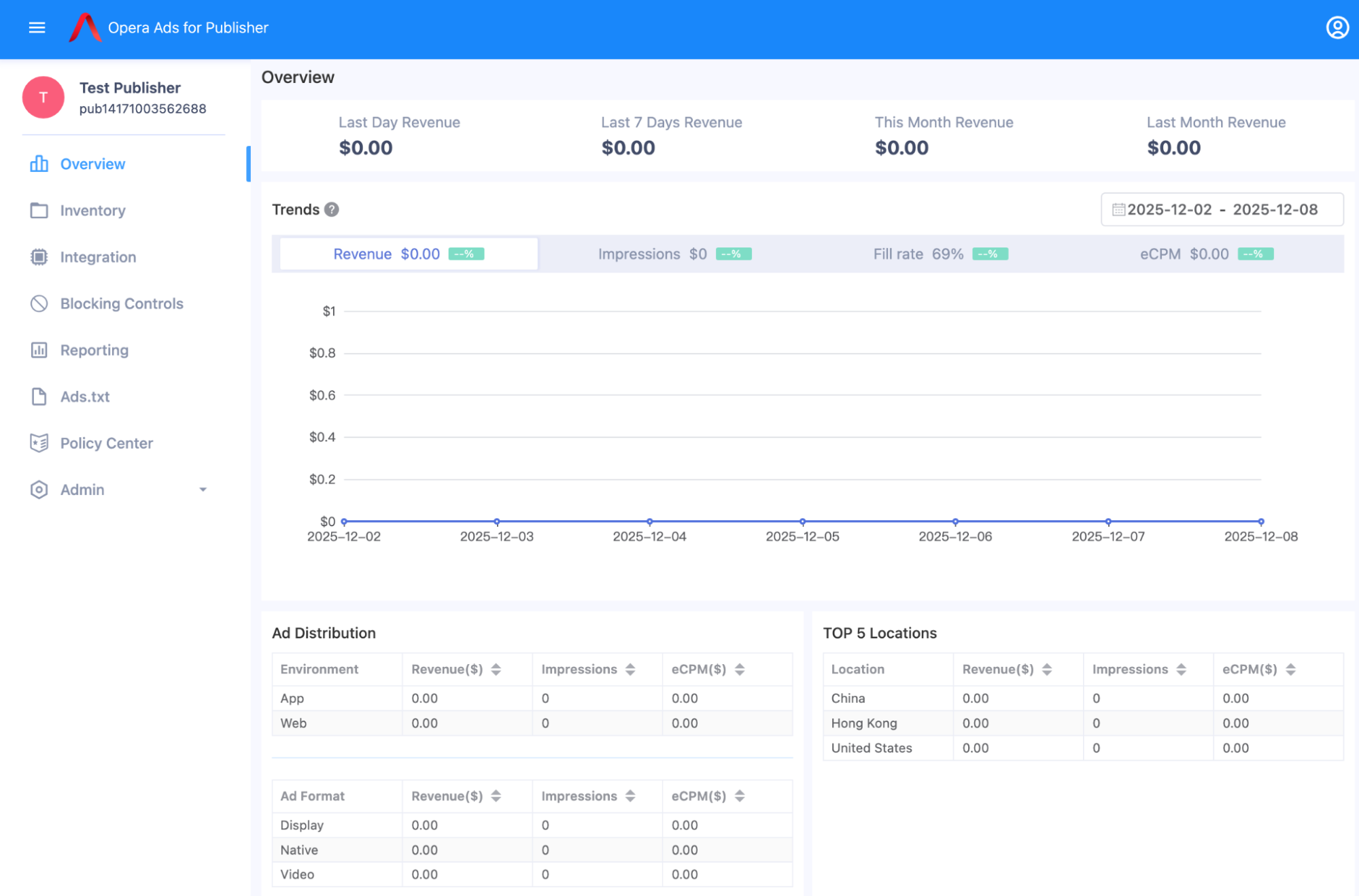
| Metric | Description |
|---|---|
| Revenue | Total estimated earnings |
| Impressions | Total number of ad impressions served |
| eCPM | Effective Cost Per Mille (thousand impressions) |
| Fill Rate | Percentage of ad requests successfully filled |
Managing Applications
Adding a New Application
To integrate the Opera Ads SDK, you must first register your application in the portal.
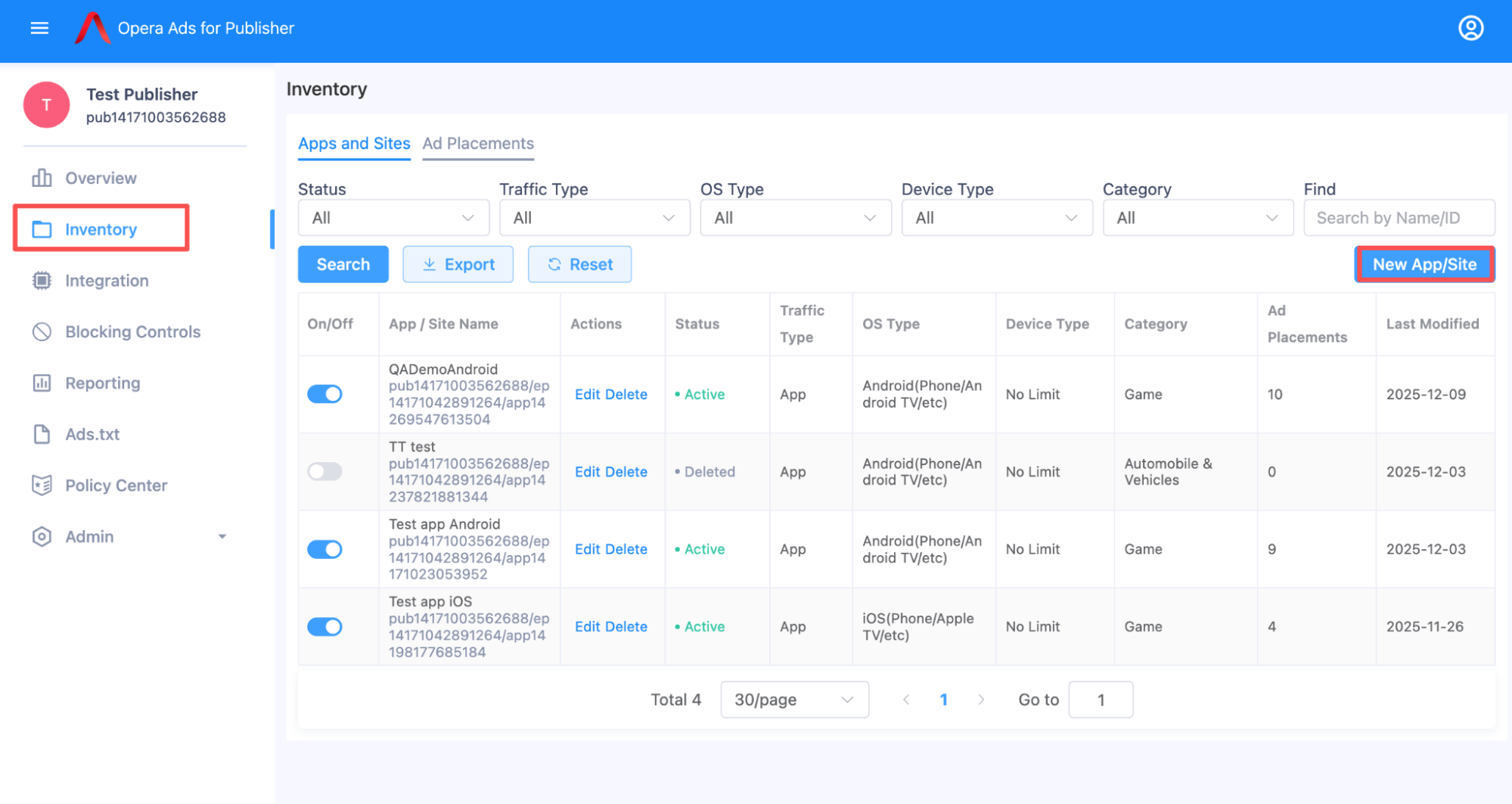
- Navigate to the Inventory section.
- Click on New App/Site.
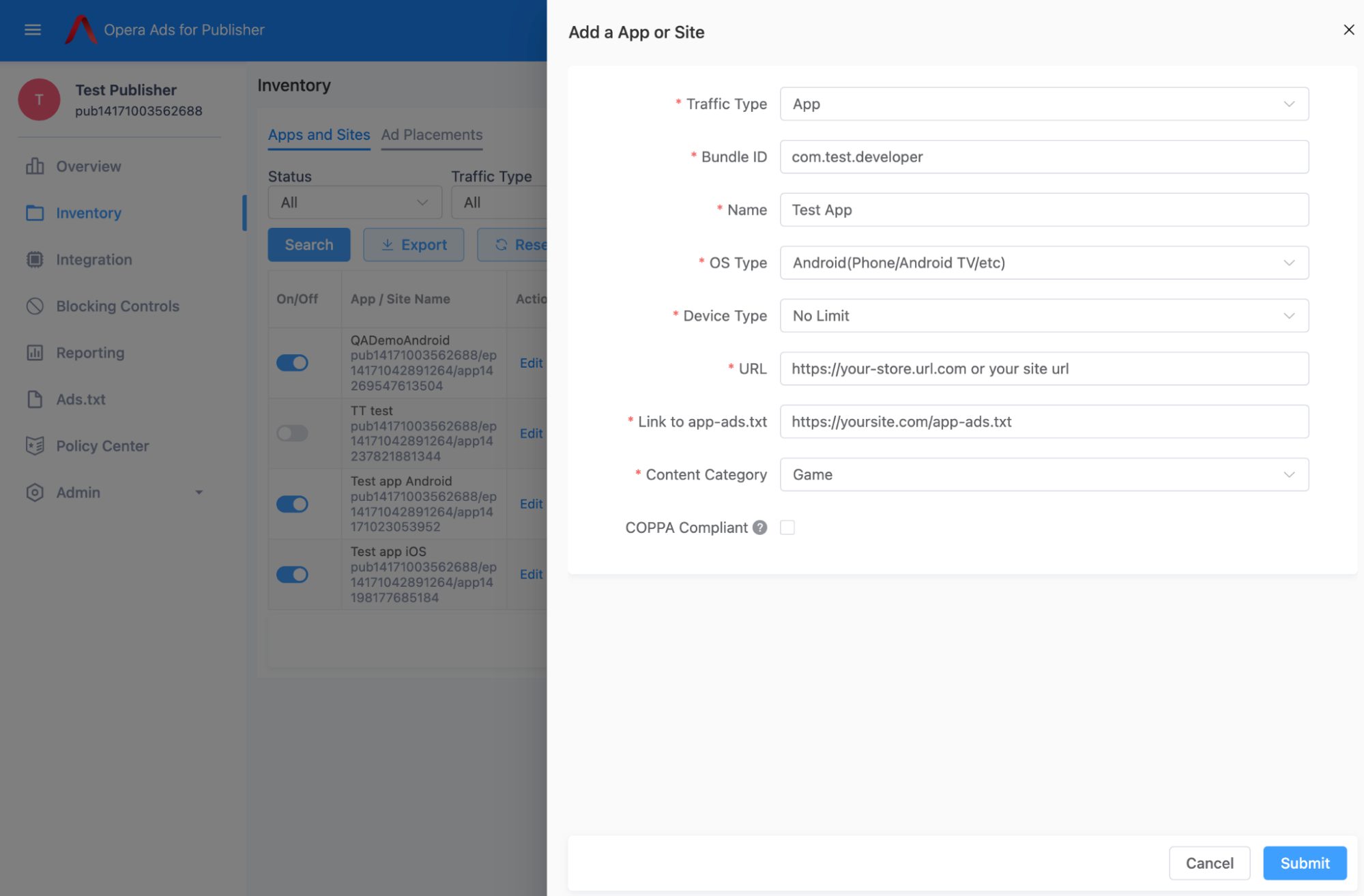
- Fill in the required details, such as App Name, Platform (Android/iOS), and Store URL (if available).
- Click Save.
Application Details and App ID
Once registered, each application is assigned a unique App ID, which is essential for SDK integration. You can find this ID on the app/site list page.
Note: The App ID is required when initializing the Opera Ads SDK in your mobile application.
An example App ID, please note: the full string is the id.
Test app Android: pub14171003562688/ep14171042891264/app14171023053952
Configuring Ad Units
Ad units define the type of ad experience within your application.
Creating a New Ad Unit
- Navigate to the Ad Placements tab.
- Click New Ad Placement
- Select the application you wish to modify.
- Choose the Ad Type (e.g., Banner, Interstitial, Rewarded).
- Configure the specific settings for the chosen ad type.
| Ad Type | Description |
|---|---|
| Native | Ads that match the look and feel of your app |
| Banner | Small ad unit fixed to a screen edge |
| Interstitial | Full-screen ad displayed at natural transition points |
| Rewarded | Full-screen video that rewards the user for watching |
| Rewarded Interstitial | Full-screen video that rewards the user for watching, but users aren't required to opt in to view a rewarded interstitial. |
| App Open | To monetize your app load screens |
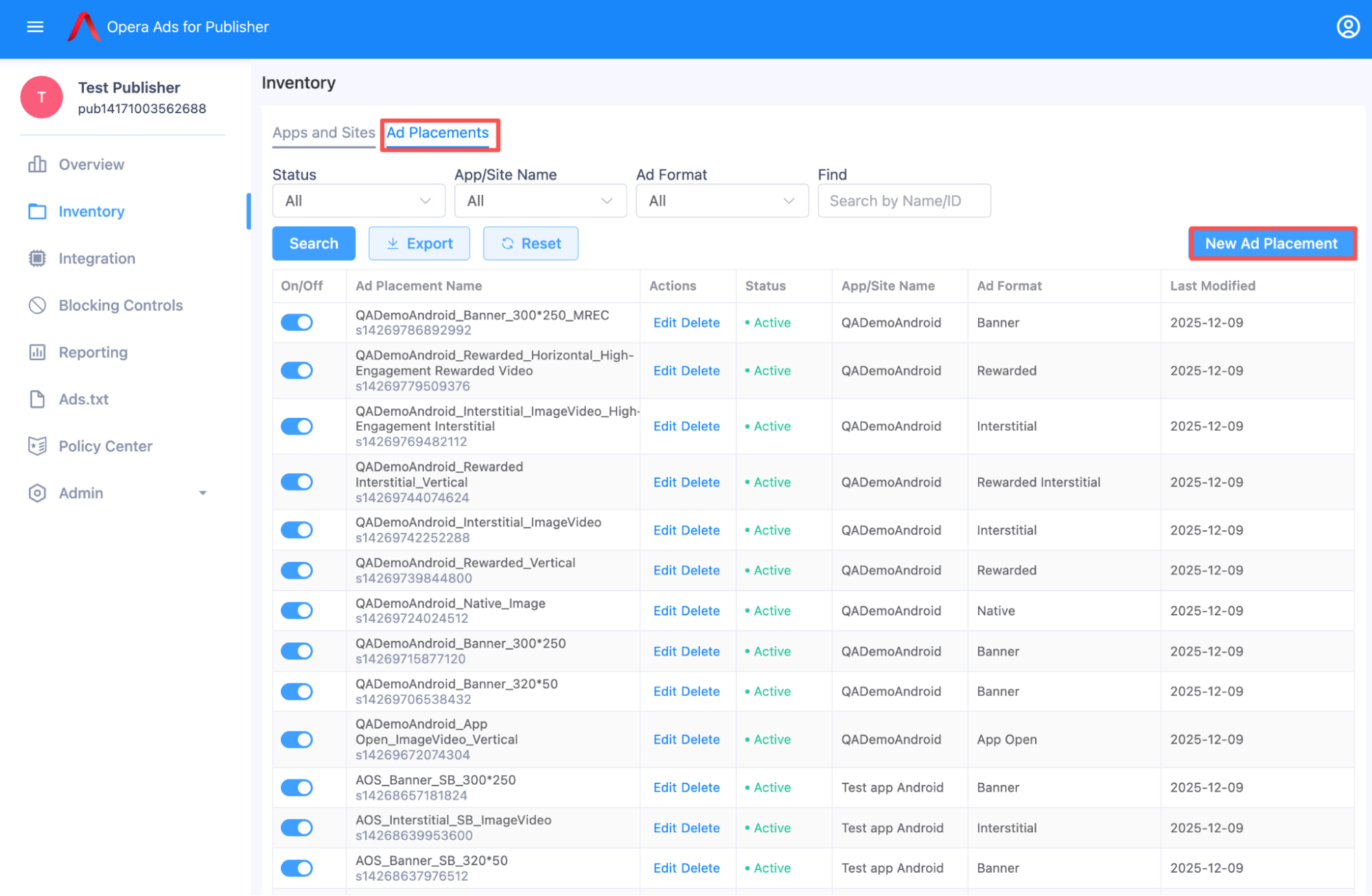
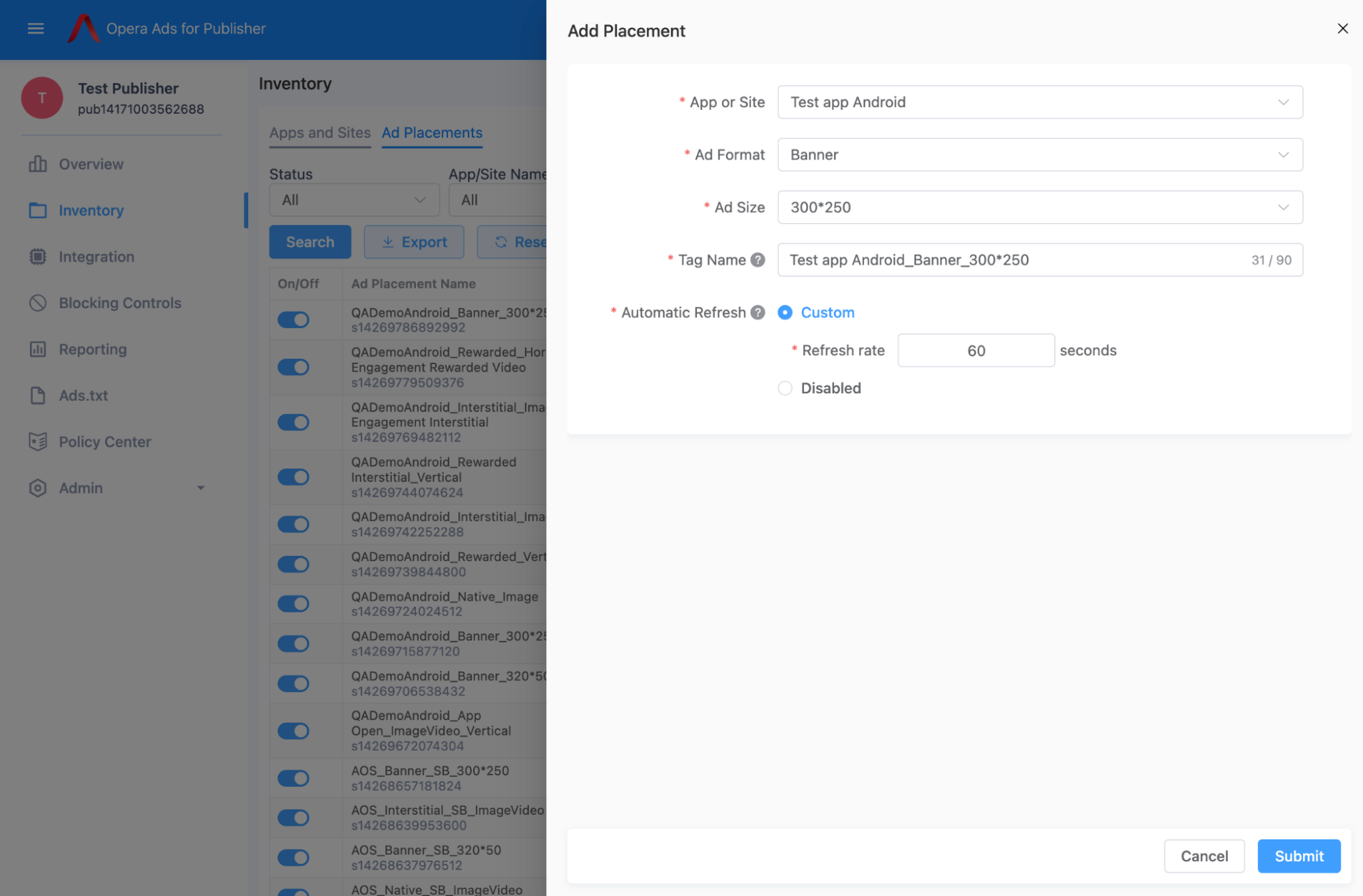
After the ad unit creation, and get back to Ad Placement list,you’ll find ad unit id below every ad unit name, developer will use this id for afterwards ad requesting.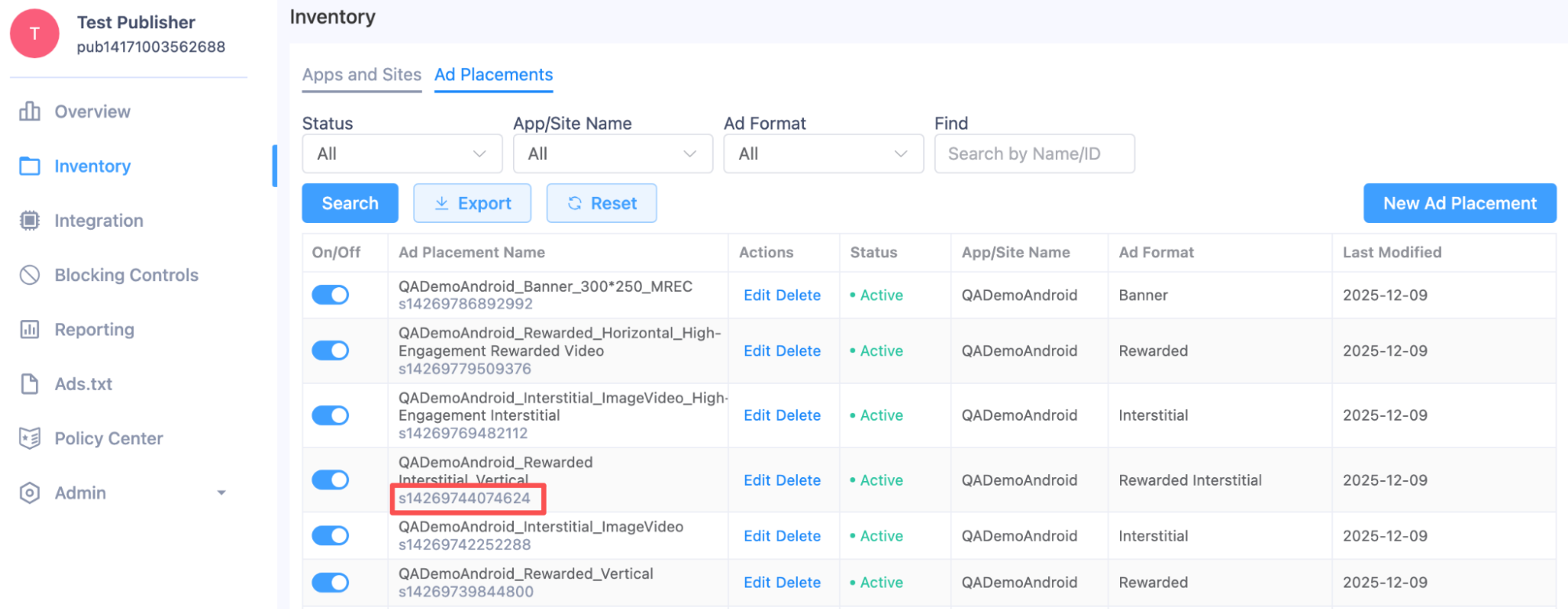
SDK Integration
This section provides resources and instructions for integrating the SDK into your application's code.
Integration Guides
Links to platform-specific integration documentation:
- Android SDK Integration: Opera Ads SDK Integration Guide for Android
- iOS SDK Integration: OpAdxSdk iOS Integration Guide
Test Mode
To ensure the integration, you can add your GAID or IDFA of your own device to get ads for testing.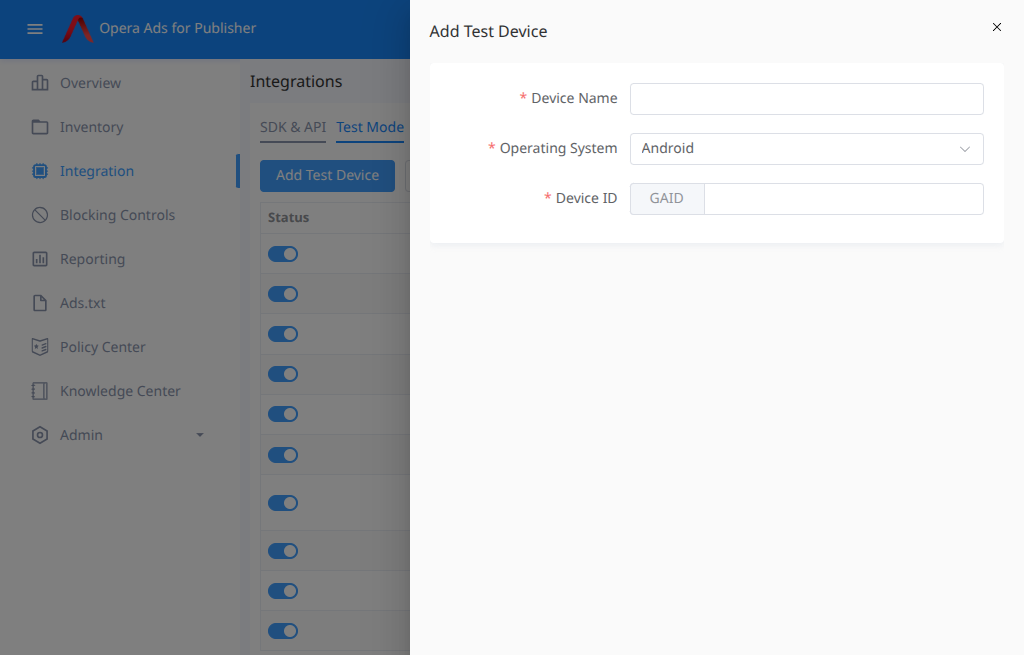
Reporting and Analytics
The Reporting section allows you to monitor and analyze the performance of your ad units.
Generating Reports
- Navigate to the Reporting section.
- Select Publisher Daily Report
- Select FILTER (e.g., Date, placement).
- Select MEASURE (e.g., Impressions, Clicks, Revenue).
- Click Search.
Key Report Metrics
| Metric | Formula/Description |
|---|---|
| CTR (Click-Through Rate) | Clicks / Impressions |
| Revenue | Estimated earnings from impressions and clicks |
| Requests | Number of times the app requested an ad |
| Fill Rate | Impressions / Requests |
Ads.txt and App-Ads.txt Compliance
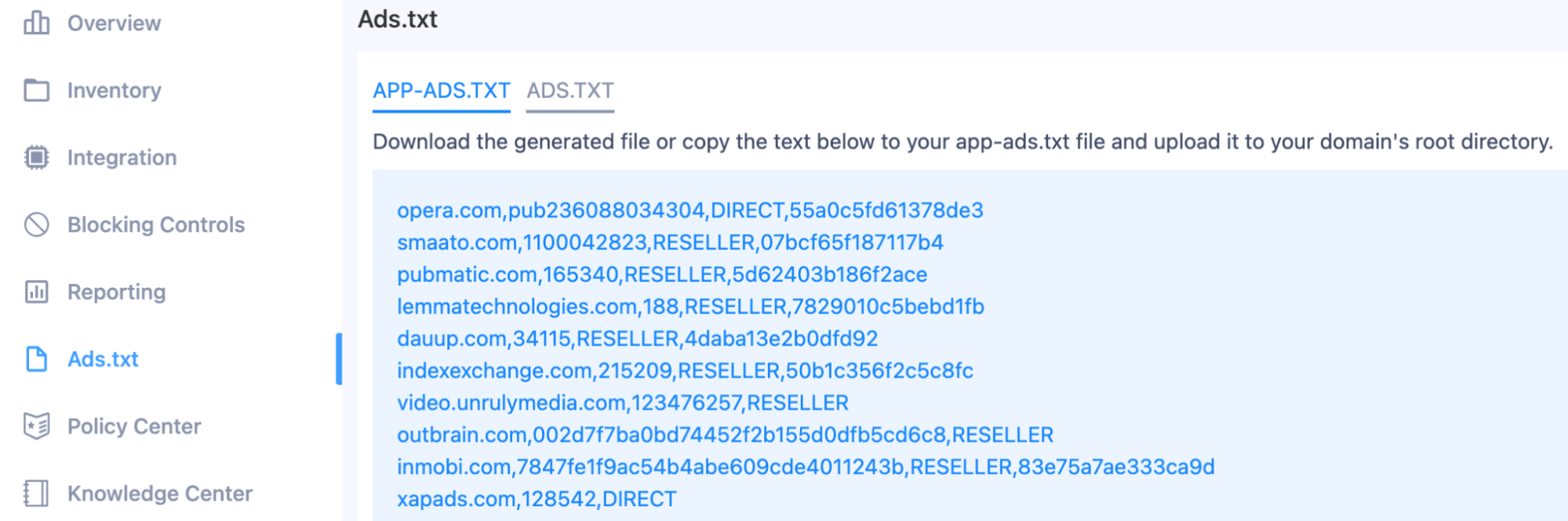
To ensure your ad inventory is properly authorized and to maximize your revenue, it is essential to implement the ads.txt (for web) and app-ads.txt (for mobile apps) standards.
For Websites (ads.txt)
- Create a text file named ads.txt.
- Add the specific Opera Ads authorization line(s) provided to you. You may find it in the screenshot below.
- Upload the ads.txt file to the root directory of your website (e.g., https://yourdomain.com/ads.txt).
For Mobile Applications (app-ads.txt)
- Create a text file named app-ads.txt.
- Add the specific Opera Ads authorization line(s) provided to you.
- Place the app-ads.txt file on the root domain of your developer website(claimed at publisher portal or Opera ad network).
- Ensure the URL to your developer website is correctly listed in your app's store listing (Google Play or App Store).
If you already have the files, just add the lines into your existing content.
Blocking Control
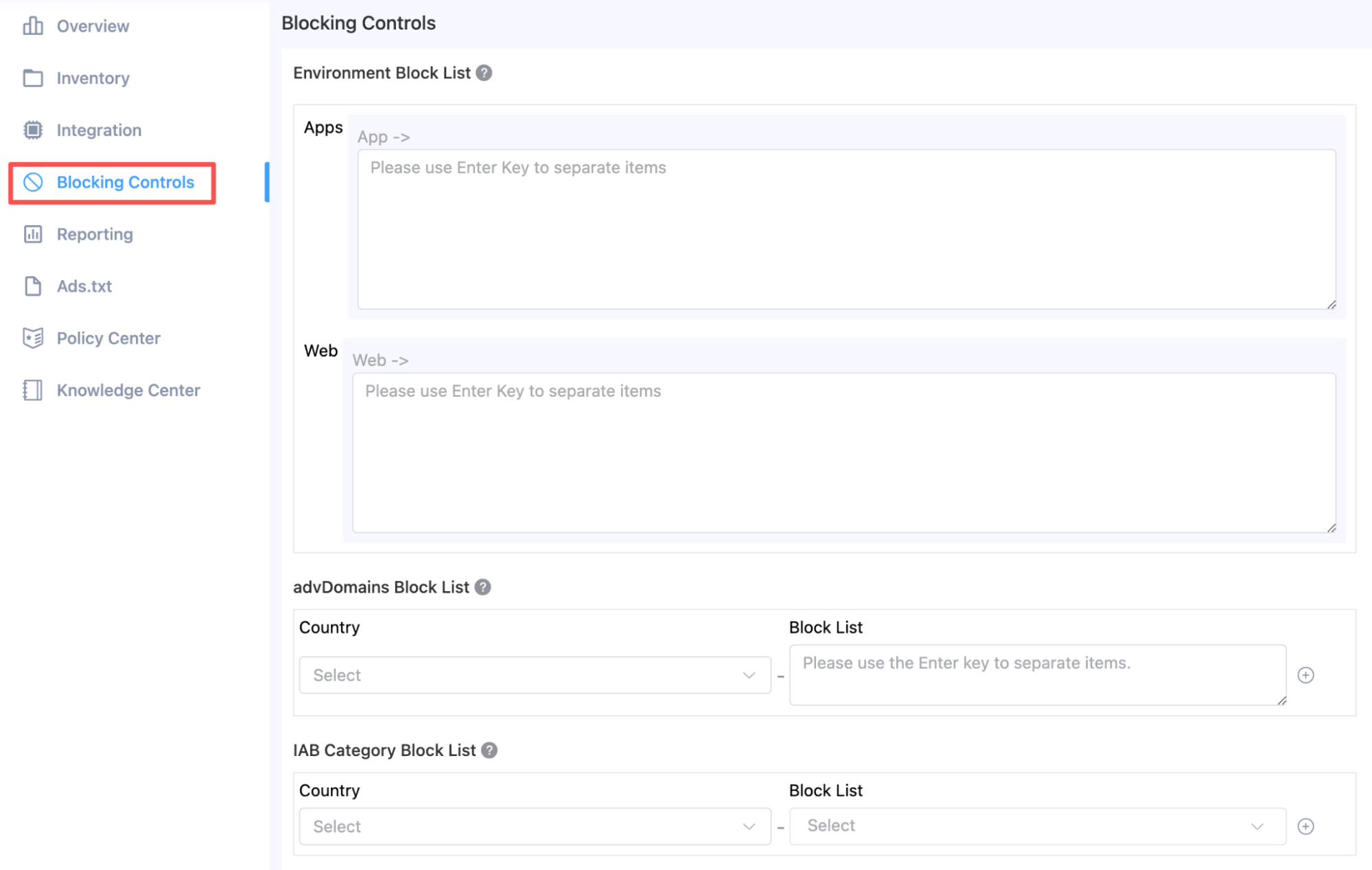
The Blocking Control section allows you to manage which advertisers, websites, and content categories are permitted to serve ads within your applications.
Advertiser and Website Blocking
You can block specific advertiser applications or websites from serving ads.
- Block Apps via Package Names and Websites via URLs: Enter the package name (for apps) or the full URL (for websites) of the entities you wish to block. Use the Enter key to separate each package name or URL onto a new line.
IAB Category and AdvDomain Blocking
The Interactive Advertising Bureau (IAB) categories classify content types. You can block entire categories of content from being served.
- Select Categories: Choose the IAB categories you want to exclude. Use the Enter key to separate each category onto a new line.
- Country-Specific vs. Global Lists:
- Specific countries will use the IAB category block list set for that country.
- Other countries will use the block list set under "Global."
Contact Support
For technical issues or payment inquiries, contact the Publisher Support team at the following email address: [ad-sdk-support-list@opera.com]
Troubleshooting FAQ
Q: Why are my fill rates low?
A: Low fill rates can be due to various reasons, including low ad unit eCPM floors, or a limited ad demand for your specific region. Review the Ad Unit configuration and check regional performance in the reports.
Q: My revenue is not updating.
A: Revenue data is typically updated daily. If the issue persists for more than 48 hours, please contact support with your App ID.