Appearance
Activate OperaAds as an Integrated Partner of AppsFlyer
This guide will help you quickly complete the full process of integrating OperaAds as an AppsFlyer partner for your app, and ensure the correct generation of attribution links.
Basic information about OperaAds
Pid: operamobile_int
Name: Opera Mobile
Setting up Opera Mobile Integration
Active Integration
To activate the integration, please follow the steps below:
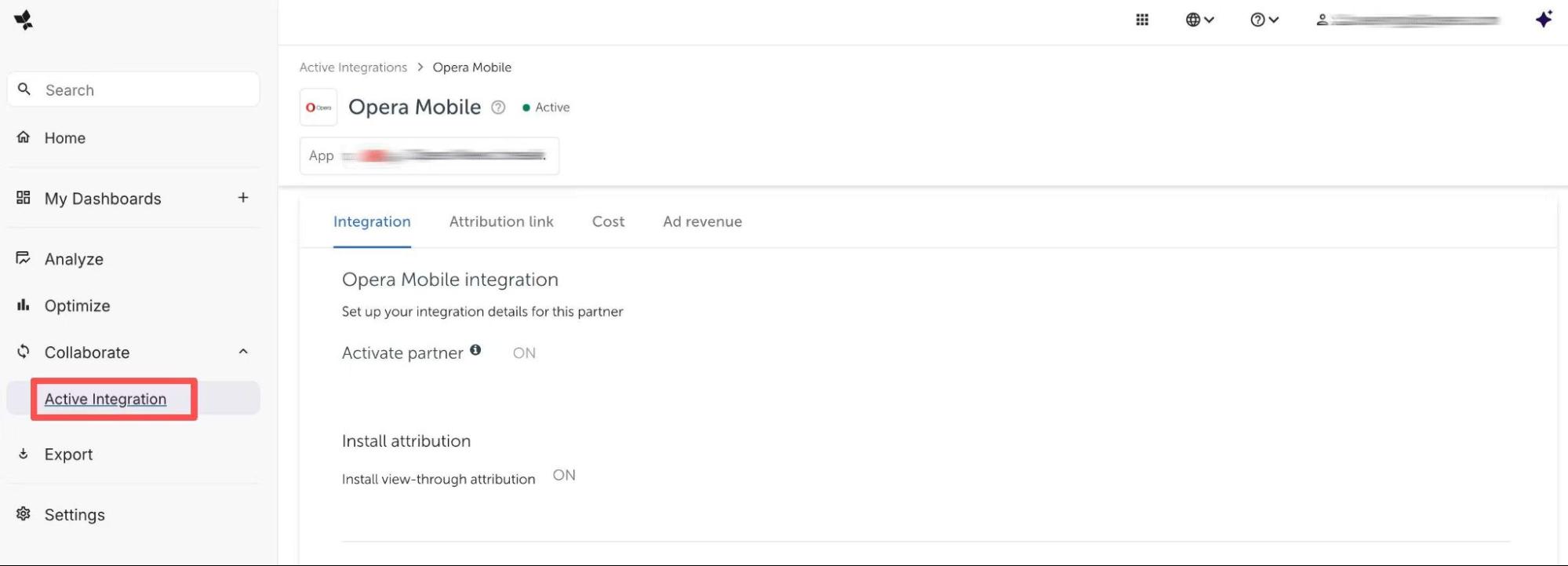
- Go to the “Collaborate” Tab=> Active Integration
As shown in the figure below:
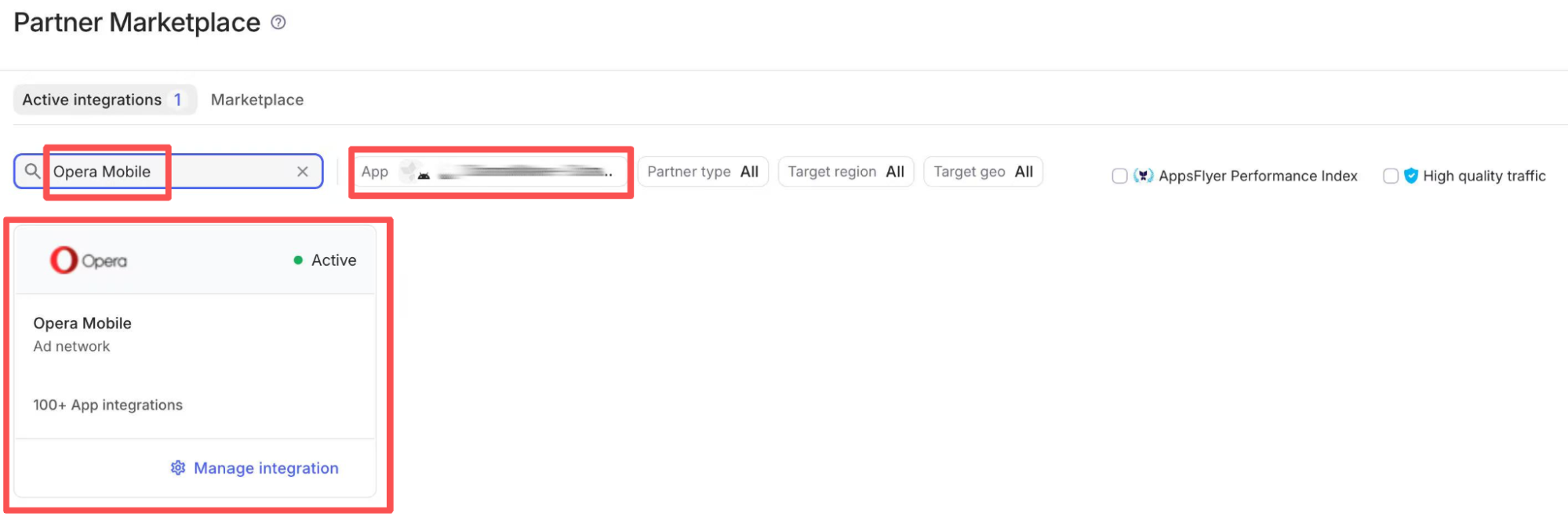
Select the app that requires authorization. On the Search page, enter "Opera Mobile" and click on "Manage Integration" to access the activation page.
As shown in the figure below:
Manage Integration Settings
Partner integrations differ in their requirements and can contain a subset of all possible options described in this section. There are some differences between iOS and Android settings.
To manage the integration settings, please follow the steps below:
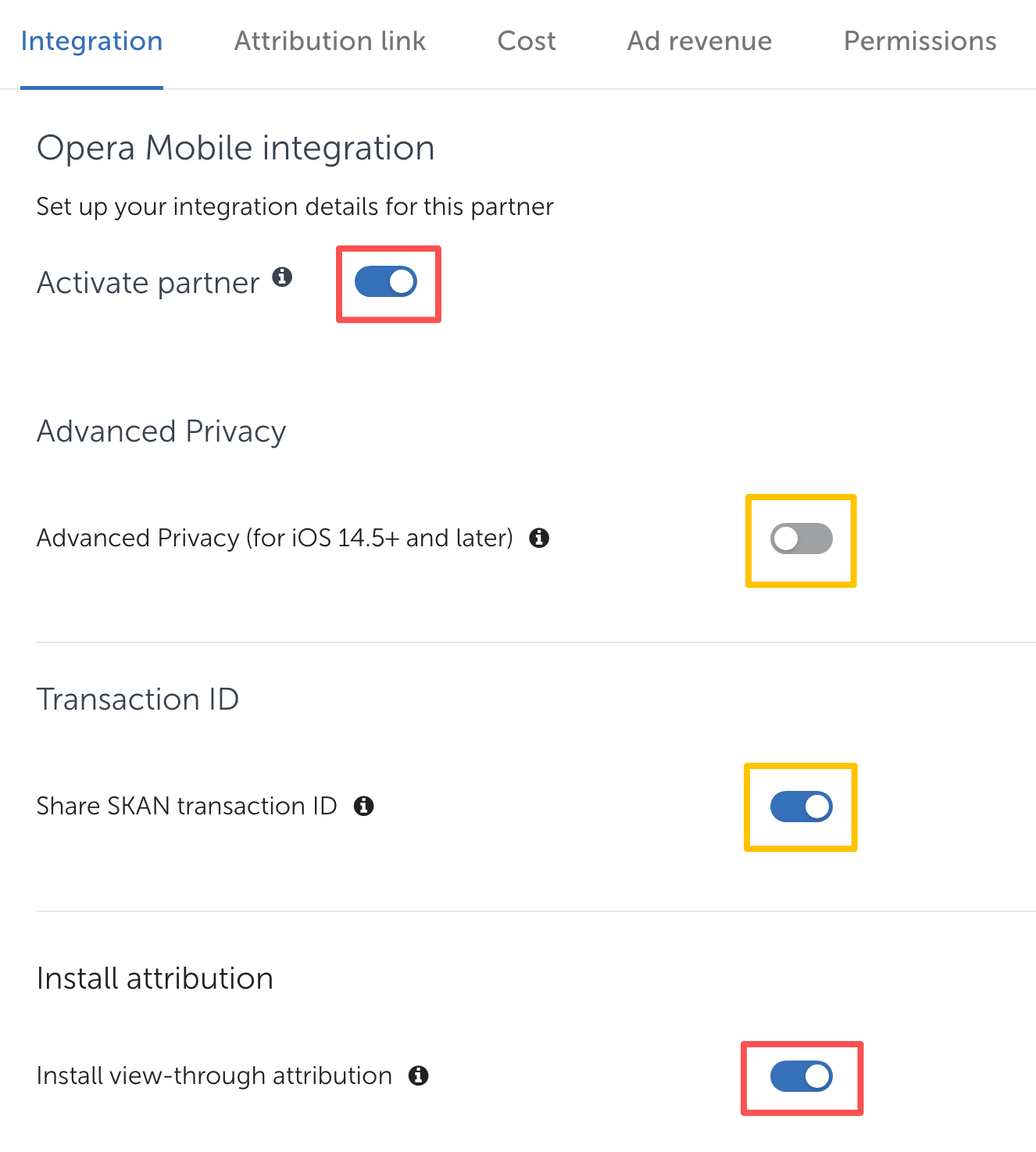
Turn on “Activate partner”.
[For iOS apps only] Keep “Advanced Privacy” paused and turn on "Transaction ID”. By doing so, we could decode your SKAdNetwork Conversion Values.
Enable “Install attribution”. The view-through window is set using the attribution link.
As shown in the figure below:
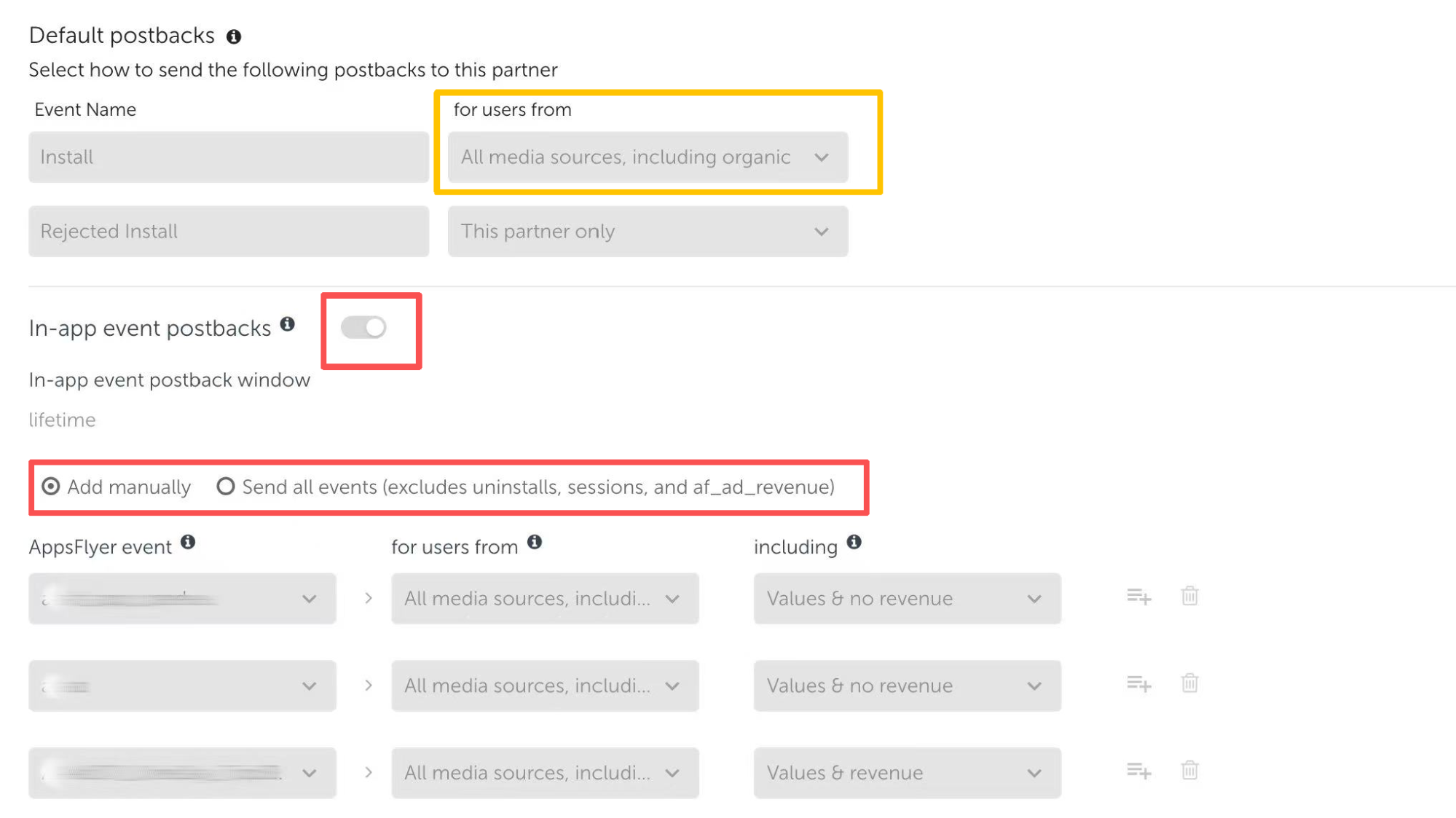
Enable “In-app event postbacks”.
Select the option “Send all events” or “Add manually”. If it is not possible to send back all events, it is recommended to manually add KPI-related metrics such as login, open, revenue, ROI, etc.
[Optional] Default postbacks=> “for users from” => we suggest selecting “All media sources”.
As shown in the figure below:
Click “Save Integration”.
Generate Attribution Link
Generate and save attribution links for use with click-based (non-SRN) ad networks. Share these attribution links with your partners to enable accurate attribution of specific campaigns, ad sets, or individual ads.
To generate an attribution link, please follow the steps below:
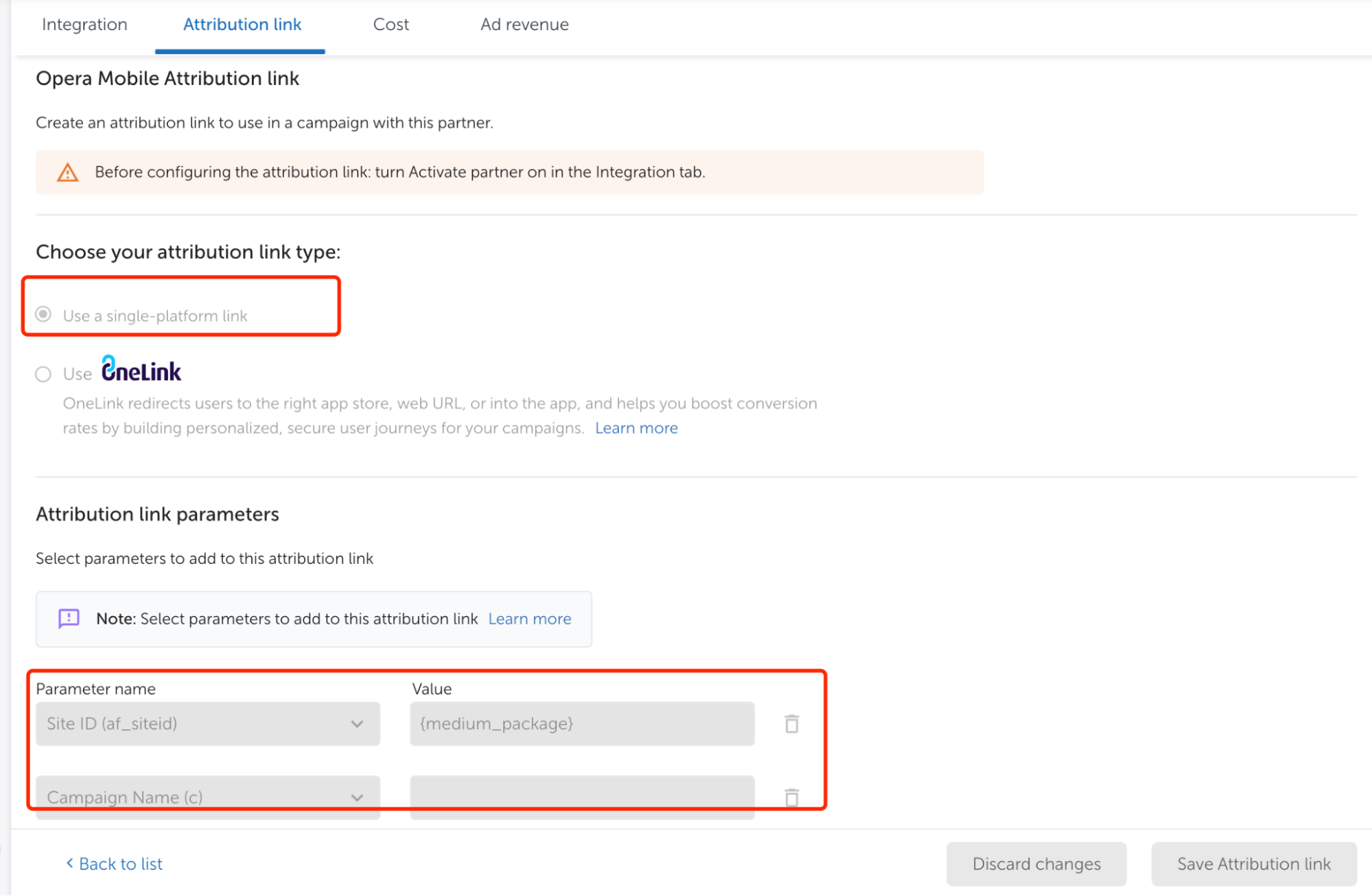
Select “Use a single-platform link” or “Use OneLink”. We recommend the first type.
[Optional] Select additional attribution parameters. If you chose to use OneLink in the 1st step, you can skip this step.
As shown in the figure below:
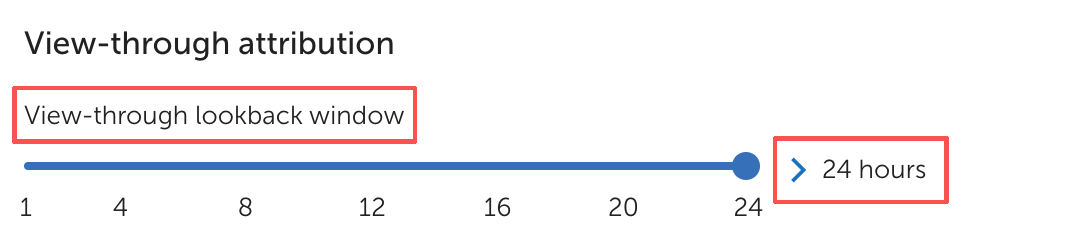
Set up the Click-through lookback window and View-through lookback window as needed.
As shown in the figure below:

Click “Save Attribution link”.
Permissions
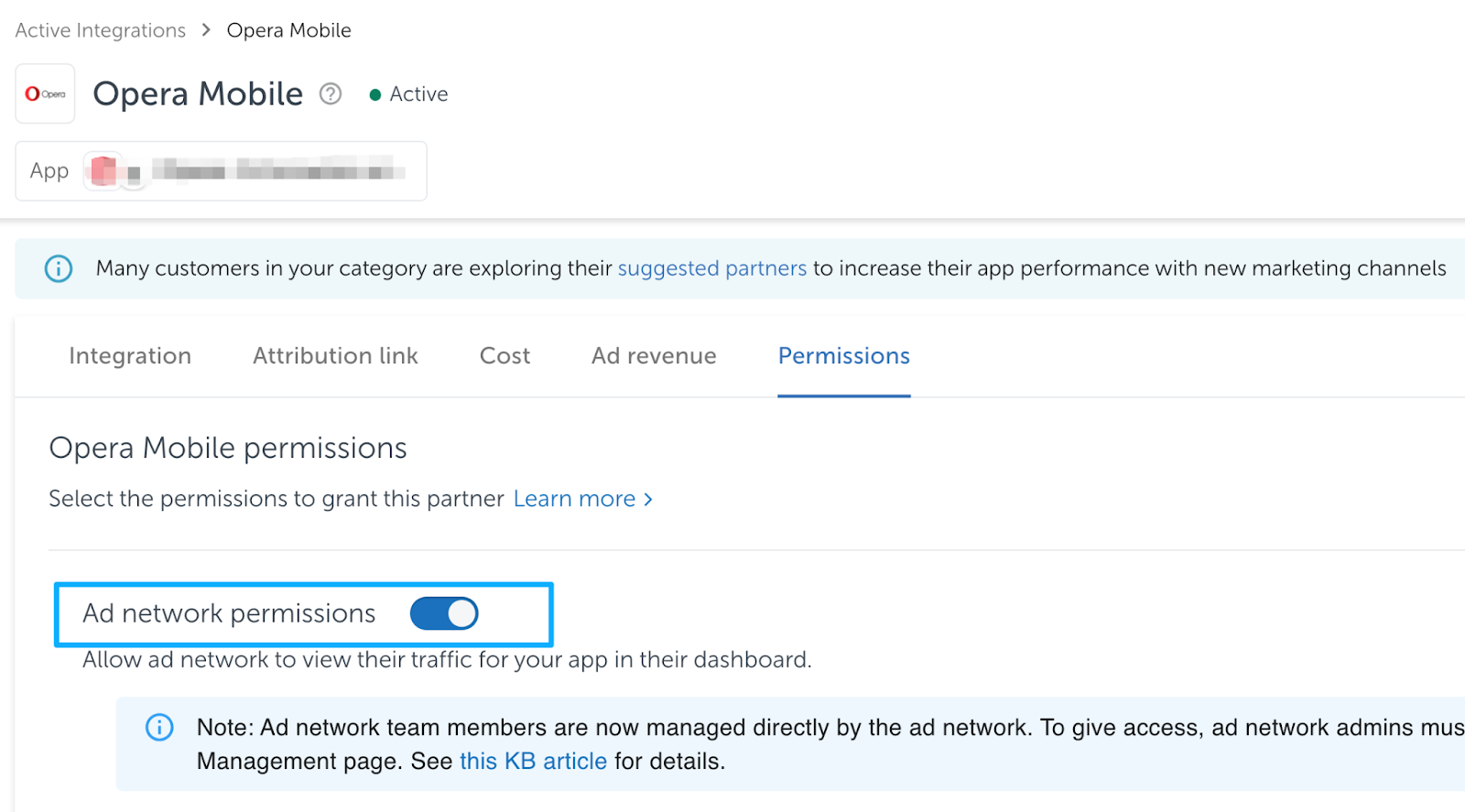
Allow ad networks to view their traffic for your app in their dashboard.
- Turn on “Ad network permissions”.