Appearance
How to setup postbacks with Adjust
To ensure precise and comprehensive measurement of your advertising campaigns running on the Opera Ads network, it is essential to correctly configure Opera Ads as an integrated advertising network within your Adjust account. This crucial setup enables Adjust's mobile measurement platform (MMP) to accurately track key performance indicators (KPIs) associated with your campaigns, including, but not limited to, initial app installations and critical post-install events, commonly referred to as in-app data or conversions.
This guide walks you through how to set up postbacks on Adjust Suite.
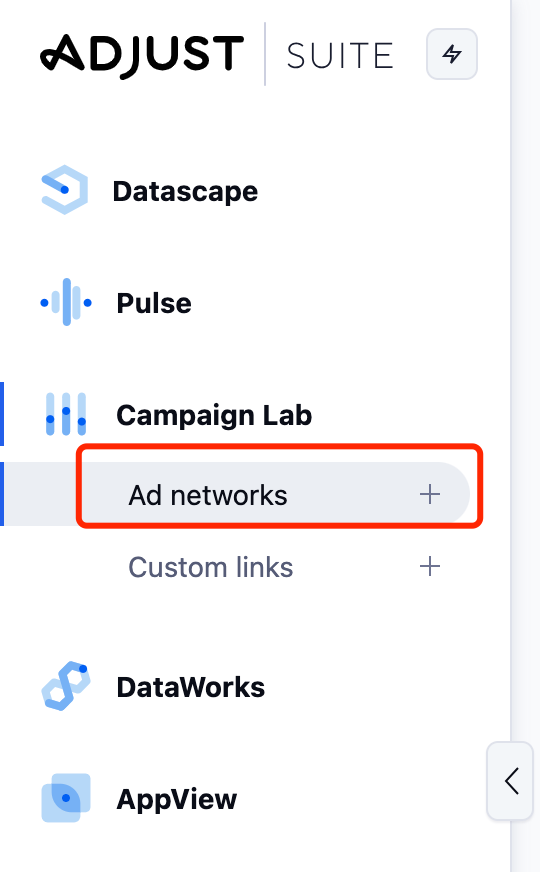
- Go to your Adjust dashboard, select Ad networks under Campaign Lab,
- Select network. In the Network selection screen, choose the Opera Ads ad network, and then click ‘Next’.
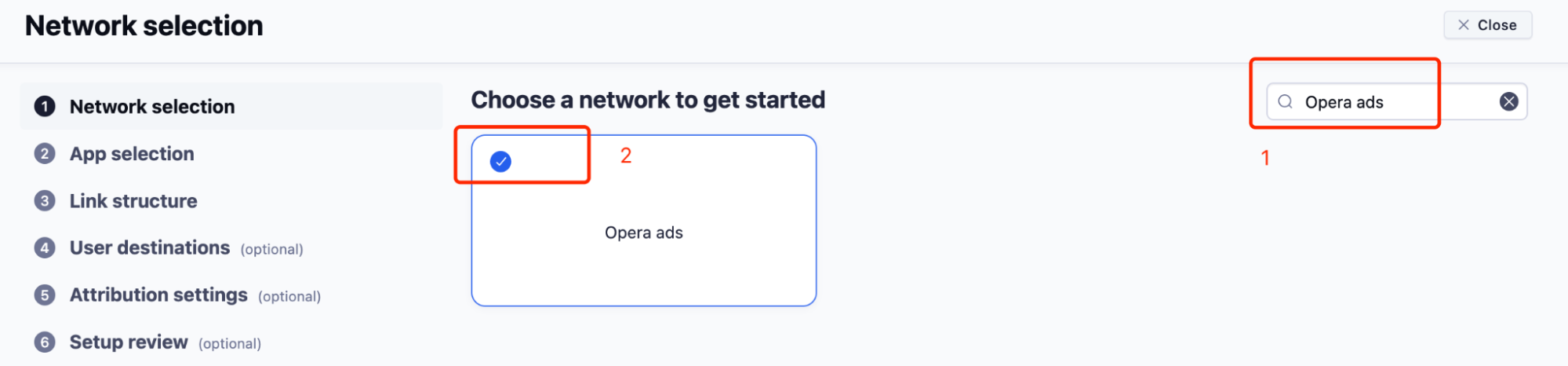
- In the App selection screen, choose the app for which you want to create the link, and then click ‘Next’. Here we using “OperaNews” as an example:
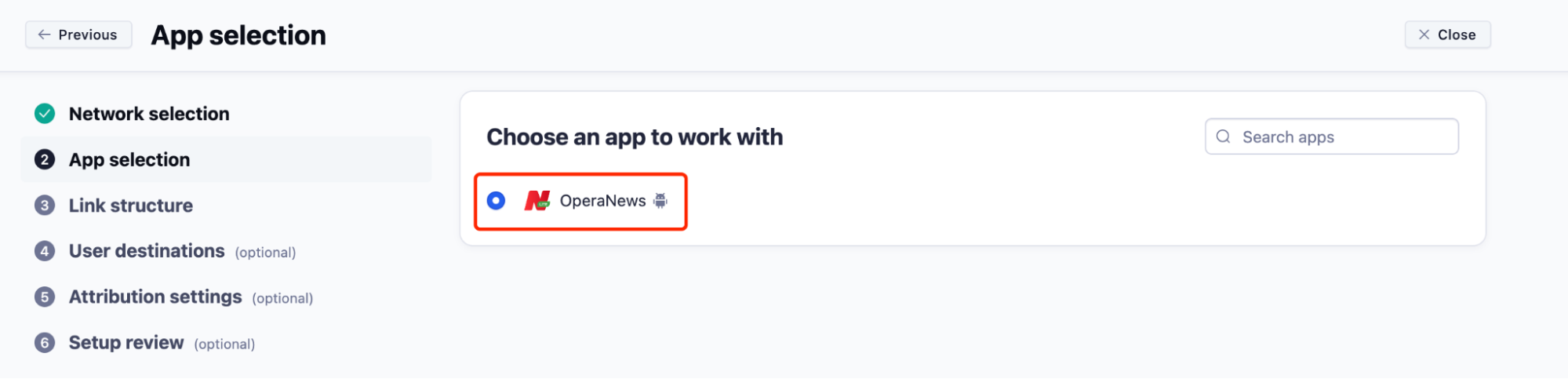
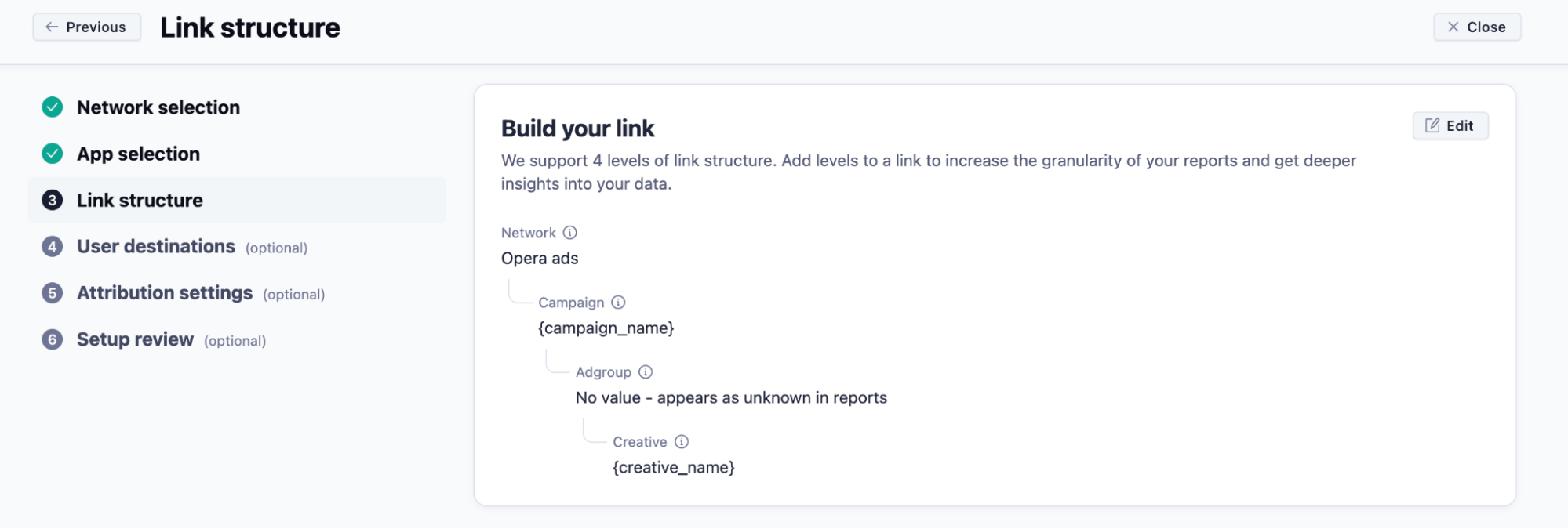
- In the Link structure screen, review the default link structure parameters provided by the network and update the values, if needed.
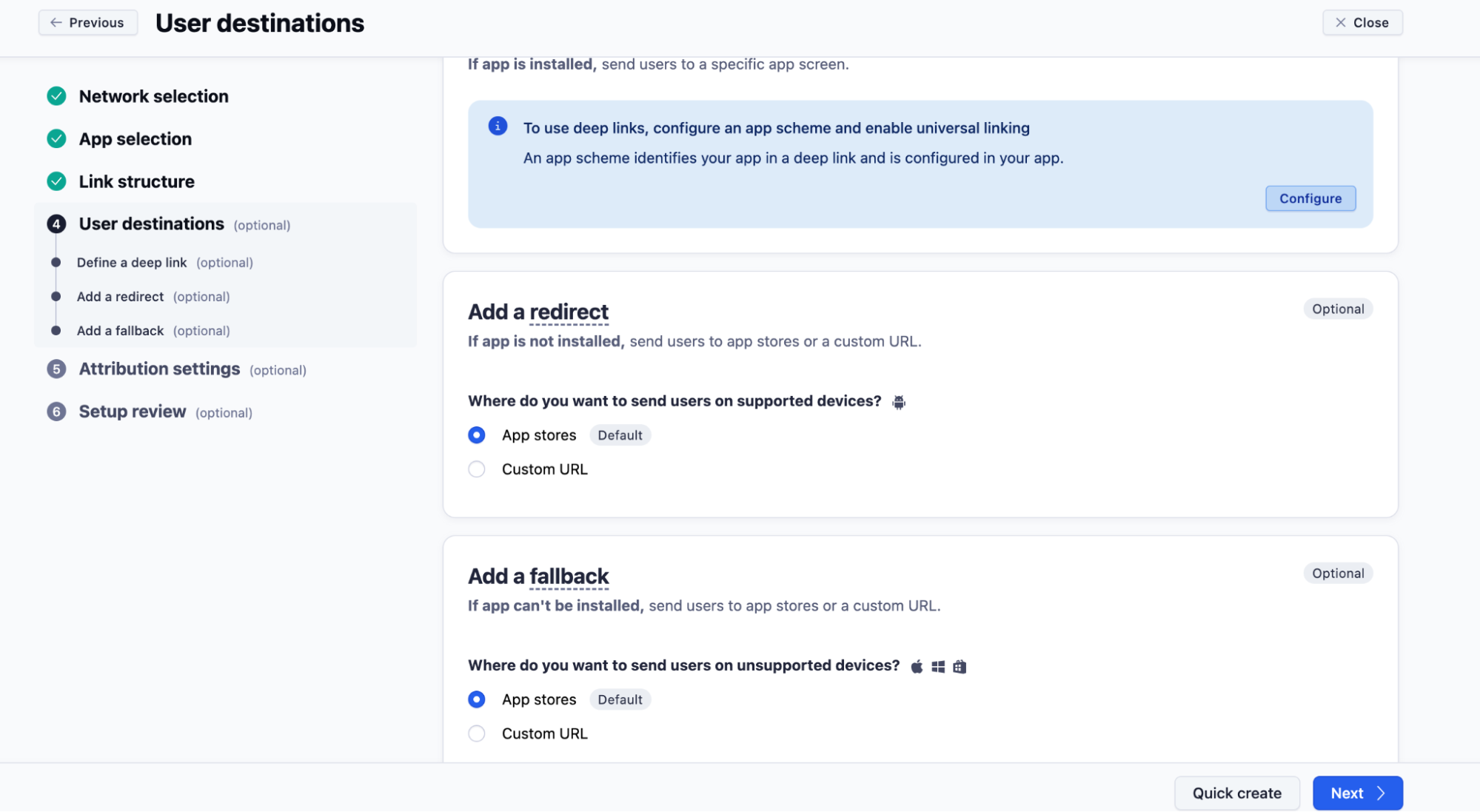
- (Optional) In the User destinations screen, configure a deep link, or add a redirect and fallback to your link.
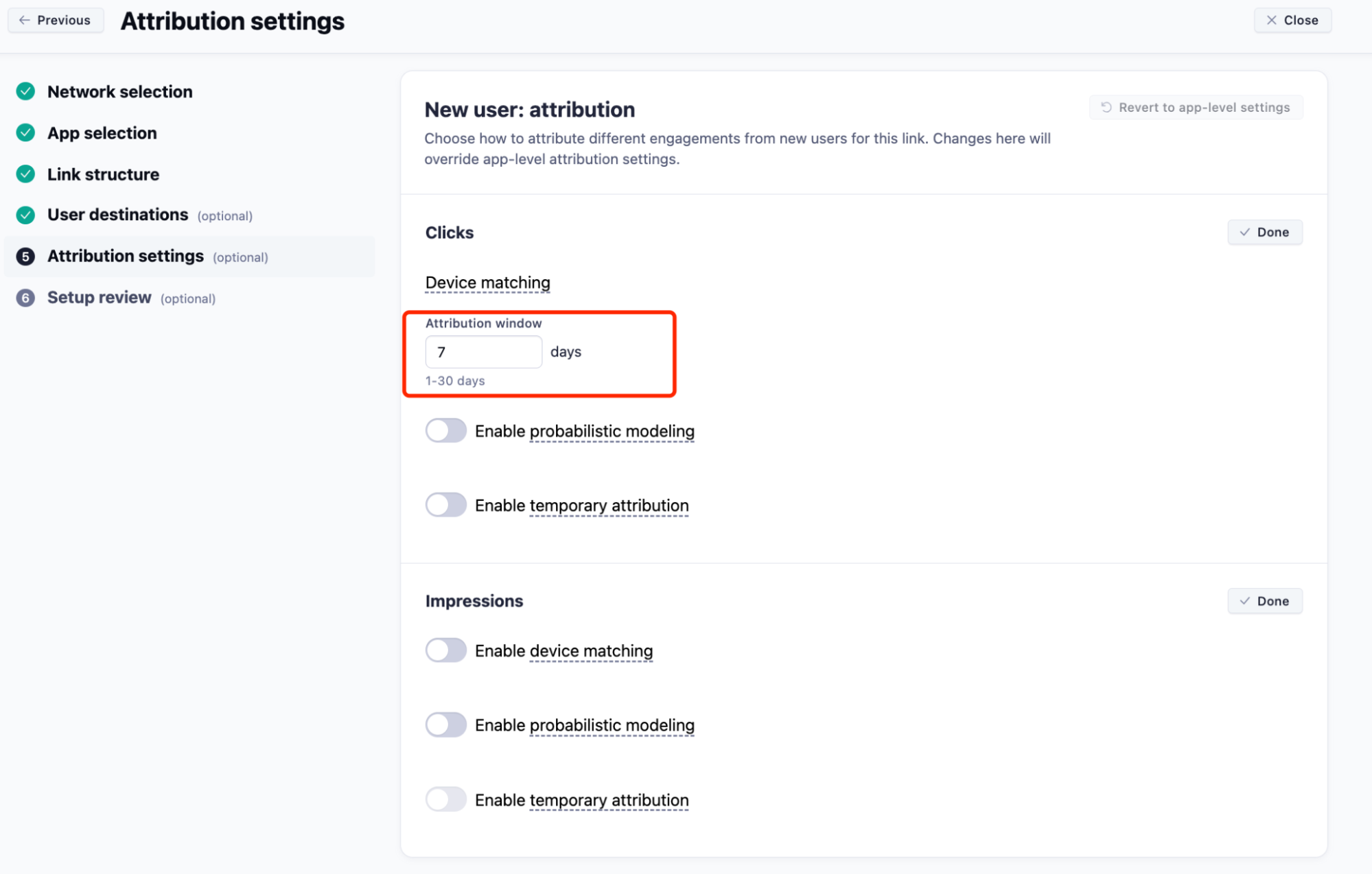
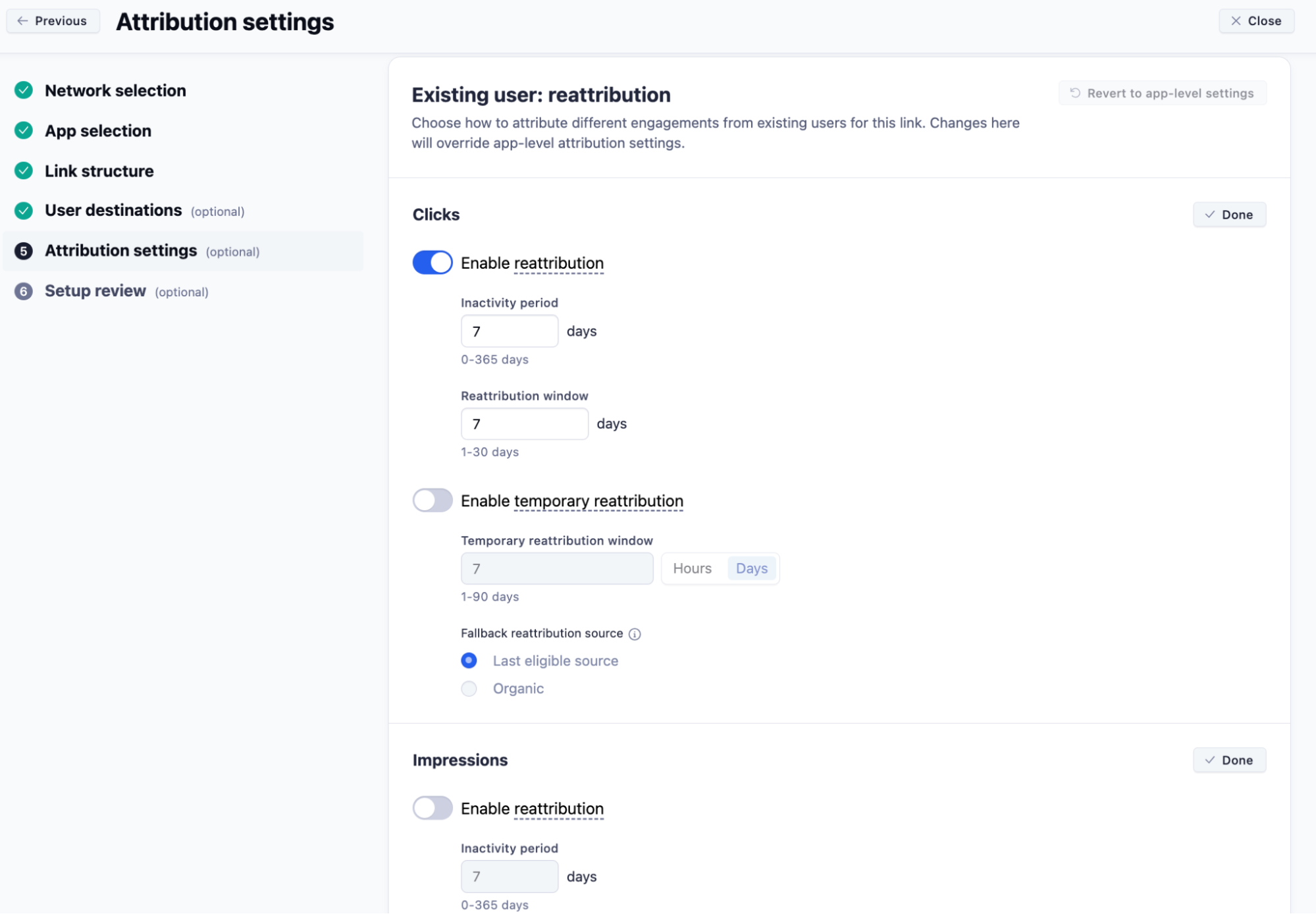
- (Optional) In the Attribution settings screen, set custom attribution settings for new and existing users. These attribution settings are available for clicks and impressions. If you skip this step, attribution settings that you chose during app setup will apply.
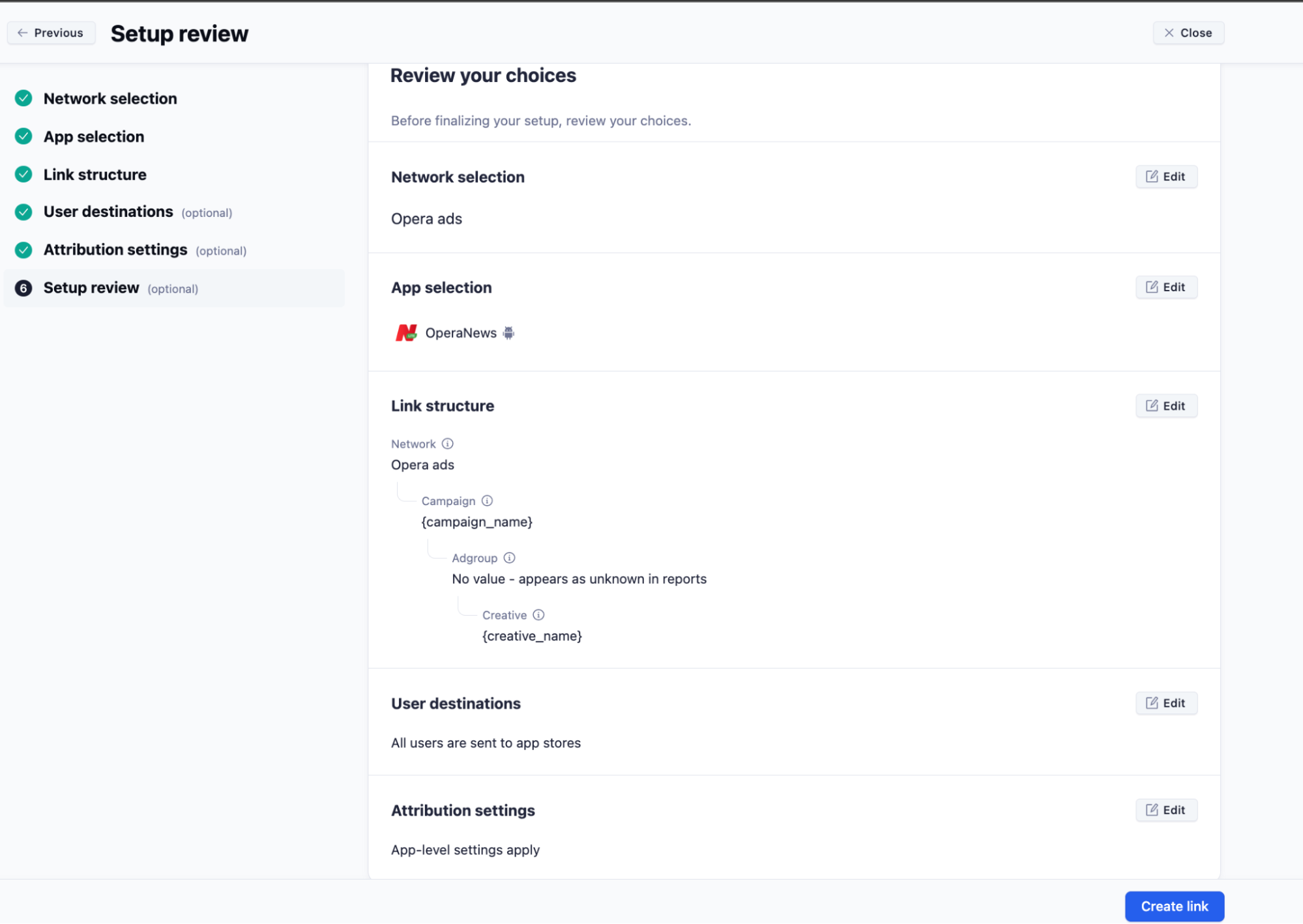
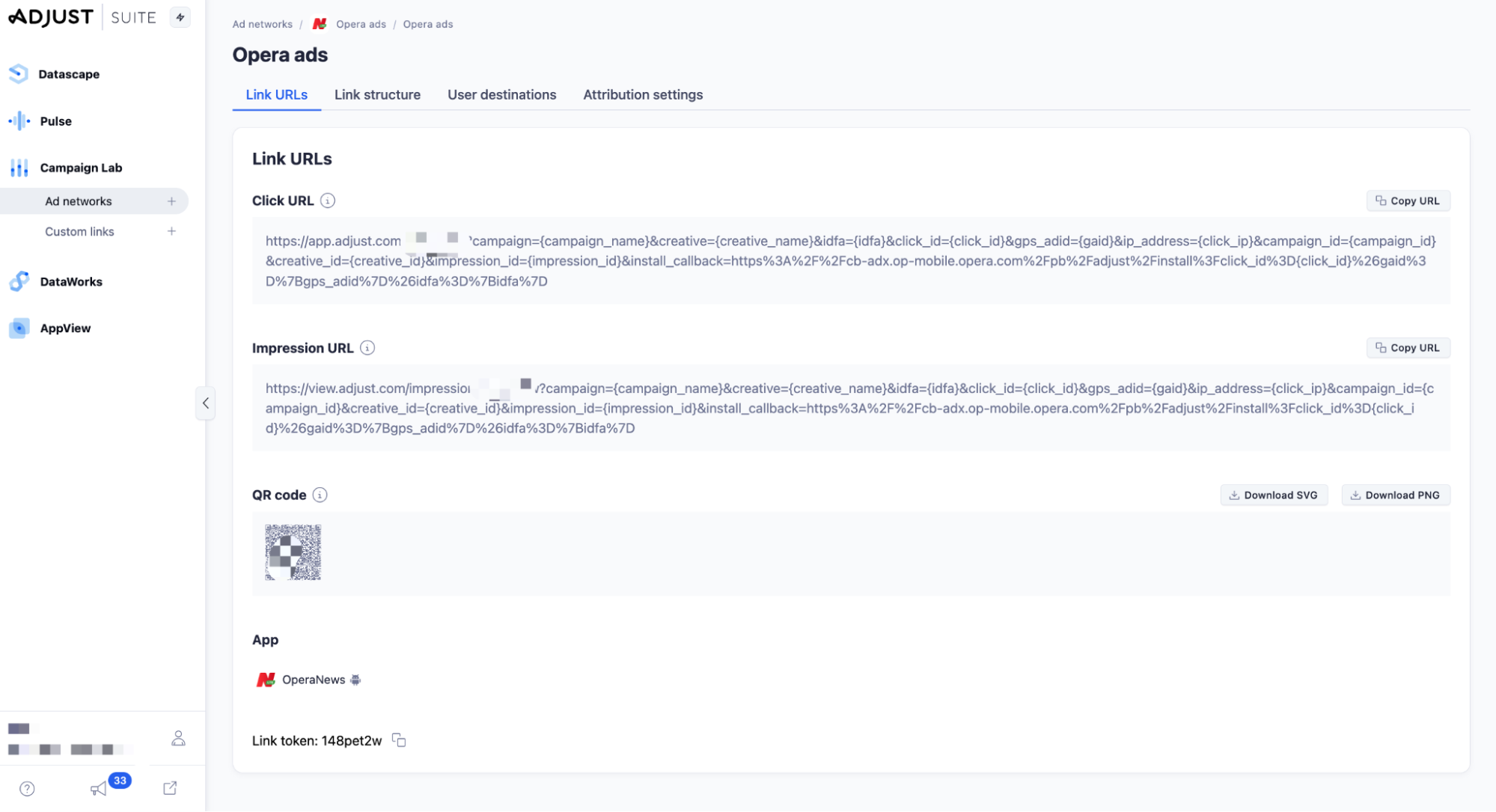
- In the Setup review screen, review your choices, and make any changes as necessary.Select Create link to generate the click URL, impression URL, QR code, and link token, and enable data sharing, if set up.
Enable Opera Ads in Campaign Lab
- Under Campaign Lab, select Partners.
- Select New partner.
- In the Partner selection screen, choose Opera Ads, and select Next.
- In the App selection screen, choose your app or apps, and select Next. Now, set your data sharing options.
In-App Events Postback via Adjust
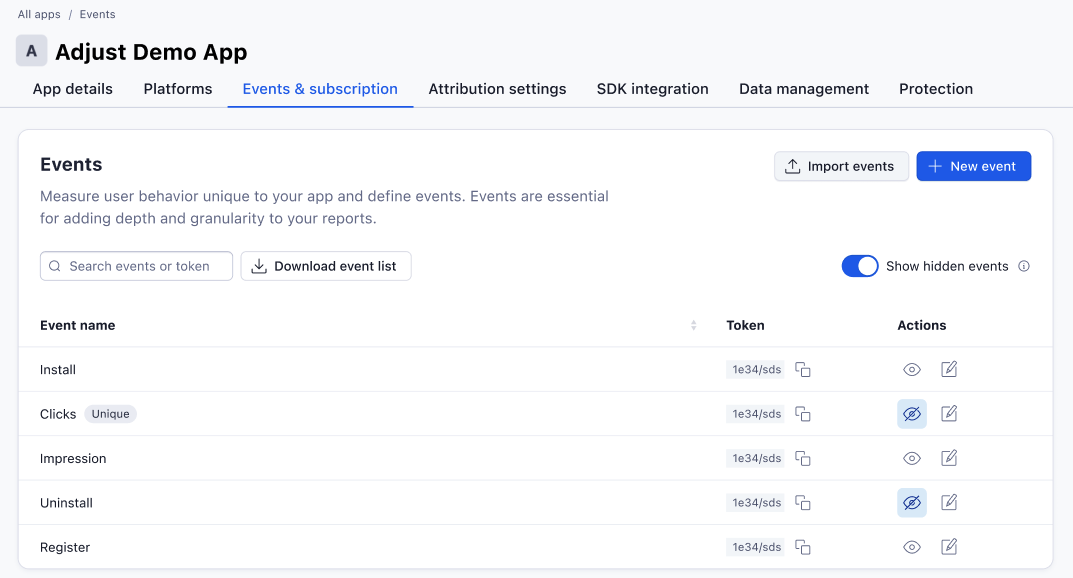
- 1 Under AppView, select All apps.
- 2 Select your app.
- 3 Select the Events tab.
- 4 Select Add event.
- 5 Enter your in-app Event name.
- 6 To instruct Adjust to record an event only once per device, select This is a unique event.
- Example: Registration event
- 7 Select Add event. This creates a unique event token for your event.
- 8 Share the Token - Event name list to Opera. Then, Opera could know what’s event when received the postback token
Adjust Official Help Center Reference -https://help.adjust.com/en/article/add-events
Enable data sharing for Opera Ads
Reference documentation:
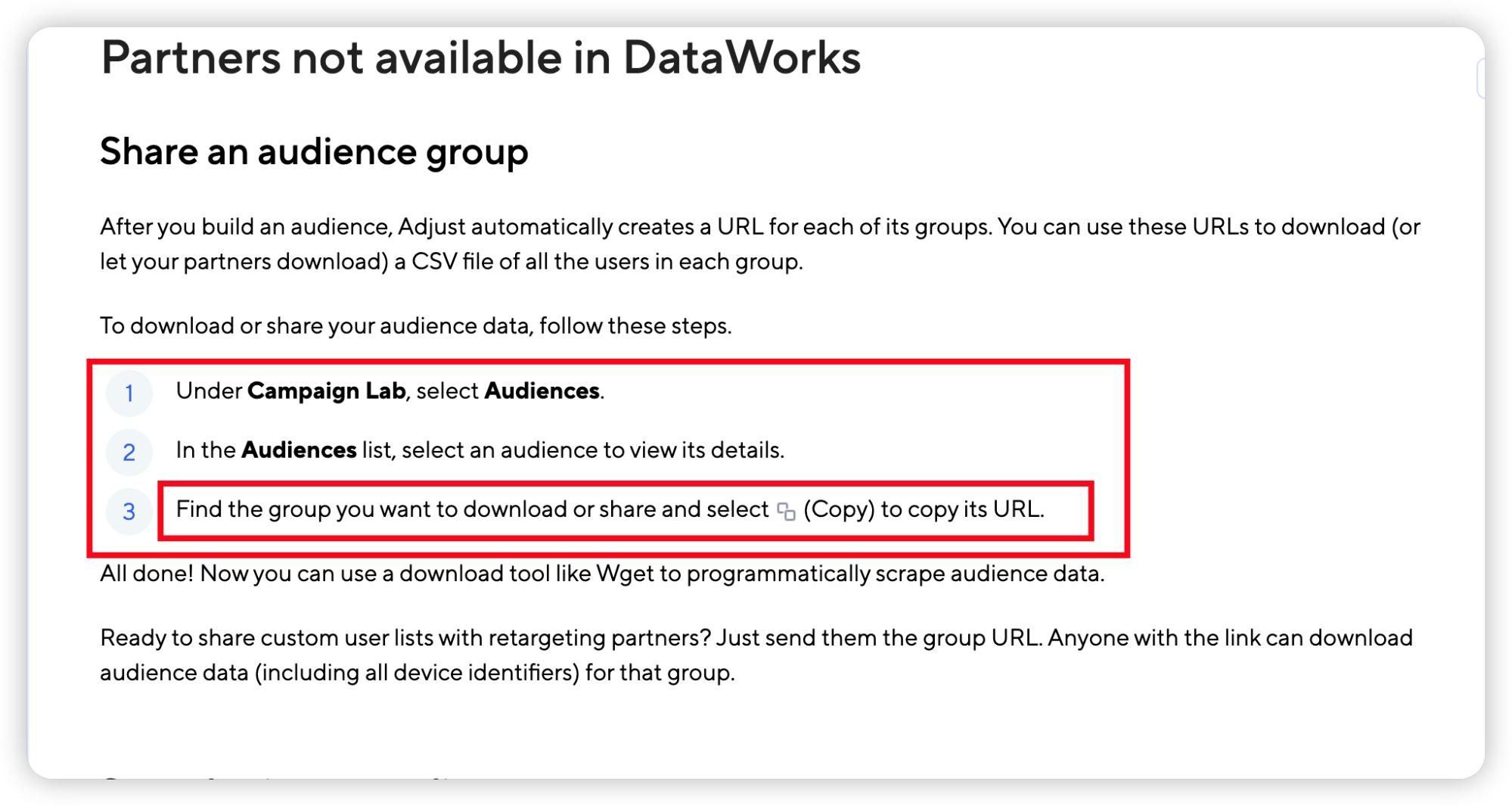
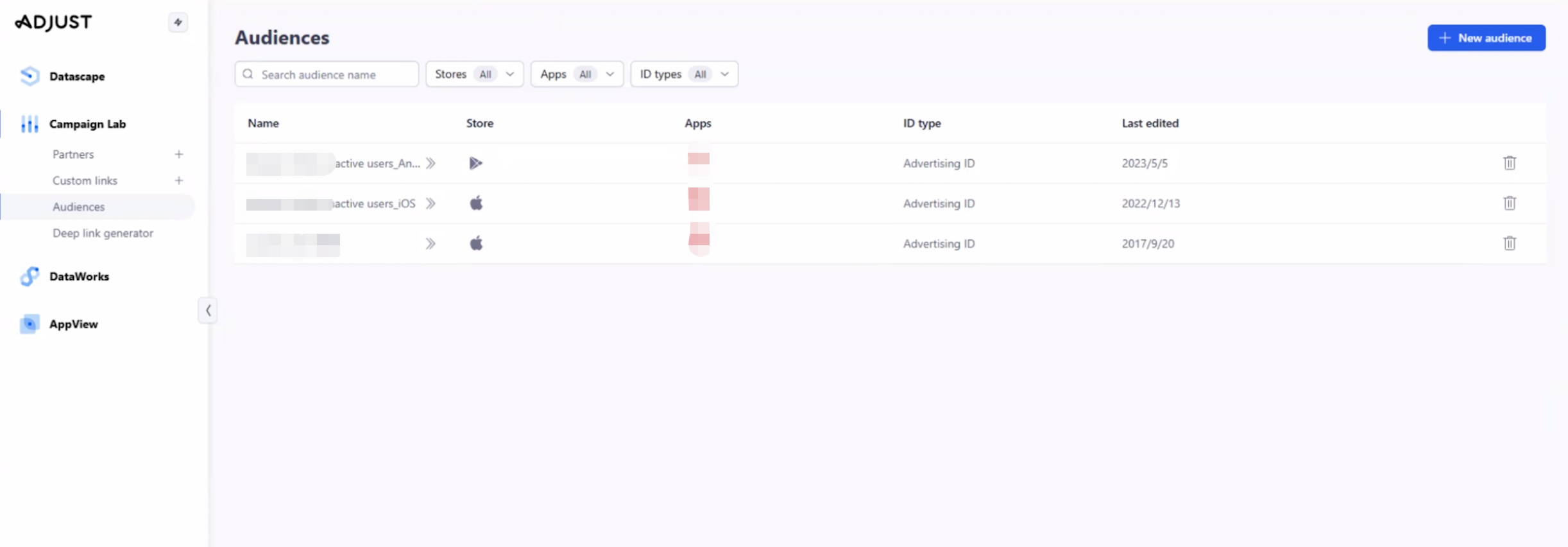
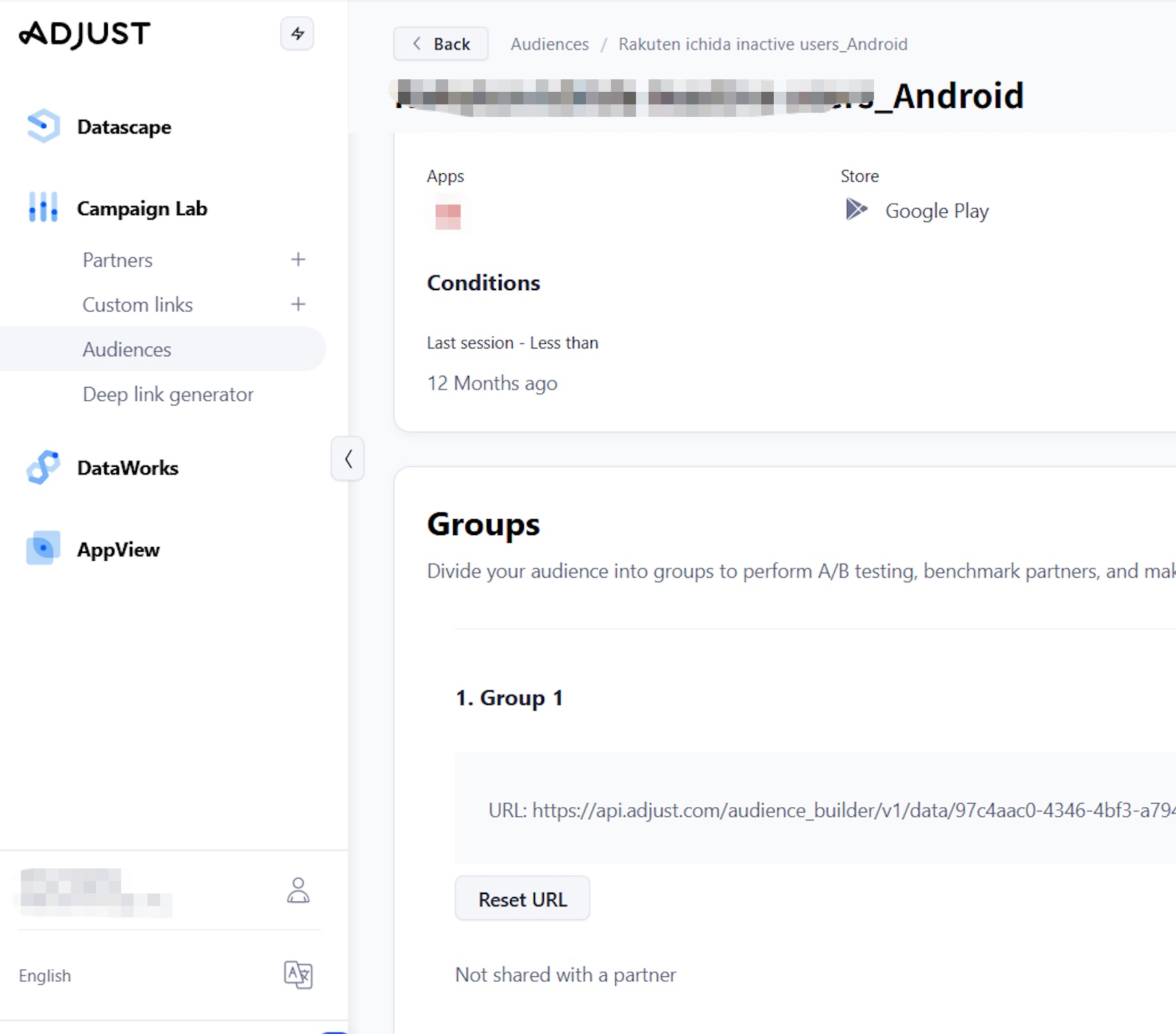
- Share Audiences with partners
https://help.adjust.com/en/article/share-audiences-with-partners
- Data sharing for ad network:
https://help.adjust.com/en/article/data-sharing-ad-network
See snapshots below: