
# Opera Ads Mediation Adapter Integration Guide
This guide explains how to integrate Opera Ads SDK through custom adapters into AdMob, TopOn (Anythink), and AppLovin MAX mediation platforms.
# Table of Contents
- Overview
- Prerequisites
- AdMob Mediation Integration
- TopOn (Anythink) Mediation Integration
- AppLovin MAX Mediation Integration
- Privacy Compliance
- FAQ
- Version Information
# Overview
Opera Ads provides custom adapters for major mediation platforms, supporting integration through:
- AdMob Mediation
- TopOn
- AppLovin
# Prerequisites
Before you begin, ensure that:
- You have registered on the Opera Ads Developer Platform (opens new window) and created your app
- You have obtained your Opera Ads App ID and Placement IDs for each ad unit
- You have created your app and ad units on the corresponding mediation platform (AdMob/TopOn/AppLovin)
# AdMob Mediation Integration by Custom Event
# Supported Ad Formats
| Ad Format supported on Opera Ads | AdMob |
|---|---|
| Banner (320x50, AdSize.BANNER) | AdSize.BANNER |
| MREC (300x250, AdSize.BANNER_MREC) | AdSize.MEDIUM_RECTANGLE |
| Interstitial | Interstitial |
| Rewarded | Rewarded |
| Native | Native |
# 1. Configure Custom Event in AdMob Console
You need to add Opera to the mediation configuration for your ad unit.
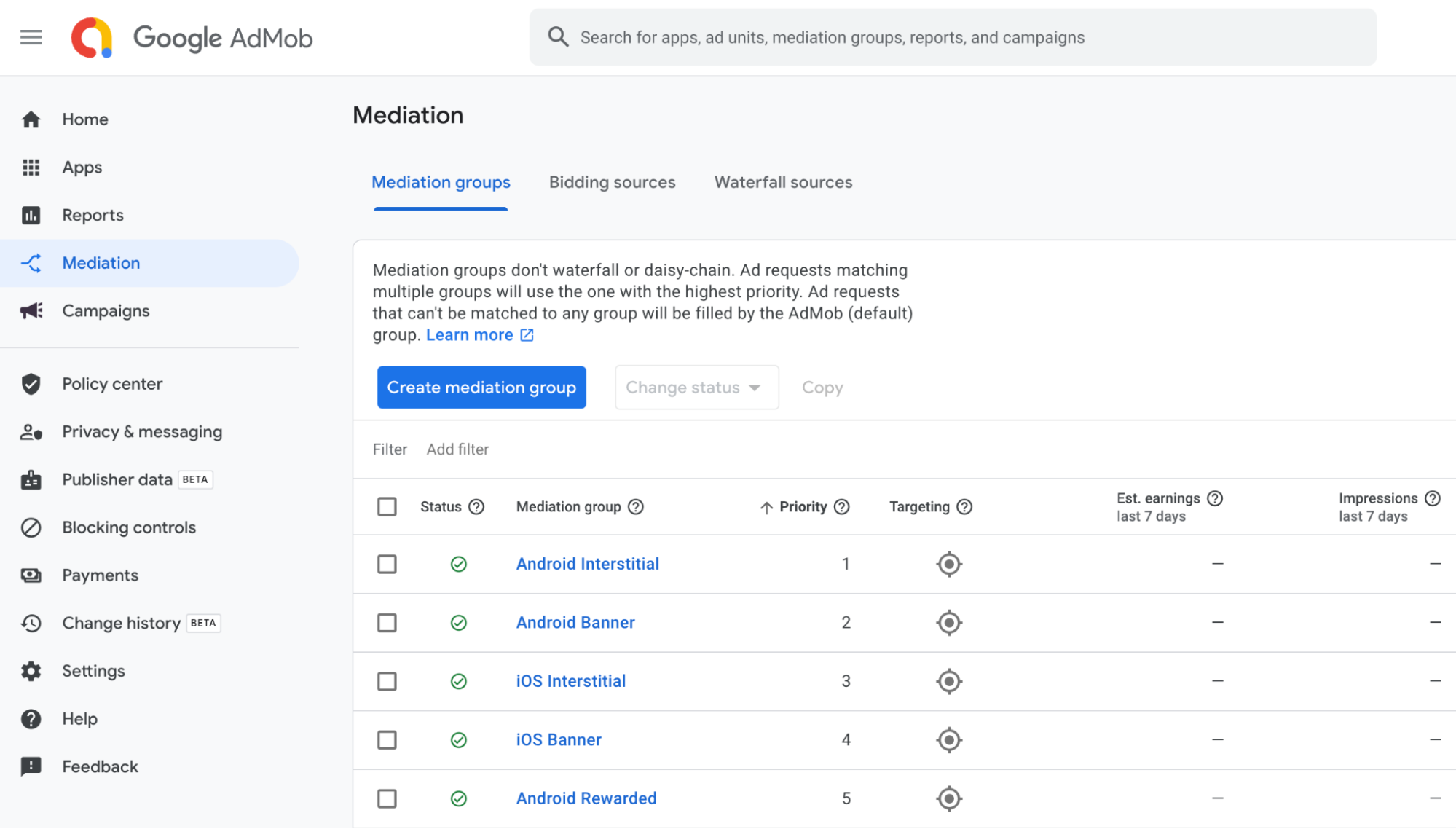
First, sign in to your AdMob account (opens new window). Next, navigate to the Mediation tab. If you have an existing mediation group you'd like to modify, click the name of that mediation group to edit it, and skip ahead to Add Opera as an ad source.
To create a new mediation group, select Create Mediation Group.
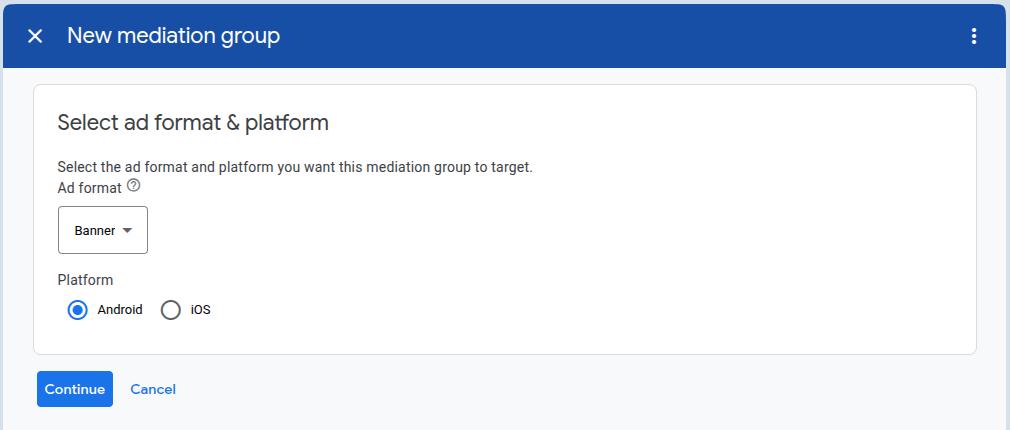
Enter your ad format and platform, then click Continue.
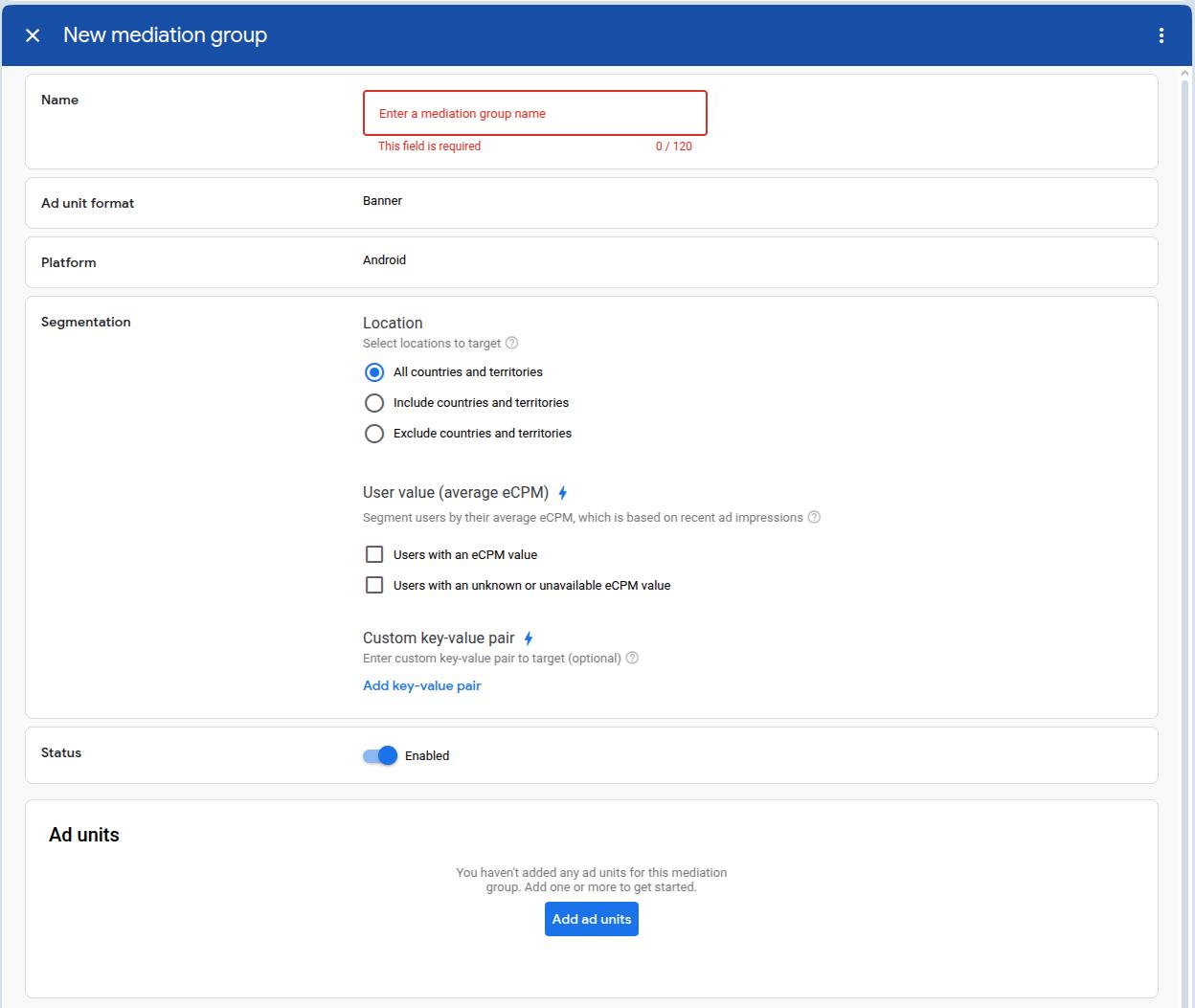
Give your mediation group a name, and select locations to target. Next, set the mediation group status to Enabled, and then click Add Ad Units.
Associate this mediation group with one or more of your existing AdMob ad units. Then click Done.
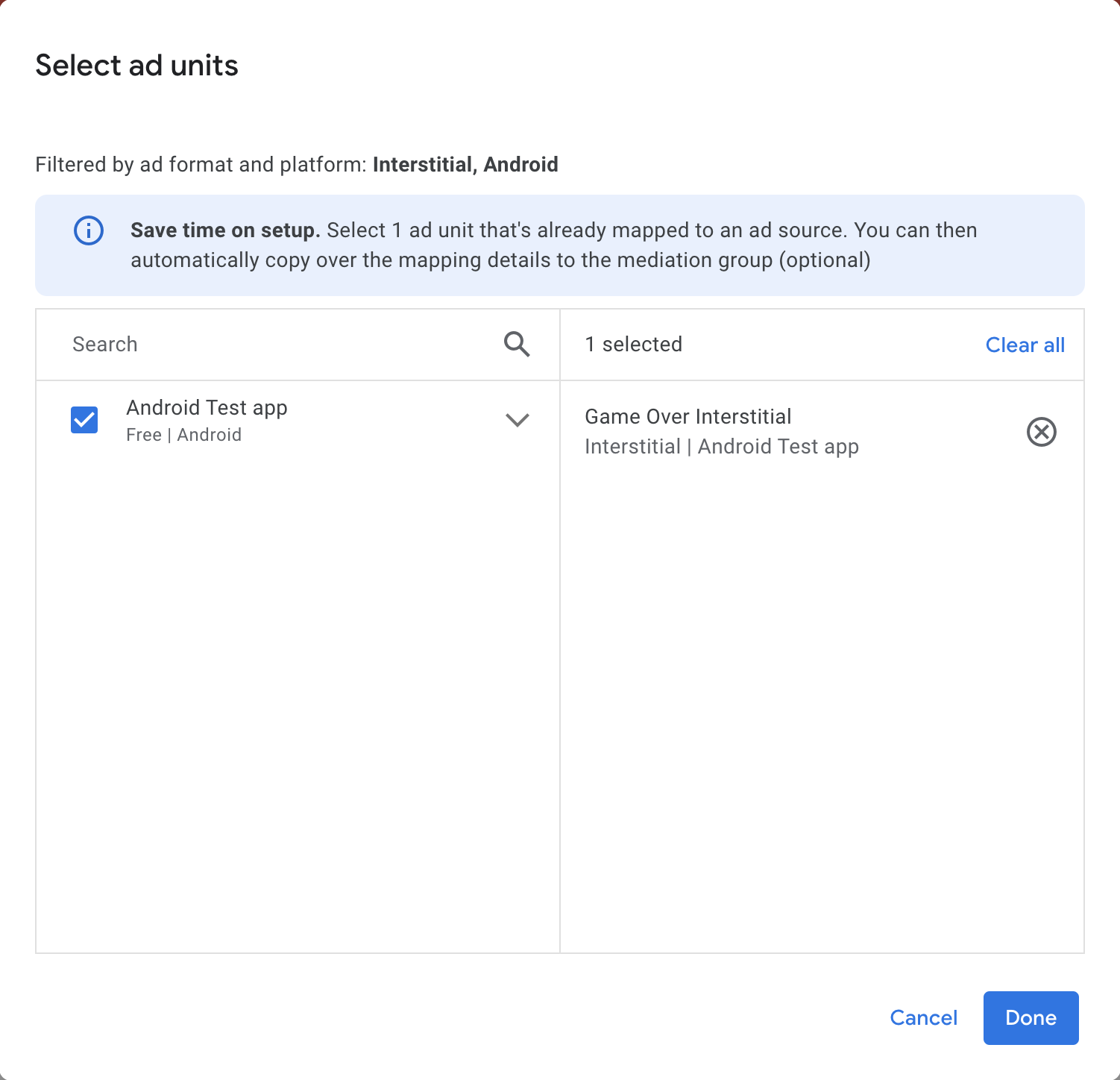
You should now see the ad units card populated with the ad units you selected:
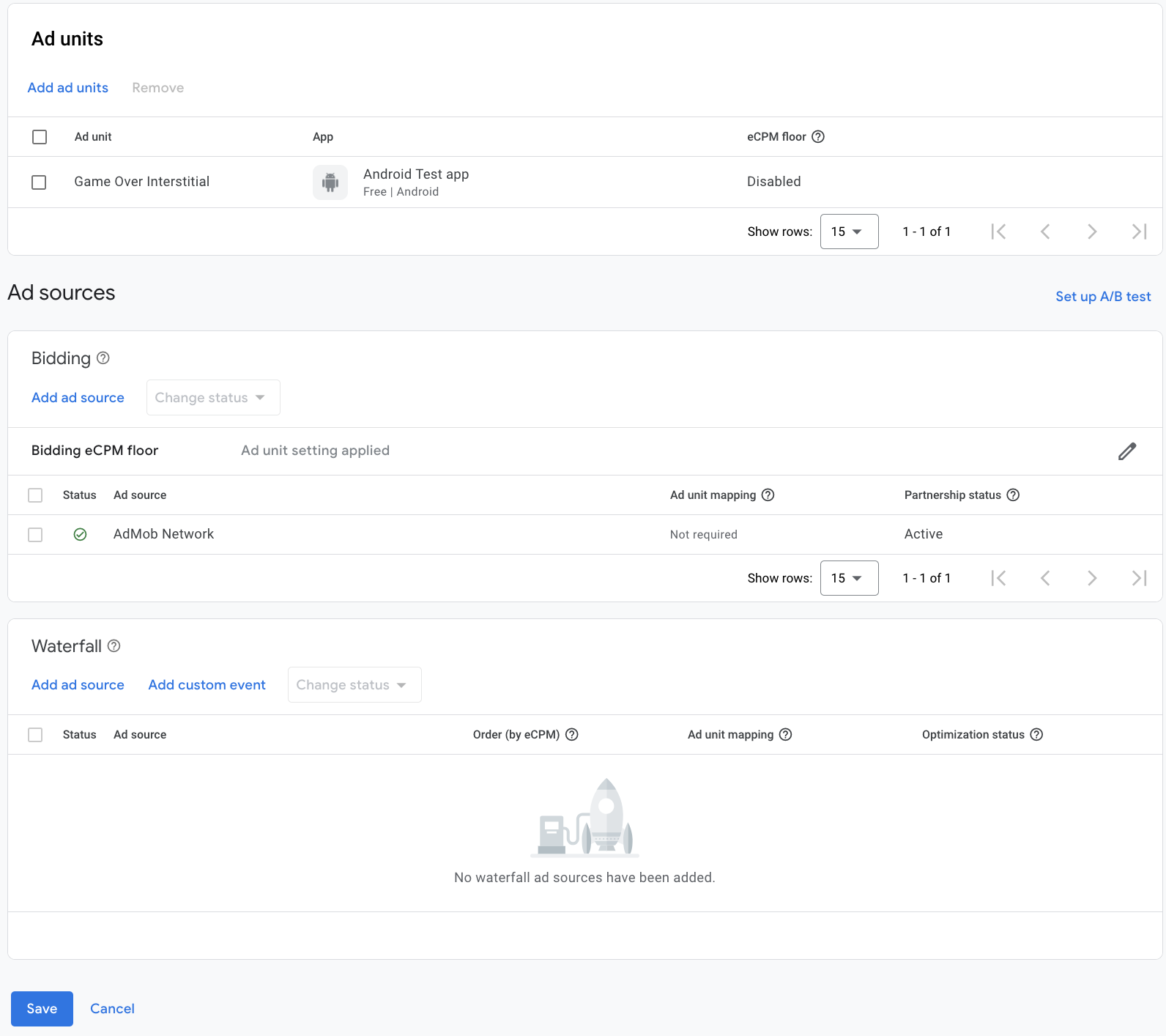
Add Opera as custom event
Under the Waterfall card in the Ad Sources section, select Add custom event. Fill in the “Label” and “eCPM”, and press continue.
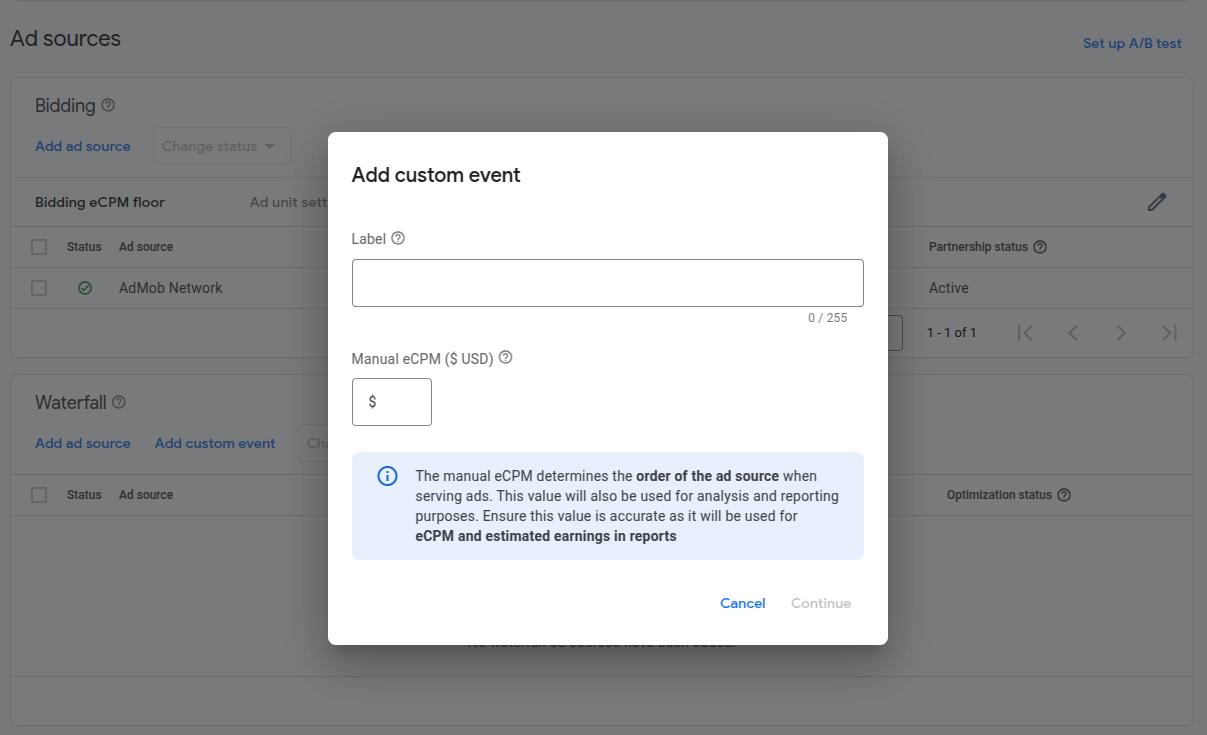
In the Map ad units popup window choose one AdMob ad unit to map to the custom event you just created, and click Add mapping. Click Add mapping again to get into the Edit ad unit mapping dialog.
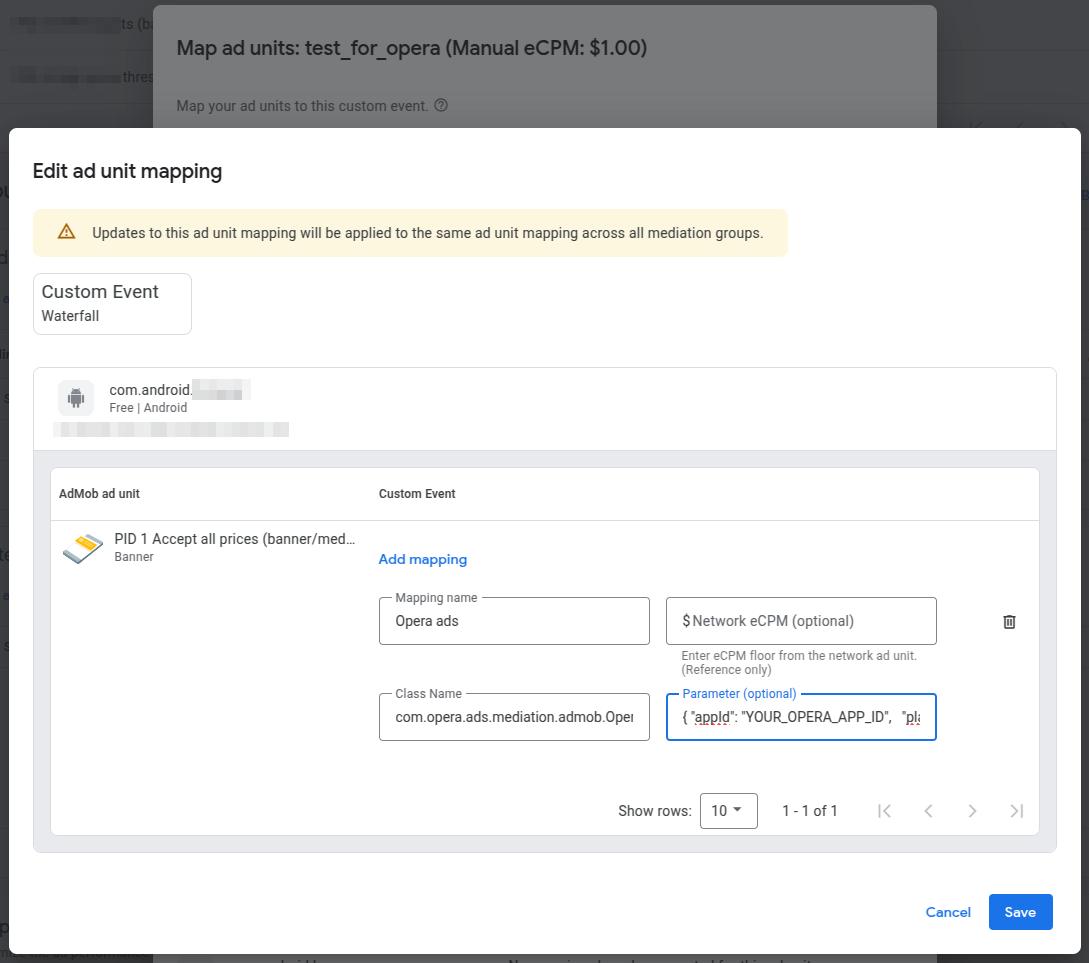
Name this mapping, and fill in the Class Name with “com.opera.ads.mediation.admob.OperaMediationAdapter”. The parameters is as following:
{
  "appId": "YOUR_OPERA_APP_ID",
  "placementId": "YOUR_OPERA_PLACEMENT_ID"
}
# 2. Add Dependencies
Add Opera Ads SDK maven repository:
repositories {
    maven {
        url = uri("https://artifact.op-mobile.opera.com/releases")
    }
}
Add the following dependencies to your app's build.gradle or build.gradle.kts file:
dependencies {
    // Opera Ads AdMob Adapter
    implementation 'com.opera:opera-ads-admob-adapter:2.2.0.0'

    // Google Mobile Ads SDK
    implementation 'com.google.android.gms:play-services-ads:24.8.0'
}
# 3. Additional code required
The AdMob SDK automatically initializes the Opera Ads SDK when loading ads. No additional initialization code is required.
# 4. Privacy Compliance
# GDPR
Please refer to https://doc.adx.opera.com/ofs/android/#gdpr (opens new window), Opera Ads SDK read application’s consent string automatically.
# COPPA
Opera Ads SDK reads the tag of TFUA from AdMob RequestConfiguration and passes it to the Ad network every time requesting an ad.
# CPPA
Please refer to https://doc.adx.opera.com/ofs/android/#u-s-states-privacy-ccpa (opens new window), to comply with US states privacy laws, you have to invoke “PrivacyManager.setUSPrivacy("....")” to set the status of CCPA manually.
# 5. Adapter Version Compatibility
| Adapter Version | Opera Ads SDK | AdMob SDK |
|---|---|---|
| 2.2.0.0 | 2.2.0 | 24.6.0+ |
#
# TopOn (Anythink) Mediation Integration
# Supported Ad Formats
| Ad Format supported on Opera Ads | TopOn |
|---|---|
| Banner (320x50, AdSize.BANNER) | Banner ( size = 320x50 ) |
| MREC (300x250, AdSize.BANNER_MREC) | Banner ( size = 300x250 ) |
| Interstitial | Interstitial |
| Rewarded | Rewarded Video |
| Native | Native |
# 1. Configure Custom Ad Network in TopOn Console
Refer to Custom Network (opens new window) on TopOn Mediation Network Guide for detailed information.
# 1.1 Add Custom Ad Network
- Sign in to the TopOn Console (opens new window)
- Navigate to Mediation → Network → Custom Network
- Click Add Custom Network
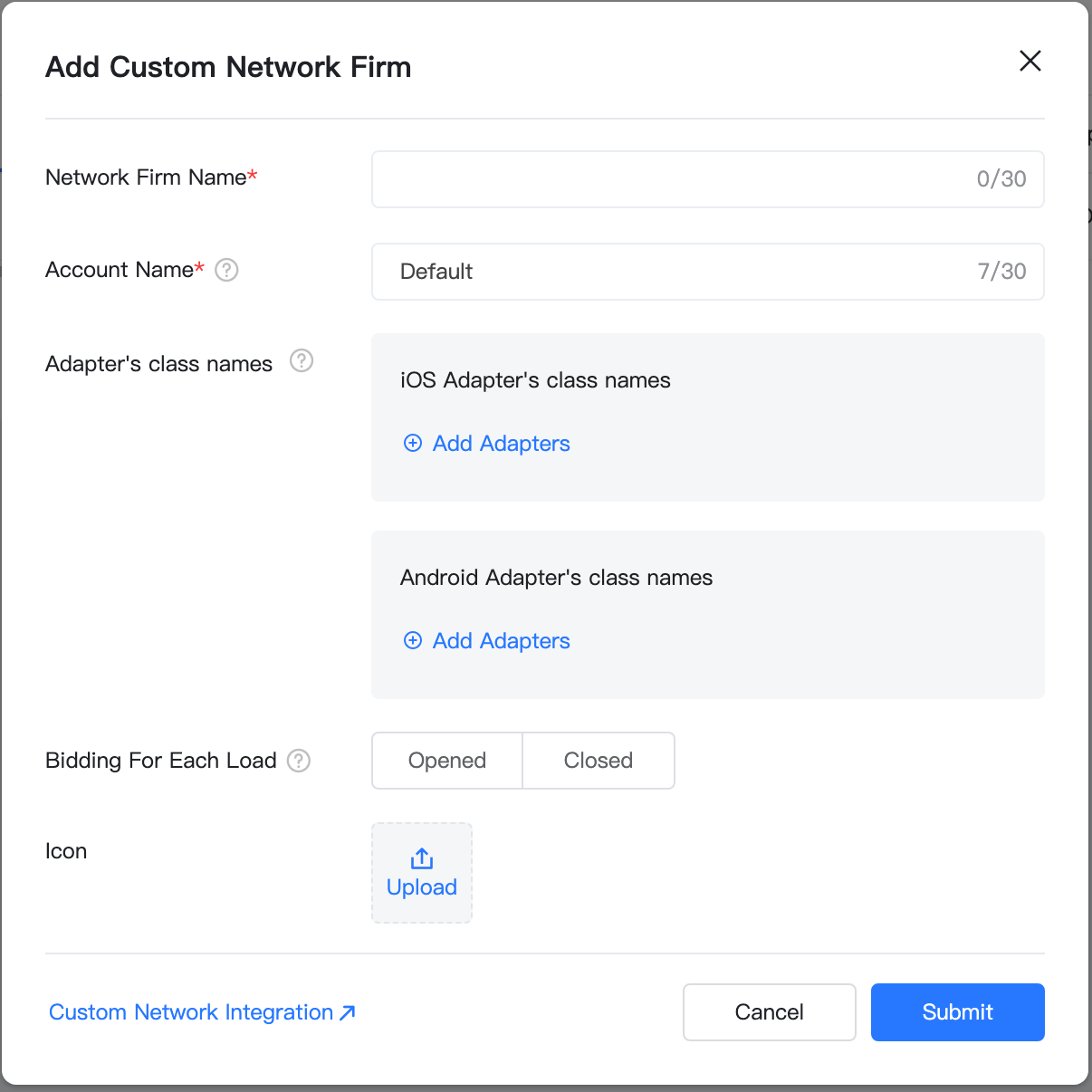
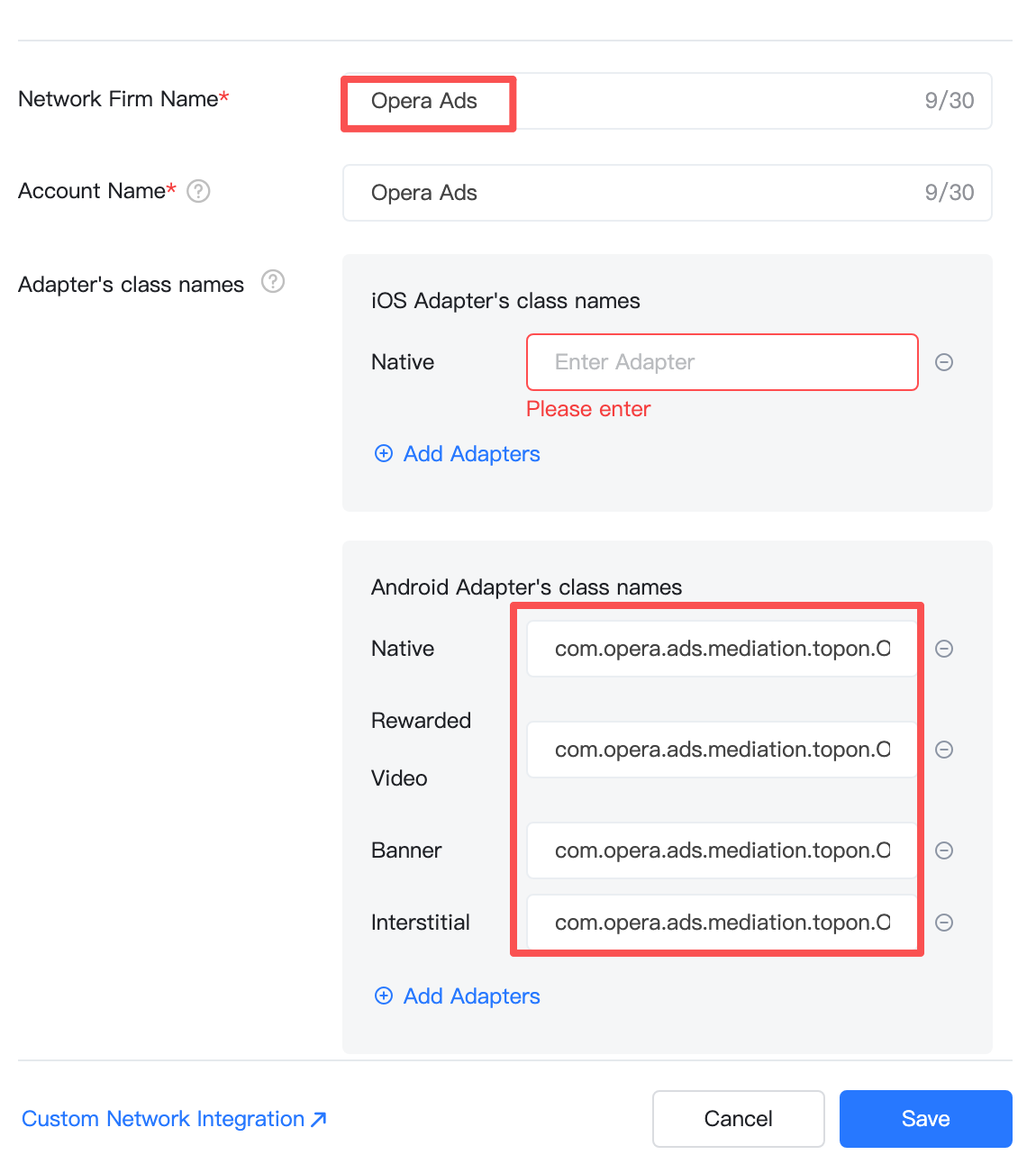
# 1.2 Configure Adapter Class Names for Different Ad Formats
TopOn requires separate adapter classes for each ad format:
| Ad Format | Adapter Class Name(Android) |
|---|---|
| Native | com.opera.ads.mediation.topon.OperaNativeAdapter |
| Banner | com.opera.ads.mediation.topon.OperaBannerAdapter |
| Interstitial | com.opera.ads.mediation.topon.OperaInterstitialAdapter |
| Rewarded | com.opera.ads.mediation.topon.OperaRewardAdapter |
# 1.3 Banner
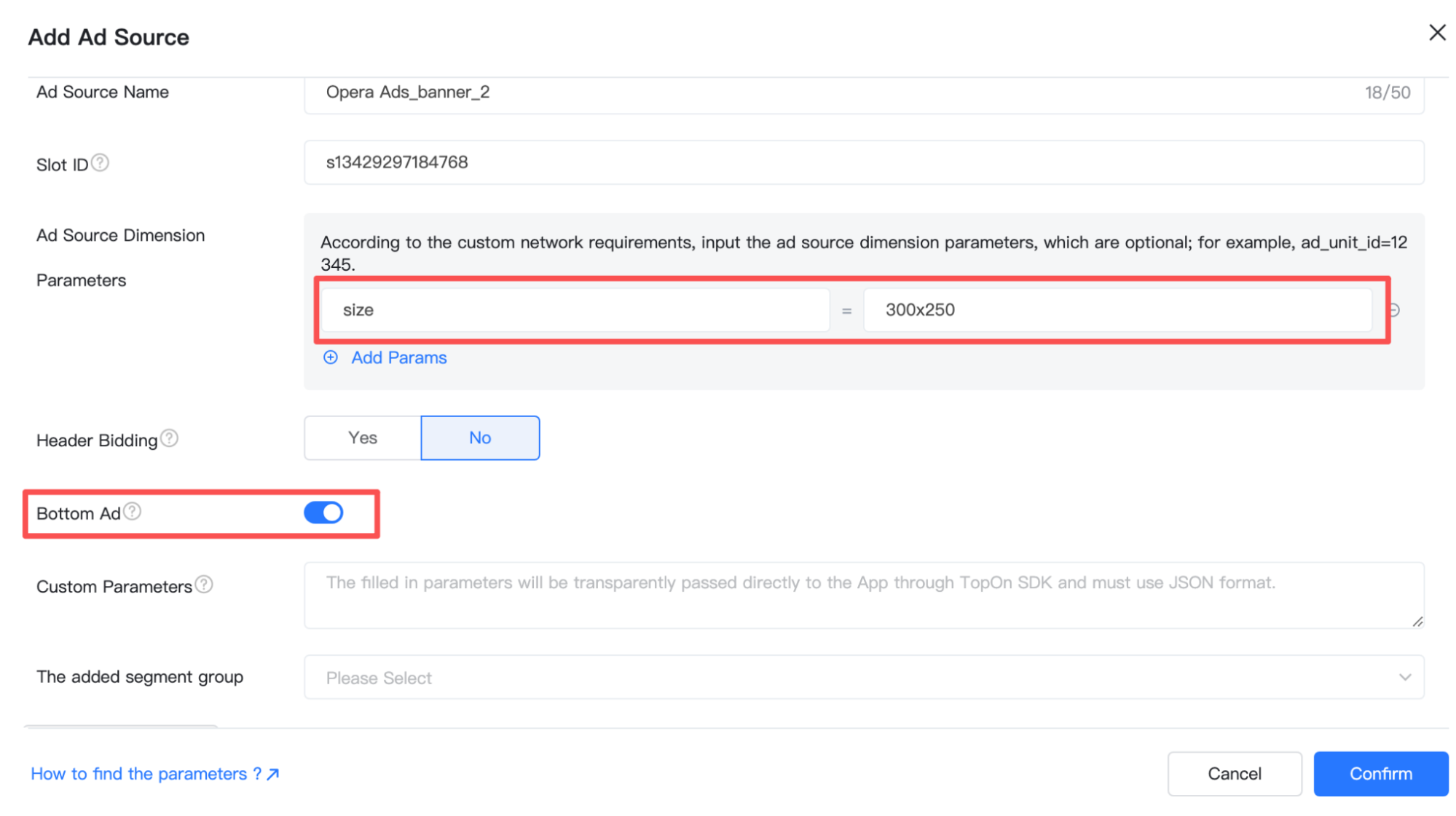
After Ad Network is added, click Ad Source Settings. Select banner format ad units, click Add Ad Source. Please set the correct size for corresponding Opera Banner AdSize when you add an “Ad Source” for the ad unit of Banner on TopOn console. The “size” of AdSize.Banner should be “320x50”, and for AdSize.BANNER_MREC it should be “300x250”.
And also please also make sure enable *Bottom Ads* on, for Opera Ads network to be the backfill ad network for unbidded requests.
# 2. Add Dependencies
Add Opera Ads SDK maven repository:
repositories {
    maven {
        url = uri("https://artifact.op-mobile.opera.com/releases")
    }
}
Add the following dependencies to your app's build.gradle or build.gradle.kts file:
dependencies {
    // Opera Ads TopOn Adapter
    implementation 'com.opera:opera-ads-topon-anythink-adapter:2.2.0.0'

    // TopOn SDK (Anythink package name - for SDK < 6.5.12)
    implementation 'com.anythink.sdk:core-tpn:6.4.17'
    implementation 'com.anythink.sdk:banner-tpn:6.4.17'
    implementation 'com.anythink.sdk:interstitial-tpn:6.4.17'
    implementation 'com.anythink.sdk:rewardedvideo-tpn:6.4.17'
    implementation 'com.anythink.sdk:nativead-tpn:6.4.17'
}
Note: The current adapter supports TopOn SDK 6.4.17 (com.anythink package name). For TopOn SDK >= 6.5.12 (com.secmtp.sdk package name), please refer to the official upgrade guide.
# 3. Additional code required
# Native Ad
You can place the Ad Choice Icon on the ad view via TopOn local extra parameters. The default position is top right, and “ATAdConst.AD_CHOICES_PLACEMENT_INVISIBLE” is not supported.
Map<String, Object> localExtra = new HashMap<>();
// Specify the position of the 'i' icon
localExtra.put(ATAdConst.KEY.AD_CHOICES_PLACEMENT, ATAdConst.AD_CHOICES_PLACEMENT_TOP_LEFT);
mATNative.setLocalExtra(localExtra);
# 4. Privacy Compliance
# GDPR
Please refer to https://doc.adx.opera.com/ofs/android/#gdpr (opens new window), Opera Ads SDK read application’s consent string automatically.
# COPPA
Please refer to https://doc.adx.opera.com/ofs/android/#coppa (opens new window). It’s recommended to use the API “PrivacyManager.setCoppa(...)” to set coppa status.
# CPPA
Please refer to https://doc.adx.opera.com/ofs/android/#u-s-states-privacy-ccpa (opens new window). It’s recommended to use the API “PrivacyManager.setUSPrivacy(...)” to set the compliance status of CCPA.
# 5. Adapter Version Compatibility
| Adapter Version | Opera Ads SDK | TopOn SDK |
|---|---|---|
| 2.2.0.0 | 2.2.0 | 6.4.17 ~ 6.5.11 |
#
# AppLovin MAX Mediation Integration
# Supported Ad Formats
| Ad Format supported on Opera Ads | AppLovin |
|---|---|
| Banner (320x50, AdSize.BANNER) | Banner |
| MREC (300x250, AdSize.BANNER_MREC) | MREC |
| Interstitial | Interstitial |
| Rewarded | Rewarded |
| Native | Native |
# 1. Configure Custom Network in AppLovin Console
Please refer to Integrating custom SDK networks (opens new window) on Max Mediated network guides for detailed information.
# 1.1 Add Custom SDK Network
- Sign in to the AppLovin MAX Dashboard (opens new window)
- Navigate to MAX → Mediation → Manage → Networks
- Click Click here to add a Custom Network at the bottom of the page.
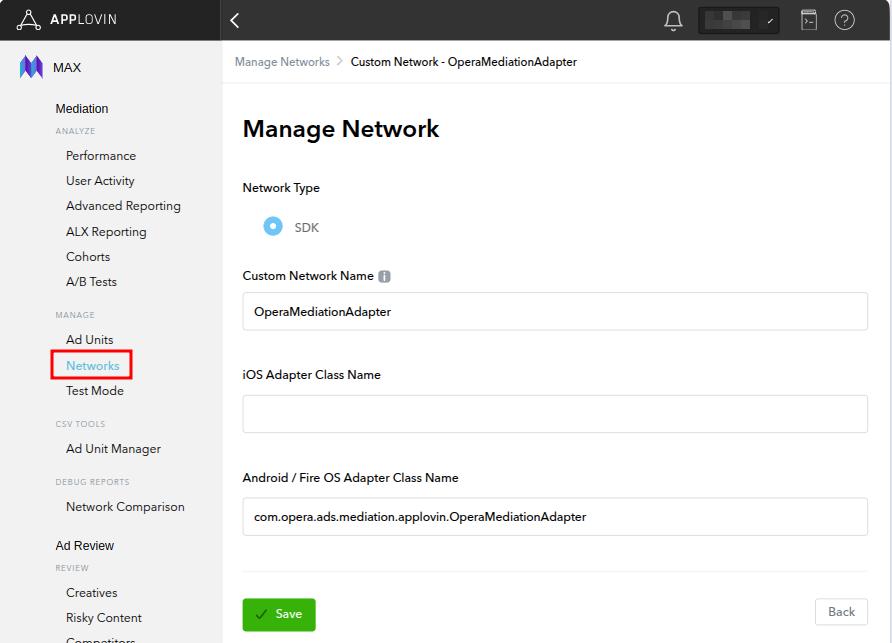
- Fill in the following information:
- Network Type: SDK
- Network Name: OperaMediationAdapter
- Android / Fire OS Adapter Class Name:
com.opera.ads.mediation.applovin.OperaMediationAdapter
# 1.2 Configure Ad Units
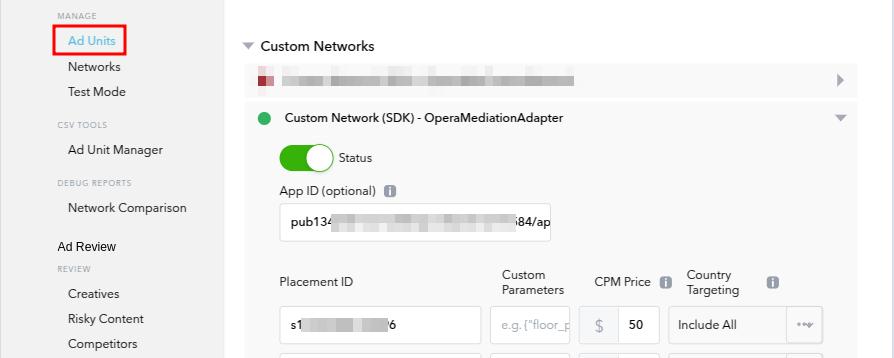
On the Ad Units page, add Opera Ads as an ad source for each ad unit:
- Select an ad unit → Custom Networks → Find OperaMediationAdapter
- Click Enable to activate it
- Configure Custom Parameters
Parameter Description:
App ID: Your App ID from Opera Ads (required)Placement ID: Placement id from Opera Ads.
# 2. Add Dependencies
Add Opera Ads SDK maven repository:
repositories {
    maven {
        url = uri("https://artifact.op-mobile.opera.com/releases")
    }
}
Add the following dependencies to your app's build.gradle or build.gradle.kts file:
dependencies {
    // Opera Ads AppLovin Adapter
    implementation 'com.opera:opera-ads-applovin-adapter:2.2.0.0'

    // AppLovin MAX SDK
    implementation 'com.applovin:applovin-sdk:13.5.0'
}
# 3. Additional code required
No additional code is required for InMobi integration.
# 4. Privacy Compliance
# GDPR
Please refer to https://doc.adx.opera.com/ofs/android/#gdpr (opens new window), Opera Ads SDK read application’s consent string automatically.
# COPPA
Please refer to https://doc.adx.opera.com/ofs/android/#coppa (opens new window). It’s recommended to use the API “PrivacyManager.setCoppa(...)” to set coppa status.
# CPPA
OperaMediationAdapter updates the compliance status of CCPA from Applovin mediation configuration automatically requesting ads. But you can use the API “PrivacyManager.setUSPrivacy(...)” to change or reset the status. Please refer to https://doc.adx.opera.com/ofs/android/#u-s-states-privacy-ccpa (opens new window) for more information.
# 5. Adapter Version Compatibility
| Adapter Version | Opera Ads SDK | AppLovin SDK |
|---|---|---|
| 2.2.0.0 | 2.2.0 | 13.5.0+ |
#
# FAQ
# 1. Ads Fail to Load
Possible Causes:
- Incorrect App ID or Placement ID configuration
- Opera Ads SDK not initialized properly
- Network issues or low ad fill rate
Solutions:
- Verify that console configuration parameters are correct
- Enable logging to view detailed error information:
# 2. How to Test Opera Ads
The Opera Ads SDK automatically returns test ads in debug mode. Ensure:
- Add your device as a test device in the Opera Ads console (opens new window)
# 3. Banner Auto-Refresh
Opera Ads Adapters automatically disable the Opera Ads SDK's auto-refresh feature, allowing the mediation platform to control refresh logic:
// Automatically called inside the adapter
bannerAdView.setAutoRefreshEnabled(false);
# Technical Support
For questions or support, please contact:
- Documentation: Opera Ads Developer Documentation (opens new window)
- Technical Support: ad-sdk-support-list@opera.com